Customer Transactions
Anything that costs money in the system is recorded as a transaction under the customer.
Every transaction has a monetary amount for wholesale cost and retail cost, and a description of what the transaction is for.
Transactions can be automatically generated by the system, for example, when a service is provisioned, a transaction is created for the setup cost, and when a service is billed, a transaction is created for the retail cost.
Transactions can also be manually created, for example, if a customer is given a credit, a transaction is created for the credit amount, or an installation fee is charged, a transaction is created for the installation fee.
Transactions are grouped together to form Invoices, which is sent to the customer for payment.
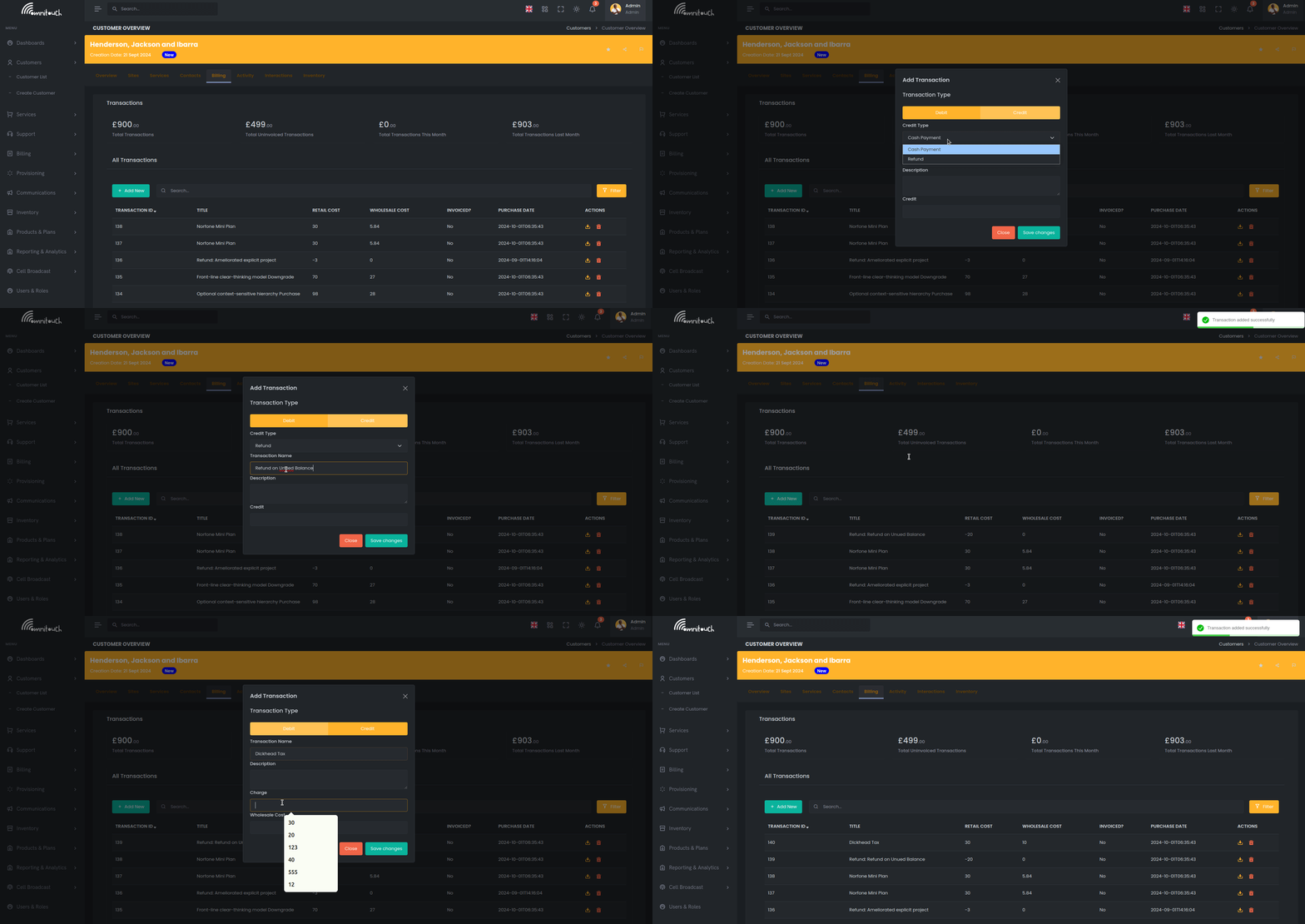
Accessing Transactions
Transactions can be viewed at the system level or per-customer:
Per-Customer View:
- Navigate to Customers → [Select Customer]
- Click Billing tab
- View transactions list in the first card
System-Wide View:
- Navigate to Billing → Transactions (from main menu)
- View all transactions across all customers
Transaction Statistics Widgets
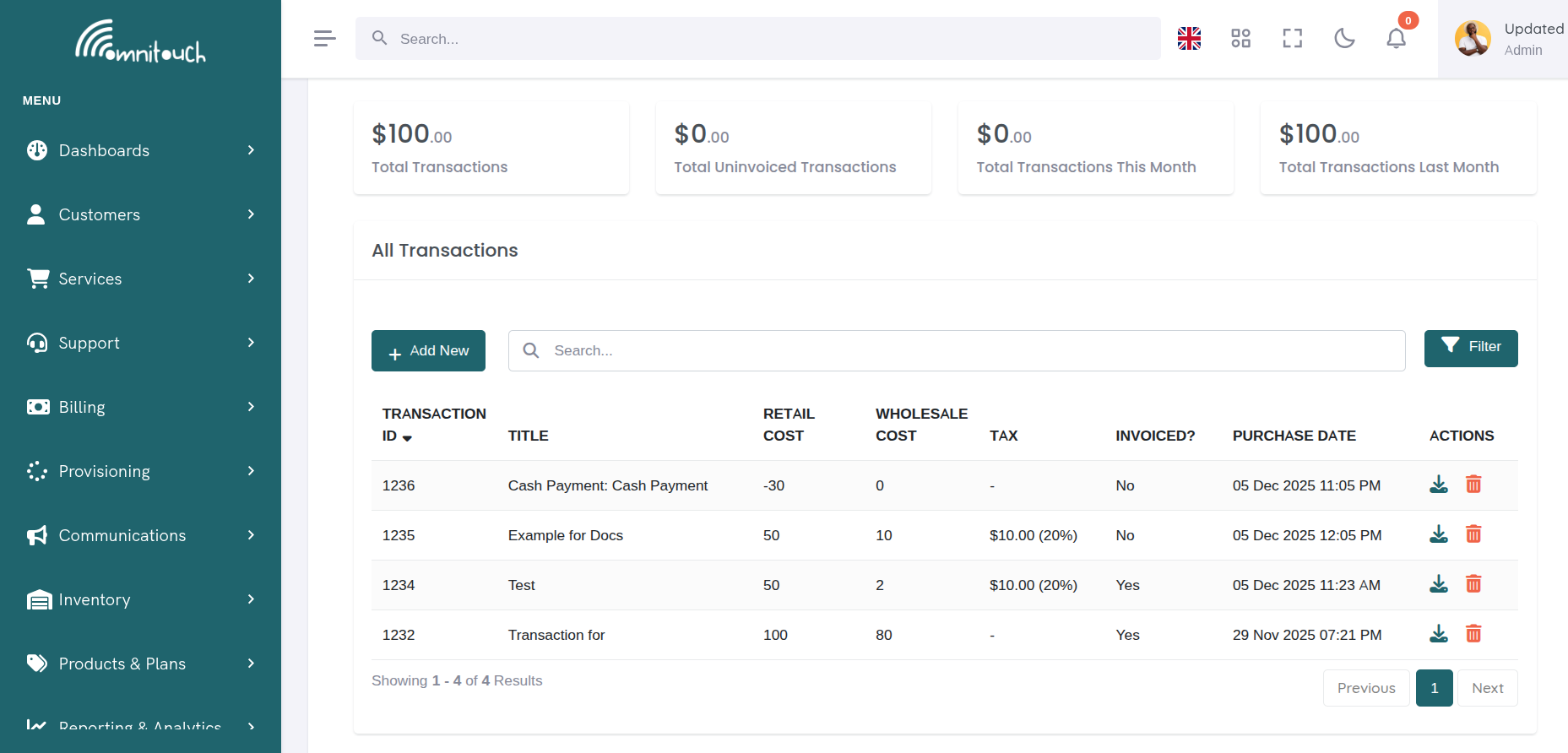
At the top of the transactions page, four statistics cards display financial summaries:

Widget Descriptions:
- Total Transactions - Sum of all transaction retail costs (all time)
- Total Uninvoiced Transactions - Sum of transactions not yet included in an invoice
- Total Transactions This Month - Sum of transactions created this calendar month
- Total Transactions Last Month - Sum of transactions created last calendar month
Value Formatting:
- Values over 1,000: Display as "k" suffix (e.g., $1.5k)
- Values over 1,000,000: Display as "M" suffix (e.g., $2.3M)
- Values over 1,000,000,000: Display as "B" suffix (e.g., $1.1B)
Transactions List
The transactions table displays all transactions with the following columns:
Column Descriptions:
- ID - Unique transaction ID
- Date - Transaction creation date
- Title - Short transaction name
- Description - Detailed description of what the transaction is for
- Amount - Retail cost (positive for charges, negative for credits)
- Invoice - Invoice ID if transaction has been invoiced (clickable link)
- Status - Checkmark if invoiced, dash if not yet invoiced
Actions Per Row:
Each row has an actions menu (⋮) with options:
- View Details - Opens transaction detail modal
- Download Invoice PDF - Download PDF (only if invoiced)
- Void Transaction - Mark transaction as void (only if not invoiced)
Transaction Types
Transactions fall into two main categories:
Debit Transactions (Charges)
Positive amounts that increase customer balance owed:
- Service Setup Fees - One-time charges when service provisioned
- Monthly Service Fees - Recurring charges for services
- Installation Fees - Charges for field technician visits
- Equipment Charges - Charges for modems, routers, SIM cards
- Late Payment Fees - Penalties for overdue invoices
- Manual Charges - Custom charges added by staff
Credit Transactions (Payments/Refunds)
Negative amounts that decrease customer balance owed:
- Cash Payments - Customer paid by cash
- Card Payments - Customer paid by credit/debit card
- Bank Transfer Payments - Customer paid via bank transfer
- Account Credits - Goodwill credits, compensation
- Refunds - Money returned to customer
- Discounts - Promotional or loyalty discounts
Adding a Transaction Manually
Click "+ Add Transaction" to open the add transaction modal.
Debit Transaction (Charge):
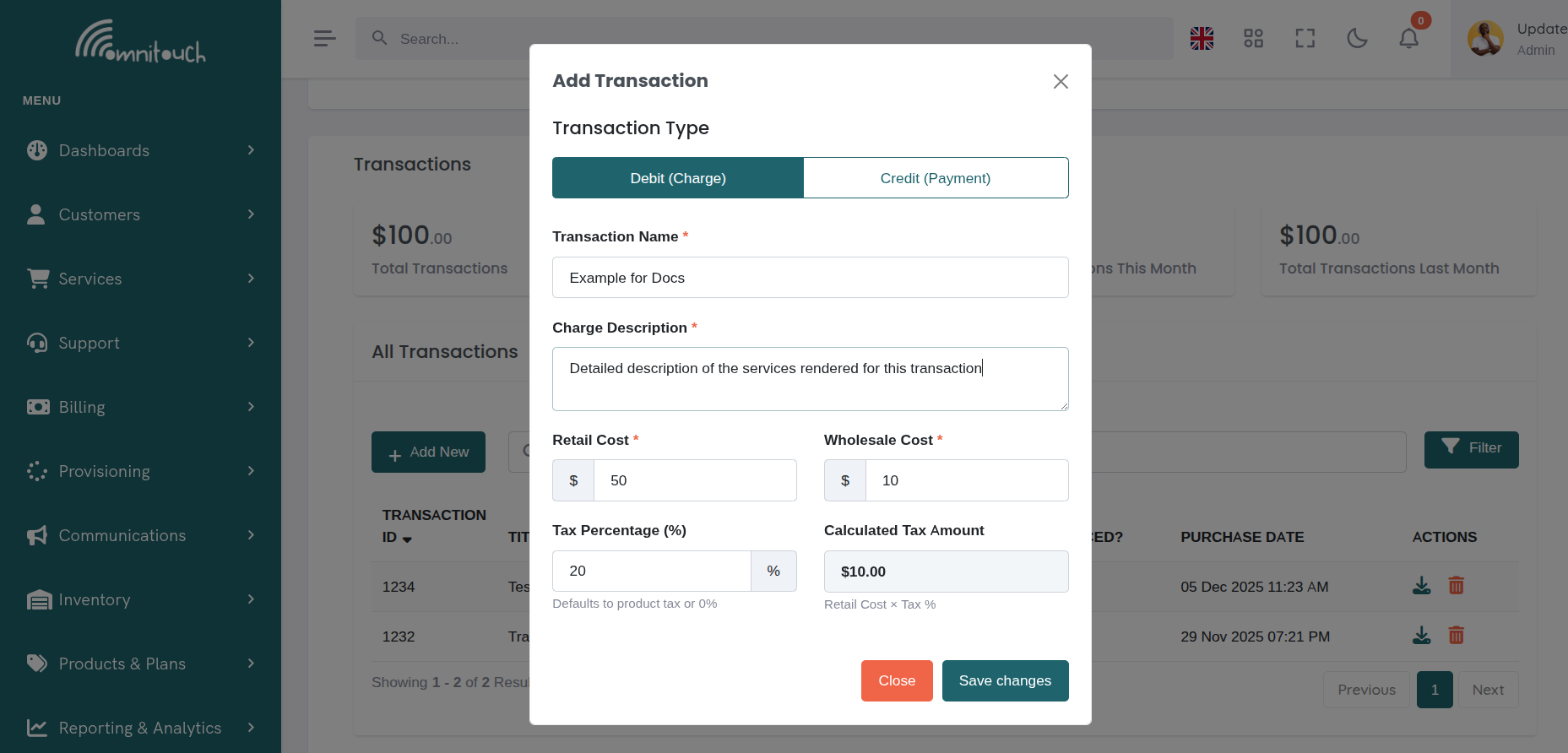
Credit Transaction (Payment/Refund):
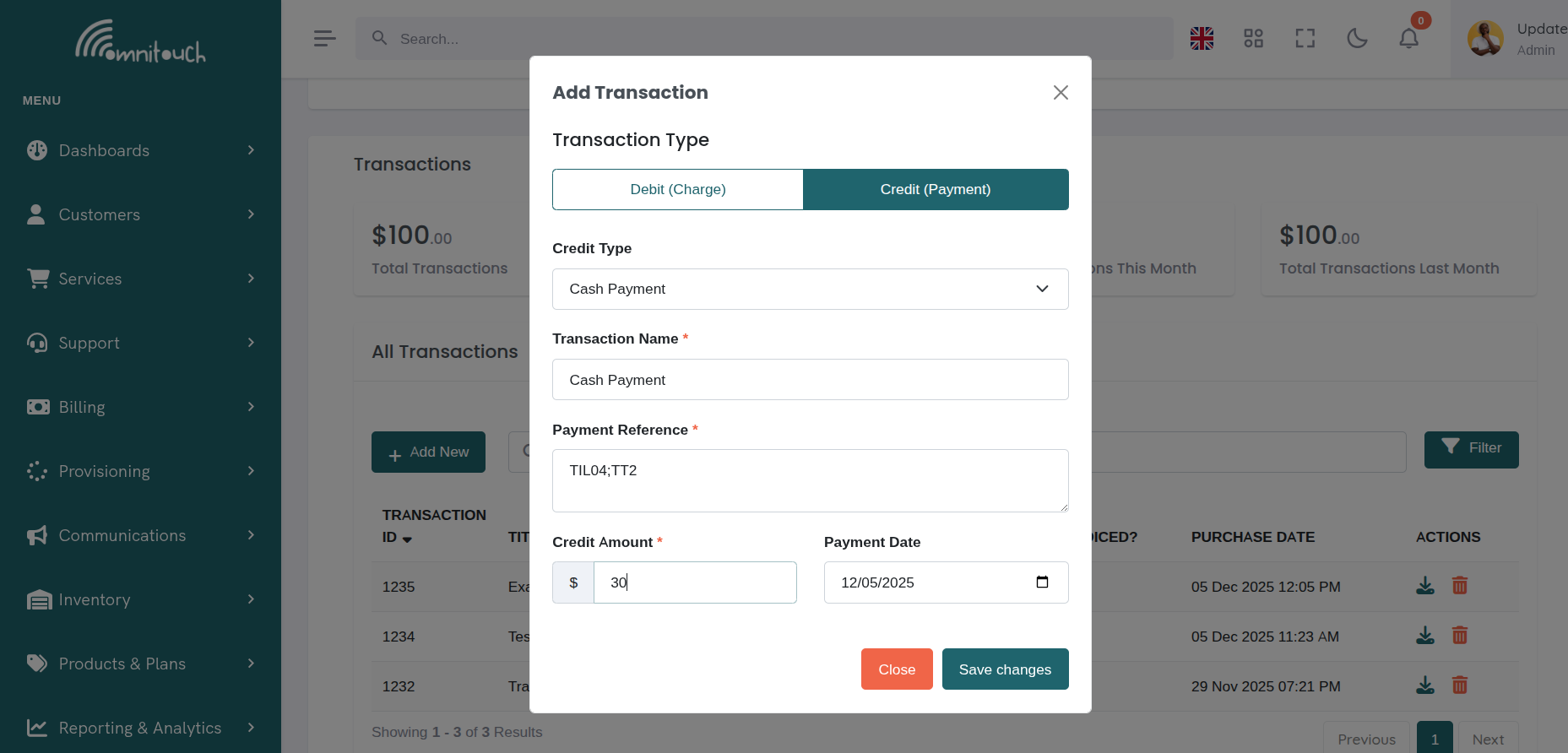
Field Descriptions:
- Transaction Type - Select Debit (charge) or Credit (payment/refund)
- Credit Type - If Credit selected, choose payment method (Cash, Card, Bank Transfer)
- Title - Short name for transaction (required)
- Description - Detailed explanation (optional)
- Retail Cost - Amount customer pays (required, positive number)
- Wholesale Cost - Your cost (optional, for margin tracking)
- Tax Percentage - Tax rate applied to this transaction (optional, defaults to product tax or 0%)
- Service - Link transaction to specific service (optional)
- Site - Link transaction to specific site (optional)
- Transaction Date - Date of transaction (defaults to today)
Validation:
- Title and retail cost are required
- Retail cost must be a positive number
- If Credit type selected, a credit type must be chosen
What Happens:
- Transaction created in database
- Appears in customer's transactions list
- Included in "Uninvoiced Transactions" count
- Available for inclusion in next invoice generation
- Activity log entry created
Searching and Filtering Transactions
Search
Use the search bar to find transactions. Searches across:
- Transaction ID
- Title
- Description
- Invoice ID
Filters
Apply filters to narrow transaction list:
Available Filters:
- Void Status - All, Void, Not Void
- Invoice Status - All, Invoiced, Not Invoiced
Filter Actions:
- Apply Filters - Apply selected filters to list
- Reset Filters - Clear all filters and show all transactions
Sorting
Click any column header to sort:
- ID - Sort by transaction ID (newest/oldest)
- Date - Sort by transaction date
- Title - Sort alphabetically
- Amount - Sort by retail cost (highest/lowest)
- Invoice - Sort by invoice ID
Click again to reverse sort direction (ascending ↔ descending).
Voiding Transactions
Transactions added in error can be voided (marked as deleted).
Requirements:
- Transaction must NOT be invoiced
- Once invoiced, transactions cannot be voided (must be refunded instead)
How to Void:
- Locate transaction in list
- Click actions menu (⋮)
- Select "Void Transaction"
- Confirm in modal
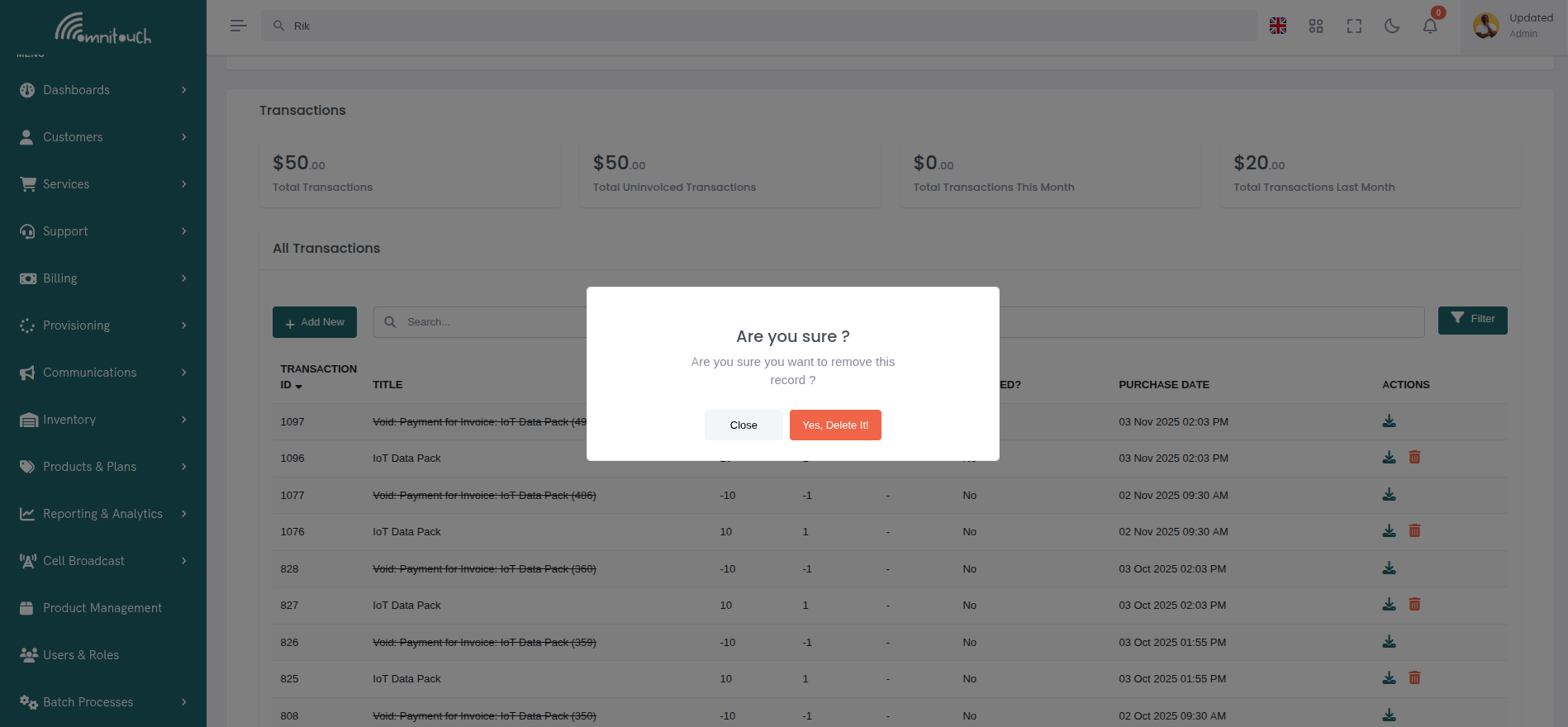
What Happens:
- Transaction marked as
void = true - No longer appears in default transaction list
- Excluded from invoice generation
- Can be viewed by filtering for "Void" transactions
- Deducted from "Uninvoiced Transactions" total
Wallet-linked transactions (wallet_ledger_id set):
- Wallet balance is reversed before void (debit to undo a credit, credit to undo a debit)
- Add Funds card top-up (
payment_type=wallet_topup_card): wallet debited and card refunded - Cash top-up / wallet invoice payment / other wallet lines: wallet adjusted only; no card refund
- Insufficient wallet: void fails if topped-up funds were already spent (transaction stays active)
Service / provisioning charges from hybrid capture usually have no wallet_ledger_id on the
billing line (card → wallet → debit happens internally). Voiding those lines only sets void=true today;
full wallet credit for service voids is planned on the financial-documents branch.
API: DELETE /crm/transaction/transaction_id/{transaction_id}. See
payment_system_guide.md: Void Transaction.
Note: Voiding is NOT the same as refunding. Void means "this transaction should never have existed." Refund means "reverse a valid transaction."
Tax on Transactions
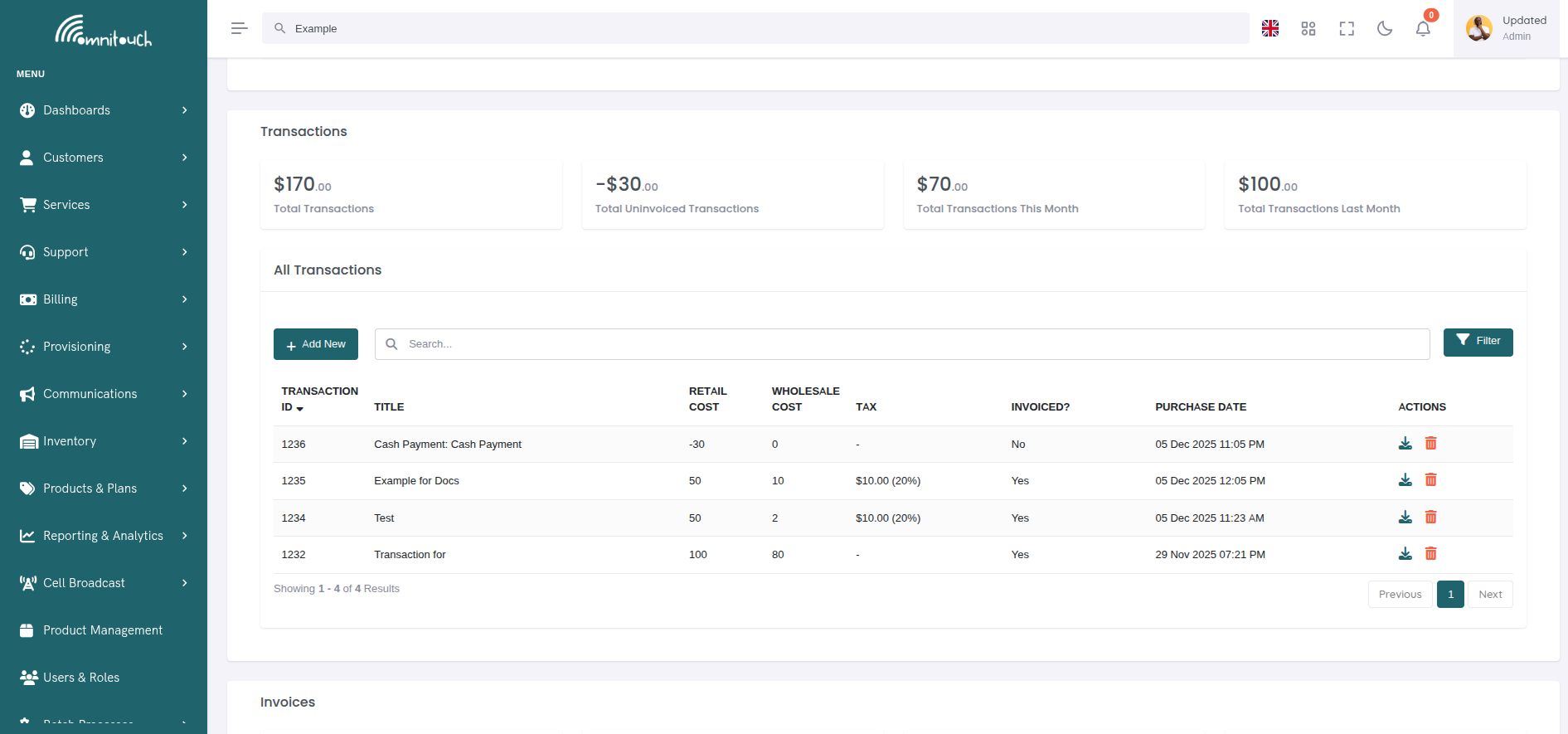
Transactions can include tax, which is automatically calculated based on the product's tax configuration or manually specified per transaction.
Tax Behavior:
- Debit Transactions (Charges) - Tax is applied to charges based on:
- Product Tax Percentage - If the transaction is linked to a product, the product's tax percentage is automatically applied
- Manual Override - Staff can override the tax percentage when creating a transaction
- Tax Amount - Calculated as:
retail_cost × (tax_percentage / 100) - Display Format - Shown as:
$10.00 (10%)in transaction lists
- Credit Transactions (Payments/Refunds) - No tax is applied to
credits
- Tax percentage field is hidden for credit transactions
- Tax is automatically set to 0% for all payments and refunds
- Credits reduce the customer's outstanding balance without tax implications
Tax Calculation Example:
- Product: Mobile Plan with 10% tax, $50.00 retail cost
- Automatic Tax Calculation: $50.00 × 0.10 = $5.00
- Display: $5.00 (10%)
Zero Tax (NIL/Exempt):
- Products can be tax-exempt by setting tax percentage to 0
- Tax defaults to 0% if not specified
- Tax-exempt transactions show "-" in the Tax column
Transaction Details View
Click a transaction to view full details:
Invoiced vs Uninvoiced Transactions
Uninvoiced Transactions:
- Not yet included in any invoice
- Available for next invoice generation
- Can be voided
- Count toward "Uninvoiced Transactions" total
- Status shows dash (-)
Invoiced Transactions:
- Included in an invoice
- Cannot be voided (must refund if needed)
- Invoice ID clickable (links to invoice details)
- Status shows checkmark (✓)
- Cannot be modified
Invoice Generation:
When you generate an invoice for a customer:
- System finds all uninvoiced transactions for that customer
- Optionally filter by date range
- Transactions included in new invoice
- Transaction
invoice_idfield populated - Transaction now marked as "invoiced"
See payments_invoices for invoice generation details.
Common Workflows
Workflow 1: Manual Credit for Service Outage
- Customer calls: "Service was down for 2 days"
- Staff decides to credit £10
- Navigate to customer Billing tab
- Click "+ Add Transaction"
- Select Credit transaction type
- Select Cash Payment credit type
- Enter title: "Service Outage Credit"
- Enter description: "Compensation for 2-day outage 8-9 Jan"
- Enter retail cost: 10.00
- Select affected service from dropdown
- Click "Add Transaction"
- Transaction appears with -£10.00 amount
- Will be included in next invoice as credit
Workflow 2: Manual Installation Fee
- Field tech installs service
- Staff needs to charge £75 installation fee
- Navigate to customer Billing tab
- Click "+ Add Transaction"
- Select Debit transaction type
- Enter title: "Installation Fee"
- Enter description: "Field technician visit for fiber installation"
- Enter retail cost: 75.00
- Enter wholesale cost: 45.00 (optional, for margin tracking)
- Select service installed
- Select site where installed
- Click "Add Transaction"
- Transaction appears in uninvoiced list
- Will be included in next invoice
Workflow 3: Voiding Duplicate Transaction
- Staff notices duplicate transaction
- Verify transaction NOT yet invoiced
- Click actions menu (⋮) on duplicate transaction
- Select "Void Transaction"
- Confirm in modal
- Transaction removed from list
- Uninvoiced total decreases accordingly
Workflow 4: Finding Transactions for Invoice
- Need to generate monthly invoice
- Click Invoice filter: "Not Invoiced"
- Click Apply Filters
- View all uninvoiced transactions
- Note total amount from widgets
- Navigate to generate invoice
- Select date range (e.g., 1-31 Jan)
- Transactions in range included in invoice
Troubleshooting
Cannot void transaction
-
Cause: Transaction already invoiced
-
Fix: Transaction is part of invoice history. If refund needed, create a Credit transaction instead.
-
Cause: Wallet top-up reversal failed (insufficient wallet balance)
-
Fix: Customer already spent the topped-up funds. Use a manual wallet debit/adjustment or financial-docs reversal flows; cannot void the top-up line until the wallet covers the amount.
-
Cause: Card refund failed (Add Funds top-up only)
-
Fix: Wallet reversal is rolled back automatically. Resolve the payment vendor issue and retry void.
Duplicate transactions appearing
- Cause: Service charged multiple times or provisioning error
- Fix: Void the duplicate transaction(s) if not invoiced. If invoiced, issue credit.
Transaction not appearing in list
- Cause: Filters applied or transaction voided
- Fix: Click "Reset Filters" to show all transactions. To see voided transactions, filter by "Void: Void".
Uninvoiced total does not match expected
- Cause: Some transactions already invoiced, or voided transactions excluded
- Fix: Apply filter "Invoice: Not Invoiced" to see only uninvoiced. Check voided transactions separately.
Cannot add transaction (customer field disabled)
- Cause: Viewing customer-specific transactions page
- Fix: Customer is pre-selected. If you need to add transaction for different customer, go to system-wide Transactions page.
Related Documentation
payments_invoices- Invoice generation and managementpayments_process- Processing payments against invoicesbasics_payment- Payment methods overviewcsa_activity_log- Viewing transaction history in activity log