Customer Tags
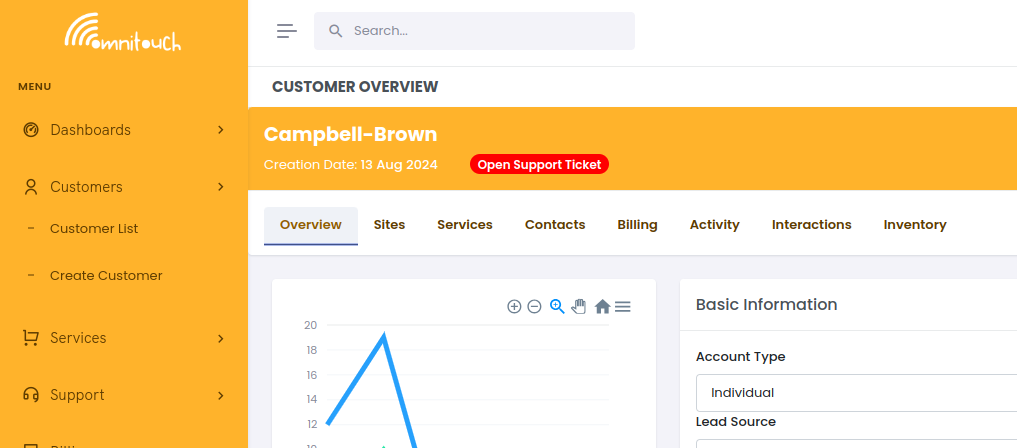
Tags are handy colour-coded links that can be added to a customer to help categorize them, for example, a customer might have a tag for "Open Support Ticket" or "Super Late Invoice" or "Jerk".
For storing structured metadata and custom key-value data, see Customer Attributes .
The tags are displayed as pills on the customer's profile page, and the colour of the pill is customizable along with the link.
One common use case is to tag customers who have an open support ticket, so that the support team can easily jump to the open ticket from the customer's profile page.
Tags can be created in the system by an administrator through the UI or by 3rd party systems via the API and can have start and end dates, so they can be automatically removed after a certain period.
Managing Tags via the UI
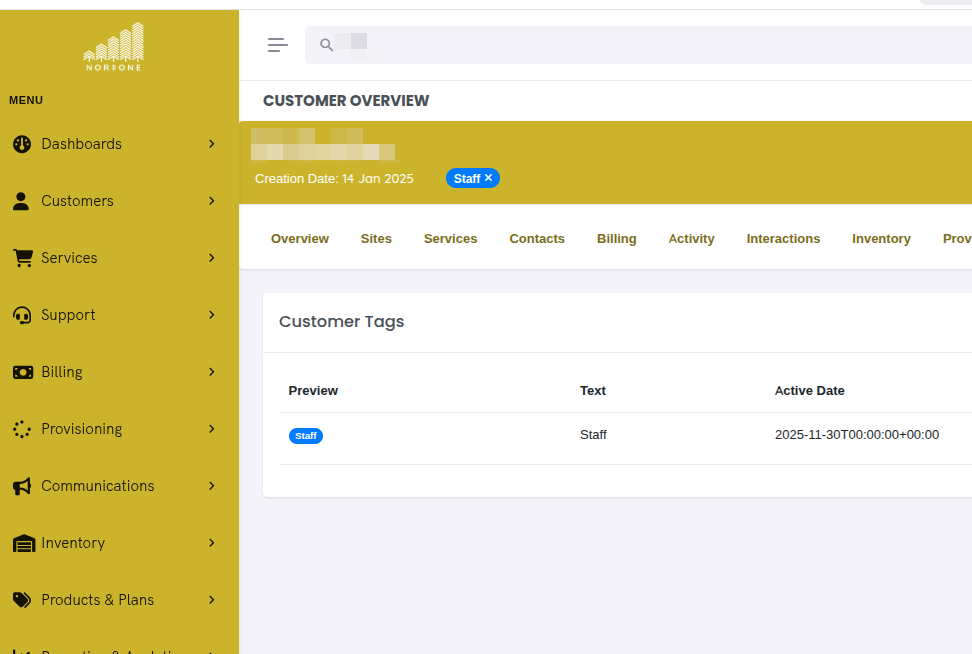
Viewing Customer Tags
To view tags for a customer:
- Navigate to the customer's overview page
- Click on the Tags tab
- You will see a list of all active tags for the customer, showing:
- Tag preview with the configured color
- Tag text
- Active date (when the tag becomes visible)
- Deactivate date (when the tag will be hidden)
- Link (if configured)
Creating a New Tag
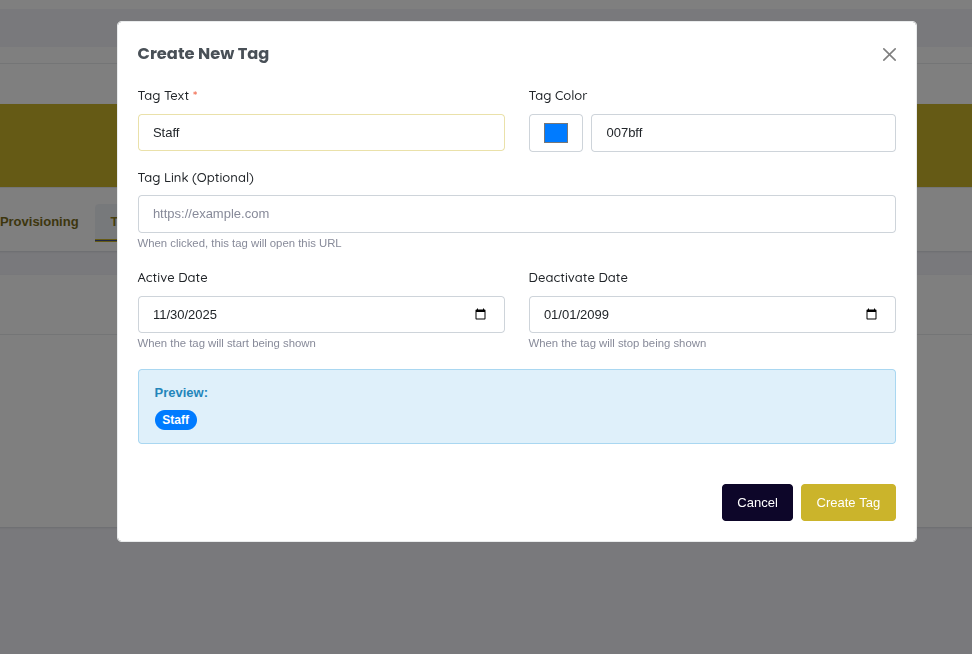
To create a new tag for a customer:
- Navigate to the customer's overview page
- Click on the Tags tab
- Click the Add Tag button
- Fill in the required fields:
- Tag Text (required): The text that will be displayed on the tag
- Tag Color (required): Choose a color using the color picker or enter a hex code
- Tag Link (optional): URL that will open when the tag is clicked
- Active Date (required): Date when the tag should start being displayed
- Deactivate Date (required): Date when the tag should stop being displayed (defaults to 2099-01-01)
- Preview your tag in the preview section
- Click Create Tag
Editing a Tag
To edit an existing tag:
- Navigate to the customer's overview page
- Click on the Tags tab
- Find the tag you want to edit in the list
- Click the Edit (pencil) button
- Modify the fields as needed
- Click Update Tag
Deleting a Tag
To delete a tag:
- Navigate to the customer's overview page
- Click on the Tags tab
- Find the tag you want to delete in the list
- Click the Delete (trash) button
- Confirm the deletion in the popup
Tag Field Reference
API Integration
Tags can also be managed programmatically via the API:
Create a Tag:
PUT /crm/tag/
{
  "tag_text": "VIP Customer",
  "tag_hex_color": "FFD700",
  "tag_link": "https://example.com/vip",
  "tag_active_date": "2025-01-01 00:00:00",
  "tag_deactivate_date": "2099-12-31 23:59:59",
  "customer_id": 12
}
Update a Tag:
PATCH /crm/tag/tag_id/{tag_id}
{
  "tag_text": "Updated Tag Text",
  "tag_hex_color": "FF0000"
}
Get Tags by Customer:
GET /crm/tag/customer_id/{customer_id}
Delete a Tag:
DELETE /crm/tag/tag_id/{tag_id}