Navigation
OmniCRM is designed from the ground up to be responsive and intuitive.
This guide will help you navigate the system and find the information you need.
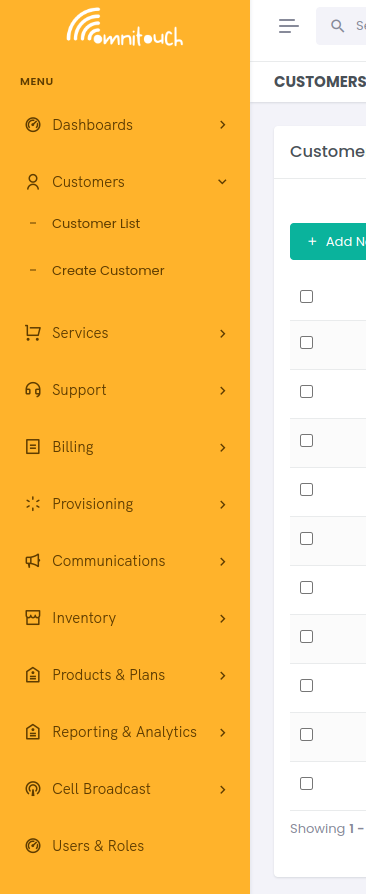
Once logged in, the navbar on the left side of the screen will show you the main sections of the system, and the sub-sections within each.
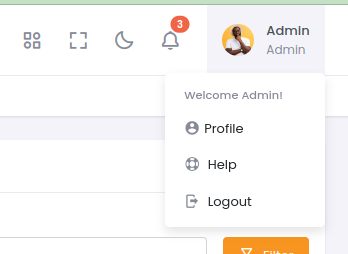
In the top right of the screen, you will see the user menu, which allows you to log out, change your password, or access your user settings.
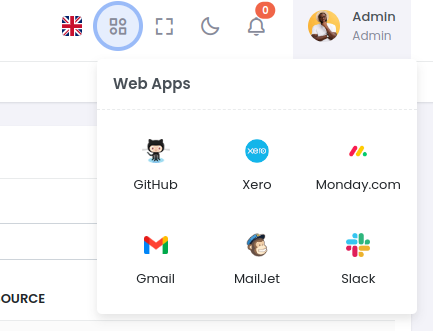
You've got links to all of your organization's most commonly used webapps in the WebApp bar (this can be tailored to your organization's needs).
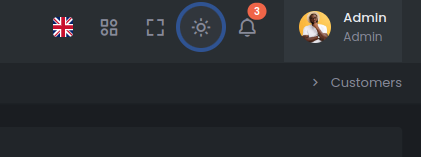
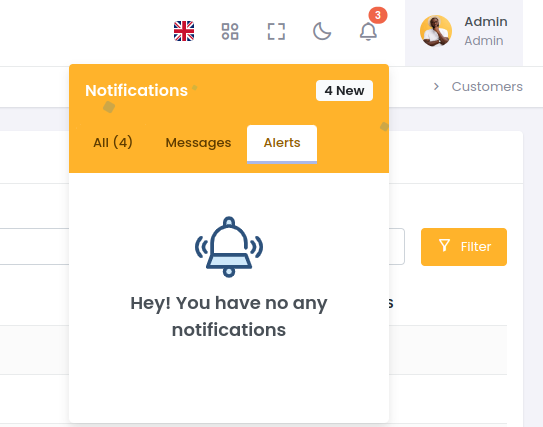
Any alerts you have outstanding are visible in the top right of the screen, and you can click on the alert to view more information.
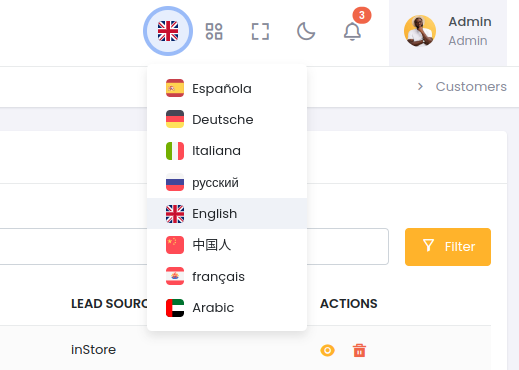
We can change the language of the system by clicking on the language dropdown in the top right of the screen.
If you're a prince of darkness, you can switch to dark mode by clicking on the moon icon in the top right of the screen.