Authentication Flows and Admin Controls
OmniCRM provides comprehensive authentication features including login, two-factor authentication (2FA), password management, and admin controls for managing user security. This guide focuses on the UI workflows for both end users and administrators.
See also: Self-Care Portal for customer login and portal access, RBAC for staff permissions.
Overview
OmniCRM authentication includes:
- Email/Password Login - Standard credential-based authentication
- Two-Factor Authentication (2FA) - Optional TOTP-based second factor
- Remember Me - Extended session up to 30 days
- Password Reset - Self-service password recovery via email
- Admin Controls - Administrative tools for resetting 2FA and passwords
- Social Logins - Optional Google, Apple, Facebook integration (if enabled)
- Role-Based Navigation - Automatic routing based on user roles
Login Flow
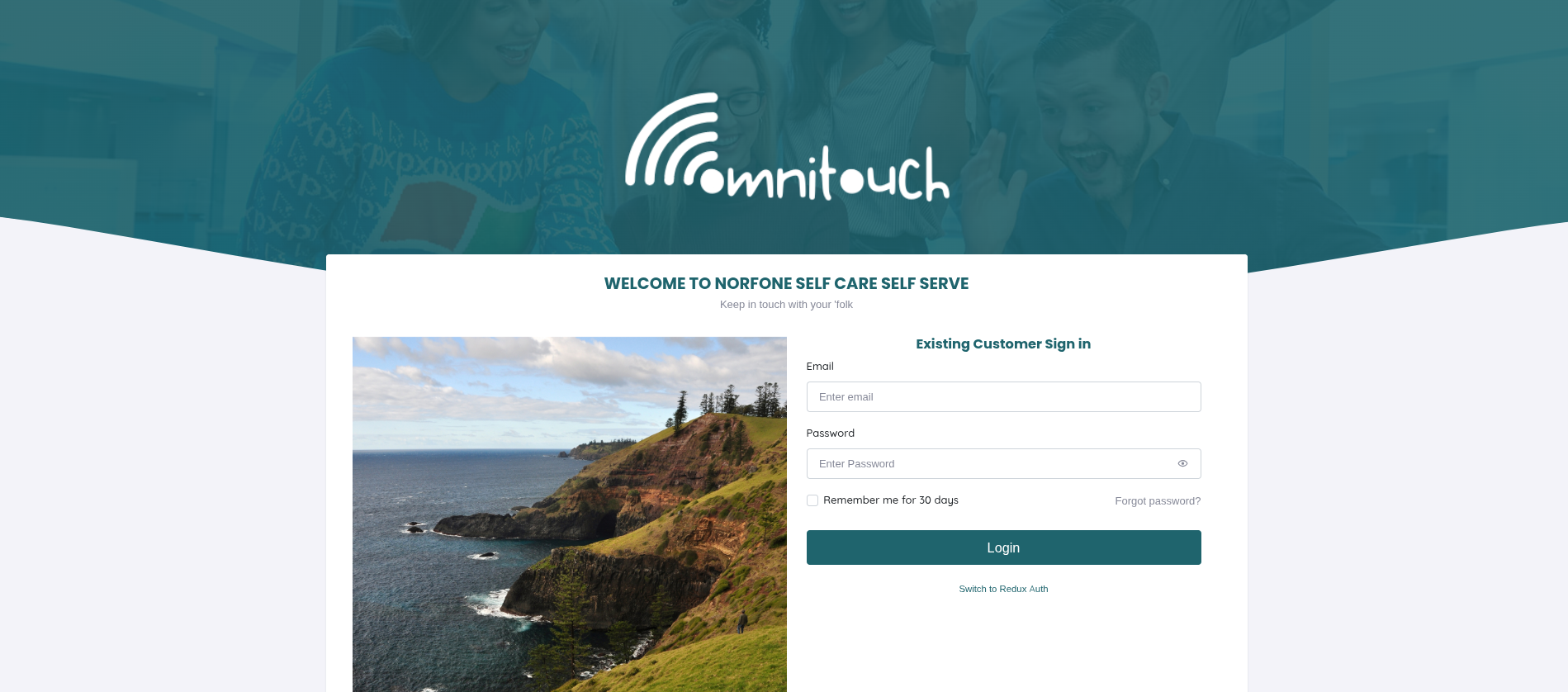
The login page is the entry point for all users (staff and customers).
Standard Login
 {.align-center
width="800px"}
{.align-center
width="800px"}
Login Process:
- Enter email address (staff or customer email)
- Enter password
- Optional: Check "Remember me for 30 days" for extended session
- Click "Login"
What Happens Next:
- Without 2FA: User logged in immediately, navigated based on
role:
- Customers → Self-Care portal (
/self-care) - Staff/Admins → Customers dashboard (
/customers) - CBC Mode → Cell Broadcast interface
(
/create-cell-broadcast)
- Customers → Self-Care portal (
- With 2FA Enabled: Redirected to 2FA verification screen
Remember Me Feature:
When enabled, session persists for 30 days instead of expiring when browser closes. Uses secure HTTP-only cookies.
Show/Hide Password:
Click the eye icon (👁) to toggle password visibility.
Login with 2FA
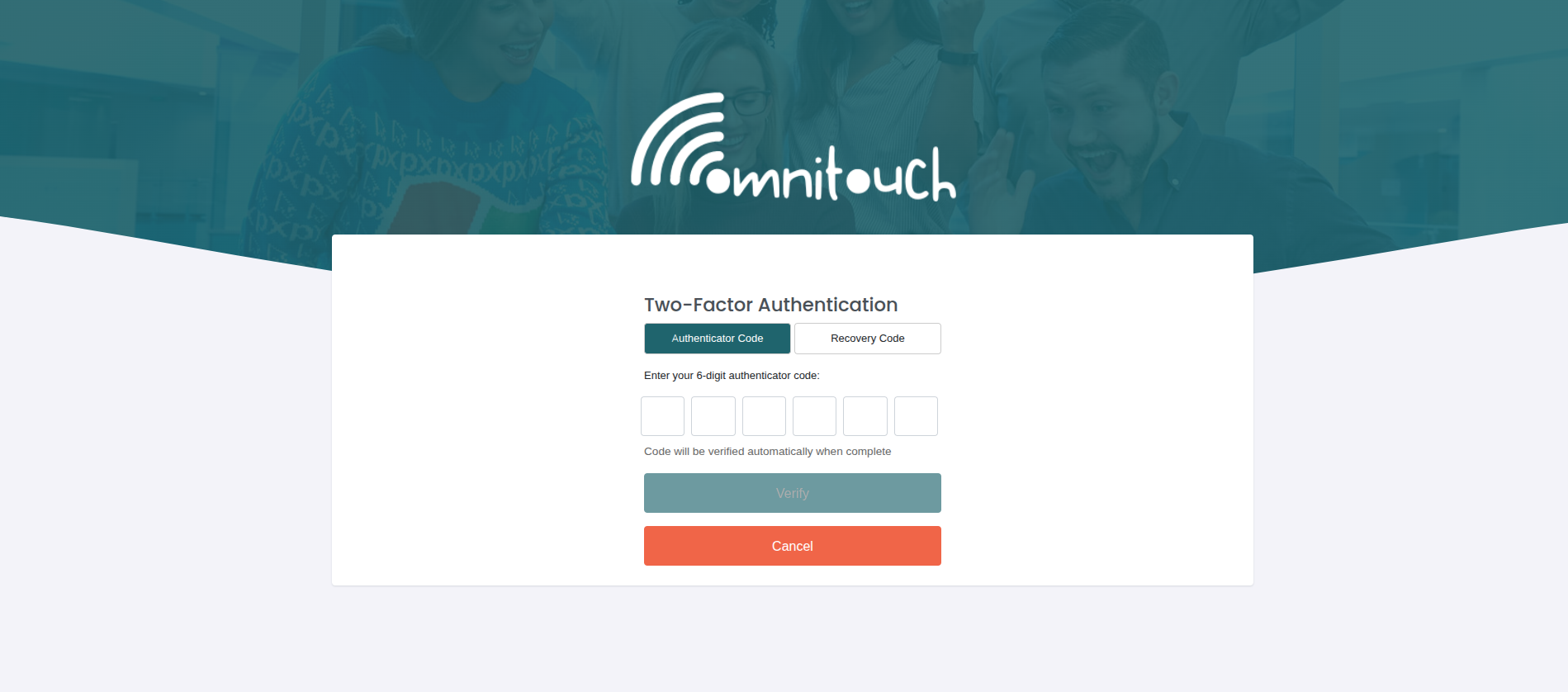
If user has 2FA enabled, after entering email/password, the 2FA challenge screen appears:
 {.align-center
width="800px"}
{.align-center
width="800px"}
Using Authenticator Code:
- Open authenticator app (Google Authenticator, Authy, etc.)
- Find OmniCRM entry
- Enter the 6-digit code
- Code auto-submits when all 6 digits entered
- If valid, user logged in and navigated to appropriate dashboard
Using Recovery Code:
If authenticator app unavailable:
- Click "Recovery Code" tab
- Enter one of your saved backup codes (e.g.,
3fa5b9c2) - Click "Verify"
- Code is consumed (can only be used once)
Cancel:
Click "Cancel" to return to login page.
Social Logins (Optional)
If enabled (REACT_APP_ALLOW_SOCIAL_LOGINS=yes), social login buttons
appear:
[🔵 Sign in with Google ] [⚫ Sign in with Apple ] [🔵 Sign in with Facebook]
Click any button to authenticate via that provider. Currently displays "coming soon" message (social login implementation in progress).
Forgot Password Link
Click "Forgot password?" link to initiate password reset flow.
Two-Factor Authentication (2FA) Setup
Users can enable 2FA for enhanced account security. 2FA uses TOTP (Time-Based One-Time Password) compatible with standard authenticator apps.
Accessing 2FA Setup
From user profile or settings:
Note for Customers:
Customer role users do not see 2FA prompts. 2FA is typically required only for staff and administrative users.
Step 1: Confirm Password
Current Password
[Cancel] [Continue]
Enter your current password to proceed. This verifies your identity before enabling 2FA.
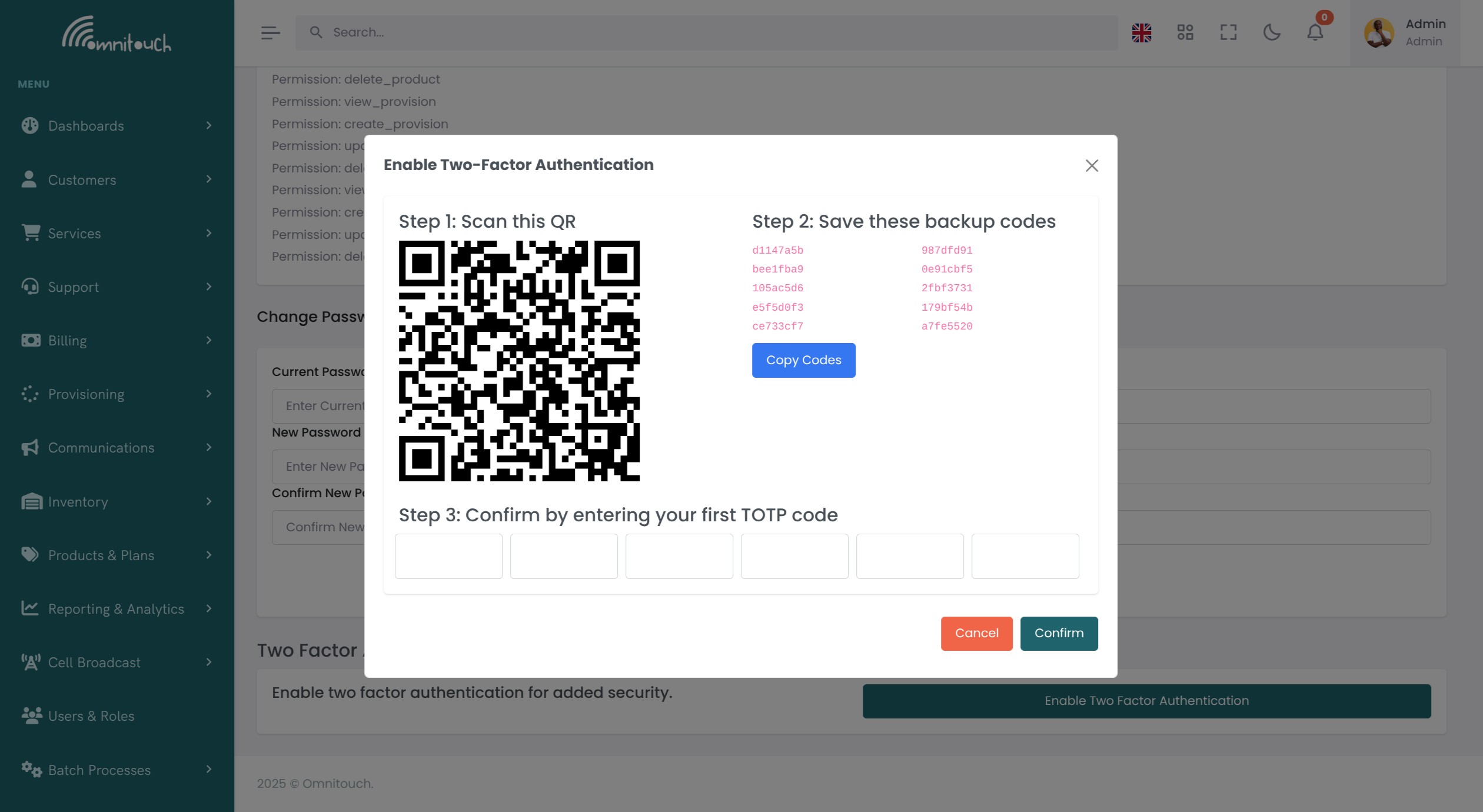
Step 2: Scan QR Code
[Cancel] [Confirm]
Setup Instructions:
- Download Authenticator App (if you don't have one):
- iOS: Apple App Store → "Google Authenticator"
- Android: Google Play → "Google Authenticator"
- Alternatives: Authy, Microsoft Authenticator, 1Password
- Scan QR Code:
- Open authenticator app
- Tap "+" or "Add account"
- Choose "Scan QR code"
- Point camera at QR code on screen
- App adds "OmniCRM" entry with 6-digit code
- Save Backup Codes:
- CRITICAL: Write down or copy these 8 codes
- Store in secure location (password manager, safe, etc.)
- Each code single-use only
- Used if you lose access to authenticator app
- Click "Copy Codes" to copy all codes to clipboard
- Verify Setup:
- Enter current 6-digit code from authenticator app
- Click "Confirm"
- If valid, 2FA is now enabled
Step 3: 2FA Enabled
Success message appears:
From now on, login requires both password and 2FA code.
Password Reset Flow (Self-Service)
Users who forget their password can reset it via email.
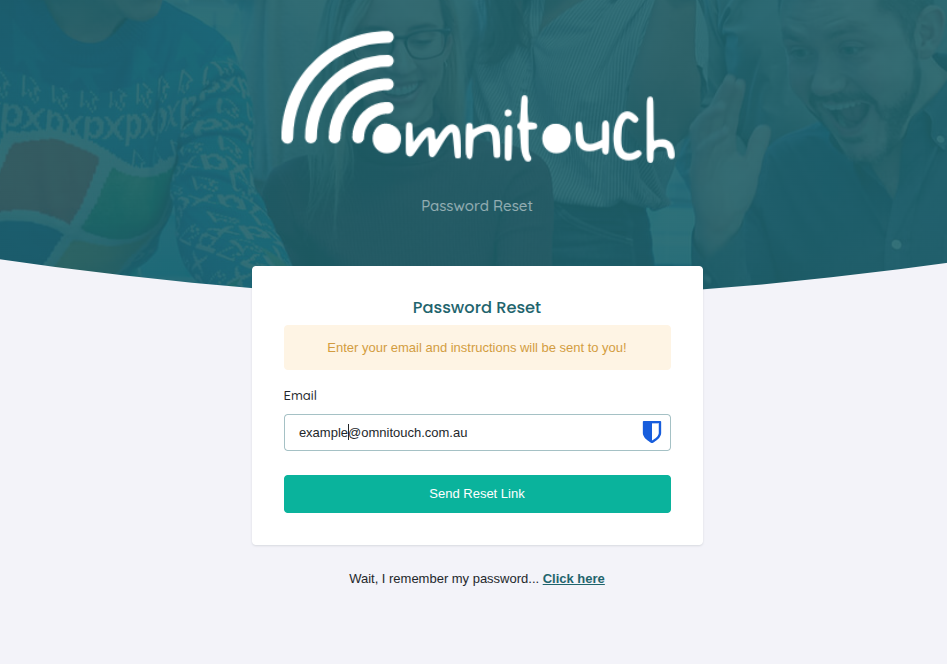
Step 1: Request Reset Link
From login page, click "Forgot password?"
 {.align-center
width="800px"}
{.align-center
width="800px"}
- Enter email address
- Click "Send Reset Link"
What Happens:
- System checks if email exists in database
- If found, sends password reset email via Mailjet
- Email contains time-limited reset link (typically 1 hour expiry)
- Success message appears: "Reset instructions have been sent to your email"
If Email Not Found:
Error message: "No account found with that email address"
Step 2: Check Email
User receives email with subject like:
Hi [Name],
You requested a password reset for your OmniCRM account.
Click the link below to reset your password: <https://yourcompany.com/reset-password/abc123token456>
This link expires in 1 hour.
If you didn't request this, ignore this email.
Click the reset link to proceed.
Step 3: Set New Password
Reset link opens password creation page:
🔒 (lock icon)
Password
Confirm Password
[Reset Password]
- Enter new password
- Re-enter in Confirm Password field
- Click "Reset Password"
Password Requirements:
- Minimum length (typically 8+ characters)
- Passwords must match
Success:
- Success message: "Password has been reset successfully"
- Automatically redirected to login page
- User can now login with new password
Expired/Invalid Token:
If reset link is expired or invalid:
[Request New Reset Link]
Admin Controls for User Management
Administrators with appropriate permissions can manage user authentication settings from the User Management interface.
Accessing User Management
Displays table of all users with action buttons.
Name Email Phone Actions John Smith <john@example.com> +44 123... ✏️ 🗑️ 🔑 🛡️ Jane Doe <jane@example.com> +44 456... ✏️ 🗑️ 🔑 Bob Wilson <bob@example.com> +44 789... ✏️ 🗑️ 🔑 🛡️ ✉️
Action Icons:
- ✏️ Edit - Modify user details, roles, permissions
- 🗑️ Delete - Remove user account
- 🔑 Reset Password - Generate temporary password
- 🛡️ Reset 2FA - Disable 2FA for user (only shown if 2FA enabled)
- ✉️ Send Welcome Email - Resend welcome email (only shown if user never logged in)
Admin: Reset User Password
When user forgets password and admin needs to help:
Step 1: Click Reset Password Icon (🔑)
Confirmation modal appears:
Are you sure you want to reset the password for:
User: John Smith (<john@example.com>)
A temporary password will be generated and displayed. The user must change this password on next login.
[Cancel] [Reset Password]
Step 2: Confirm Reset
Click "Reset Password". System generates secure temporary password.
Step 3: Temporary Password Displayed
Temporary password for John Smith:
[📋 Copy Password]
⚠️ IMPORTANT: • Send this password to the user via secure channel • Do not send via email or unsecured messaging • User will be forced to change password on next login
[Close]
Admin Action:
- Copy temporary password
- Call user or communicate via secure method
- Provide temporary password verbally
- Instruct user to login and change password
User Experience:
When user logs in with temporary password:
- Login succeeds
- Immediately redirected to "Change Password" screen
- Must set new password before accessing system
- Cannot skip password change
Admin: Reset User 2FA
When user loses access to authenticator app and all backup codes:
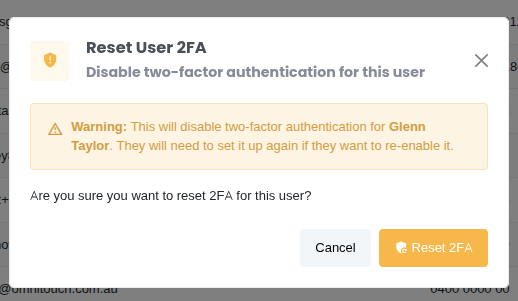
Step 1: Click Reset 2FA Icon (🛡️)
Only appears for users with 2FA currently enabled.
Confirmation modal appears:
 {.align-center
width="600px"}
{.align-center
width="600px"}
Step 2: Confirm Reset
Click "Reset 2FA"
Step 3: Confirmation
Success message:
John Smith can now login with just their password. They can re-enable 2FA from their user settings.
User Experience:
- User can now login with password only (no 2FA code required)
- 2FA shield icon (🛡️) disappears from user's row in admin table
- User can voluntarily re-enable 2FA from their settings
Important Security Note:
Before resetting 2FA, admin should:
- Verify user identity through alternative means:
- Government ID verification
- Security questions
- Recent transaction verification
- In-person verification (if applicable)
- Document the reset in customer notes
- Inform user to re-enable 2FA after regaining access
Admin: Send Welcome Email
For users who haven't received or lost their welcome email:
When Available:
Paper plane icon (✉️) only appears for users who have never logged
in (login_count = 0).
Click Send Welcome Email Icon (✉️)
Send welcome email to:
User: Bob Wilson (<bob@example.com>)
Email will include: • Welcome message • Login instructions • Link to set initial password (if applicable) • Support contact information
[Cancel] [Send Email]
Click "Send Email"
Success message:
Email Sent via Mailjet:
Uses template: api_crmCommunicationUserWelcome
Admin: Edit User
Click Edit icon (✏️) to modify user details:
First Name
Last Name
Phone Number
Roles ☑ admin ☐ customer_service_agent_1 ☐ customer
[Cancel] [Save Changes]
Editable Fields:
- Name, email, phone
- Roles - Assign/remove roles (affects permissions)
- Active/inactive status
Admin: Delete User
Click Delete icon (🗑️) to remove user:
Are you sure you want to delete:
User: John Smith (<john@example.com>)
⚠️ WARNING: This action cannot be undone.
This will permanently delete: • User account and credentials • 2FA settings • Session history
Customer data and transactions will NOT be deleted.
[Cancel] [Delete User]
Click "Delete User" to confirm.
Success message:
Best Practices
For End Users
Login Security:
- Use strong, unique passwords
- Enable "Remember me" only on personal devices
- Always logout on shared computers
- Enable 2FA for additional security
2FA Management:
- Save backup codes immediately after enabling 2FA
- Store codes in password manager or secure location
- Test a backup code to ensure they work
- Re-generate backup codes if you use several
- Contact admin if you lose both authenticator and backup codes
Password Management:
- Use password manager to generate and store passwords
- Never share passwords via email or messaging
- Change password if you suspect compromise
- Use unique password for OmniCRM (don't reuse passwords)
For Administrators
User Security Management:
- Verify user identity before resetting 2FA or passwords
- Never send temporary passwords via email
- Document all security resets in user notes
- Encourage staff to enable 2FA
- Monitor for unusual login patterns
Password Resets:
- Communicate temporary passwords via phone or in-person only
- Generate strong temporary passwords (system does this automatically)
- Ensure user changes password on first login
- Don't reset passwords unnecessarily - use email reset flow when possible
2FA Resets:
- Treat 2FA resets as high-security actions
- Verify identity through multiple channels before resetting
- Document reason for reset
- Encourage user to re-enable 2FA immediately after regaining access
- Consider requiring 2FA for all administrative users
User Management:
- Regularly review user list for inactive accounts
- Remove users who have left organization
- Ensure appropriate role assignments
- Monitor users who have never logged in
- Audit user permissions quarterly
Troubleshooting
"Invalid email or password" error
- Cause: Incorrect credentials
- Fix:
- Verify email address is correct
- Check caps lock is off
- Try password reset if forgotten
- Contact admin if account locked
2FA code not accepted
- Cause: Time sync issue or incorrect code
- Fix:
- Ensure device time is correct (Settings → Date & Time → Automatic)
- Wait for code to refresh (codes change every 30 seconds)
- Try next code that appears
- Use backup code if authenticator not working
- Contact admin to reset 2FA if all else fails
"Remember me" not working
- Cause: Cookies disabled or cleared
- Fix:
- Enable cookies in browser settings
- Don't clear cookies when closing browser
- Disable privacy extensions for OmniCRM domain
- Try different browser
Password reset email not received
- Cause: Email not sent, spam filter, or wrong email
- Fix:
- Check spam/junk folder
- Verify email address is correct
- Wait 5-10 minutes (email delivery can be delayed)
- Check Mailjet integration is working (admin)
- Contact admin for manual password reset
Password reset link expired
- Cause: Token expired (typically 1 hour)
- Fix:
- Request new password reset
- Check email and click link promptly
- Contact admin if repeated issues
Cannot enable 2FA (incorrect password)
- Cause: Current password entered incorrectly
- Fix:
- Verify current password
- Reset password first if uncertain
- Contact admin for assistance
Lost authenticator app and backup codes
- Cause: Phone lost/reset, backup codes not saved
- Fix:
- Contact administrator immediately
- Admin will verify identity and reset 2FA
- Login with password only after reset
- Re-enable 2FA and SAVE backup codes this time
Admin: "Failed to reset 2FA" error
- Cause: Insufficient permissions
- Fix:
- Ensure you have admin role
- Check API permissions
- Contact system administrator
Admin: Temporary password not generated
- Cause: API error or permissions issue
- Fix:
- Refresh page and try again
- Verify admin permissions
- Check API logs for errors
- Ensure database is accessible
Security Considerations
Session Management:
- Sessions expire after inactivity period
- "Remember me" extends session to 30 days
- Sessions stored as HTTP-only cookies (not accessible to JavaScript)
- Secure flag ensures cookies only sent over HTTPS
Password Security:
- Passwords hashed using industry-standard algorithms
- Plain text passwords never stored
- Temporary passwords automatically expired after first use
- Failed login attempts tracked (potential rate limiting)
2FA Security:
- TOTP secrets encrypted in database
- QR codes generated client-side when possible
- Backup codes hashed before storage
- Each backup code single-use only
Admin Actions:
- 2FA resets logged in activity log
- Password resets create audit trail
- Admin actions require appropriate role permissions
- IP addresses logged for security events
Related Documentation
2fa- Detailed 2FA API reference (API-focused)rbac- Role-based access control and permissionsadministration_configuration- Mailjet email configuration for password resetintegrations_mailjet- Email template configurationcustomer_care- Self-Care portal for customers