Self-Care Portal
The Self-Care Portal is a customer-facing interface that allows end users to manage their own accounts, view usage, pay invoices, and modify services without requiring assistance from customer service staff.
Access Methods:
- Direct login via customer credentials
- Staff impersonation for troubleshooting (from Customers → Contacts → "Login as User")
See also: Customer Care for impersonation details, Authentication Flows for login process.
Purpose
The Self-Care Portal provides customers with:
- Account Management - View and update personal information, contacts, and addresses
- Service Overview - See all active services, usage, and expiry dates
- Usage Tracking - Monitor data, voice, SMS, and monetary balances
- Billing Access - View and pay invoices, manage payment methods
- Service Modifications - Add top-ups, purchase add-ons, modify services
- 24/7 Availability - Access account information anytime without calling support
Portal Overview
When customers log in to the Self-Care Portal, they see a personalized dashboard with:
Navigation Sections:
- Dashboard - Quick overview of services and recent activity
- Account - Personal details, contacts, sites
- Services - List of all services with status and details
- Usage - Balance consumption and expiry information
- Billing - Invoices, transactions, payment methods
- Top-Up - Purchase data, voice, SMS, or monetary credit
Account Details
The Account section displays customer information and allows limited self-service updates.
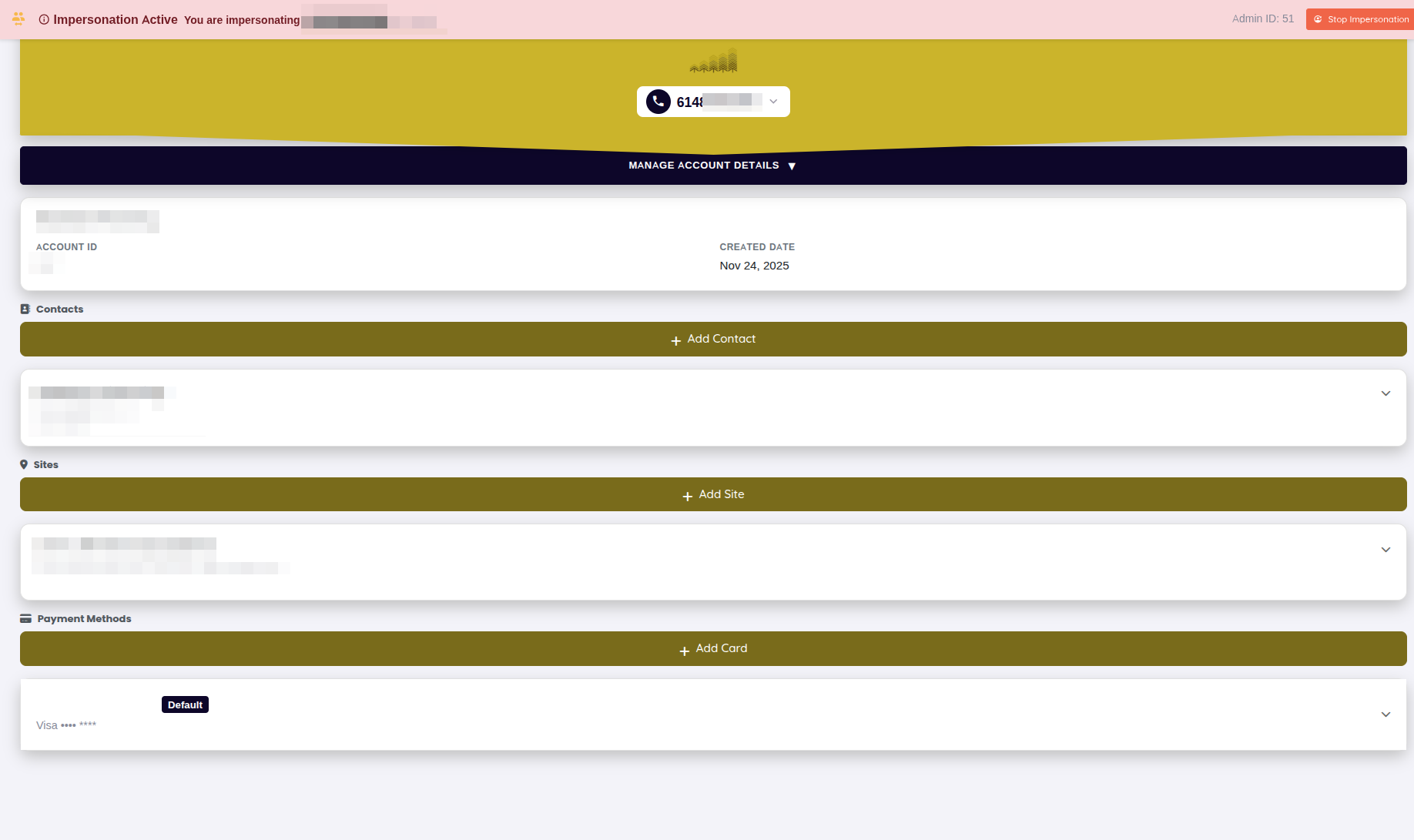
Editable Fields:
Customers can update:
- Email address (requires verification)
- Phone number
- Password
- Notification preferences
View-Only Information:
- Customer ID
- Account creation date
- Customer type (Individual/Business)
- Sites (addresses)
- Linked contacts
Updating Account Information:
- Navigate to Account → Details
- Click "Edit" next to the field to update
- Enter new information
- Click "Save Changes"
- For email changes, verify via link sent to new address
Security Features:
- Password changes require current password
- Email changes require verification
- Activity logged for audit trail
- 2FA settings (if enabled)
Services Overview
The Services section shows all active and inactive services for the customer.
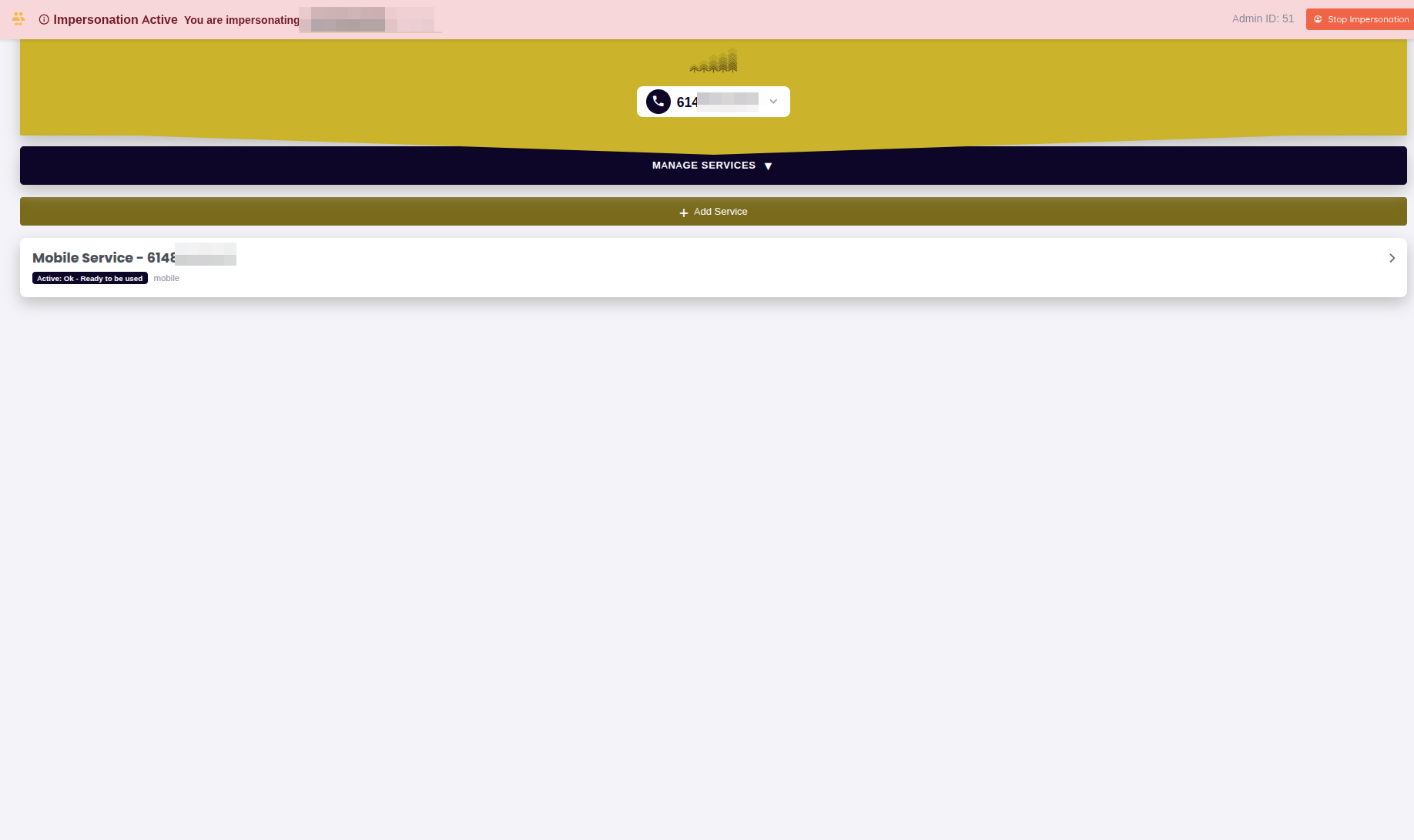
Service Card Display:
Each service displays:
- Service Name - Human-readable identifier (e.g., "Mobile - +44 7700 900123")
- Product - Plan or product name
- Status - Active, Suspended, Expired, Cancelled
- Created Date - Service activation date
- Expiry Date - When service expires (if applicable)
- Monthly Cost - Recurring charge
- Auto-Renewal - Enabled/Disabled indicator
Service Actions:
- View Usage - See balance consumption (Data, Voice, SMS, Monetary)
- Top-Up - Add credit or data
- Add-ons - Purchase additional features
- Modify - Change service parameters (if allowed)
- View Details - See full service configuration
Service Status Indicators:
- 🟢 Active - Service is operational
- 🟡 Expiring Soon - Renews or expires in <7 days
- 🔴 Suspended - Service temporarily disabled (payment issue, manual suspension)
- ⚫ Expired - Service no longer active
Usage Tracking
Customers can monitor their usage across all balance types in real-time.
Data Usage
View data consumption with detailed breakdowns by bucket and expiry.
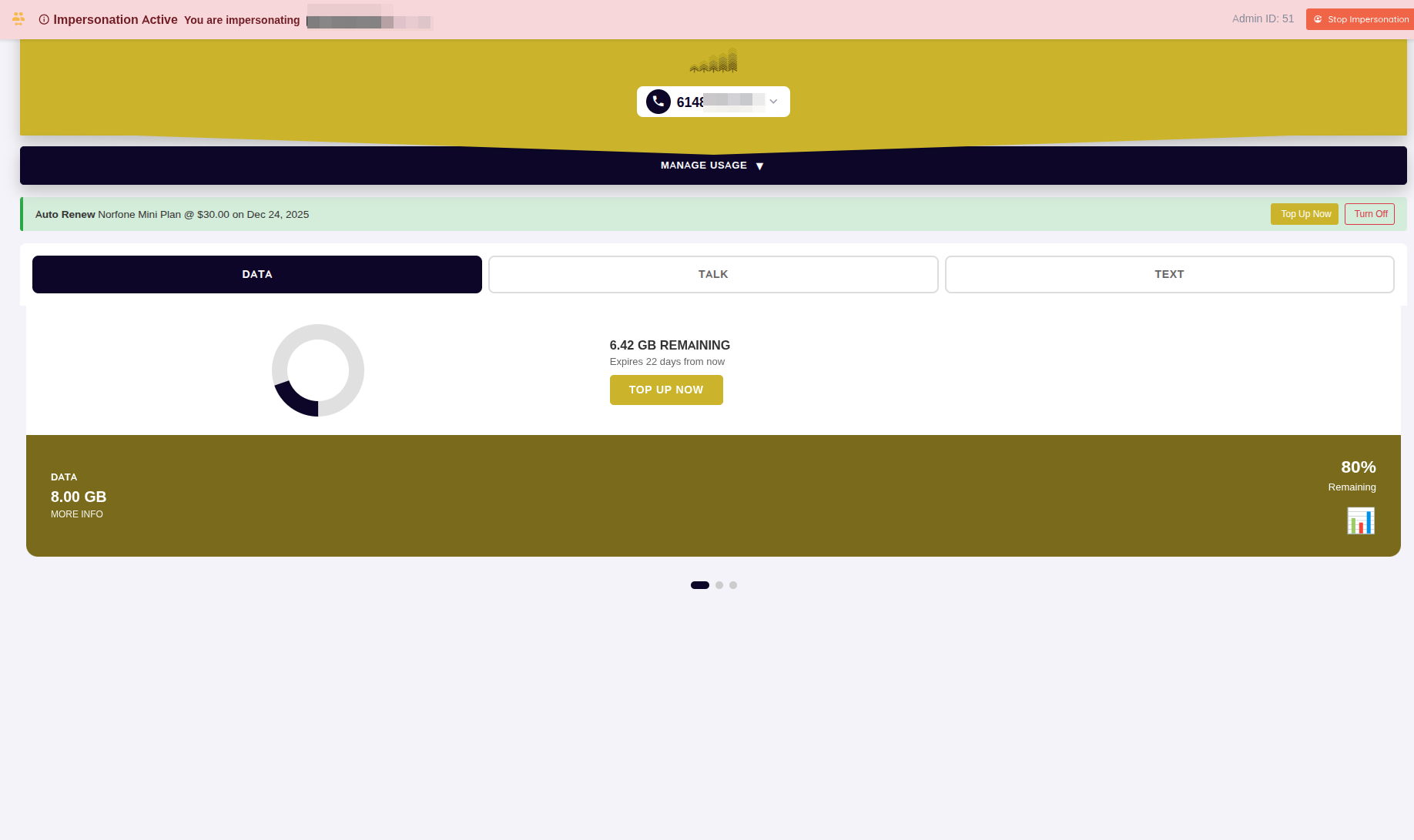
Data Usage Display:
- Total Balance - All data buckets combined
- Used This Period - Consumption since last renewal
- Progress Bar - Visual representation of consumption
- Expiry Information - When each bucket expires
- Bucket Breakdown - Multiple data buckets with priority order
Bucket Priority:
When multiple data buckets exist (e.g., base plan + top-ups), they consume in weight order:
- Weight 10 - Consumed first (typically promotional/bonus data)
- Weight 20 - Consumed second (typically top-up data)
- Weight 30 - Consumed last (typically base plan data)
Voice Usage
Track call minutes remaining across all voice buckets.
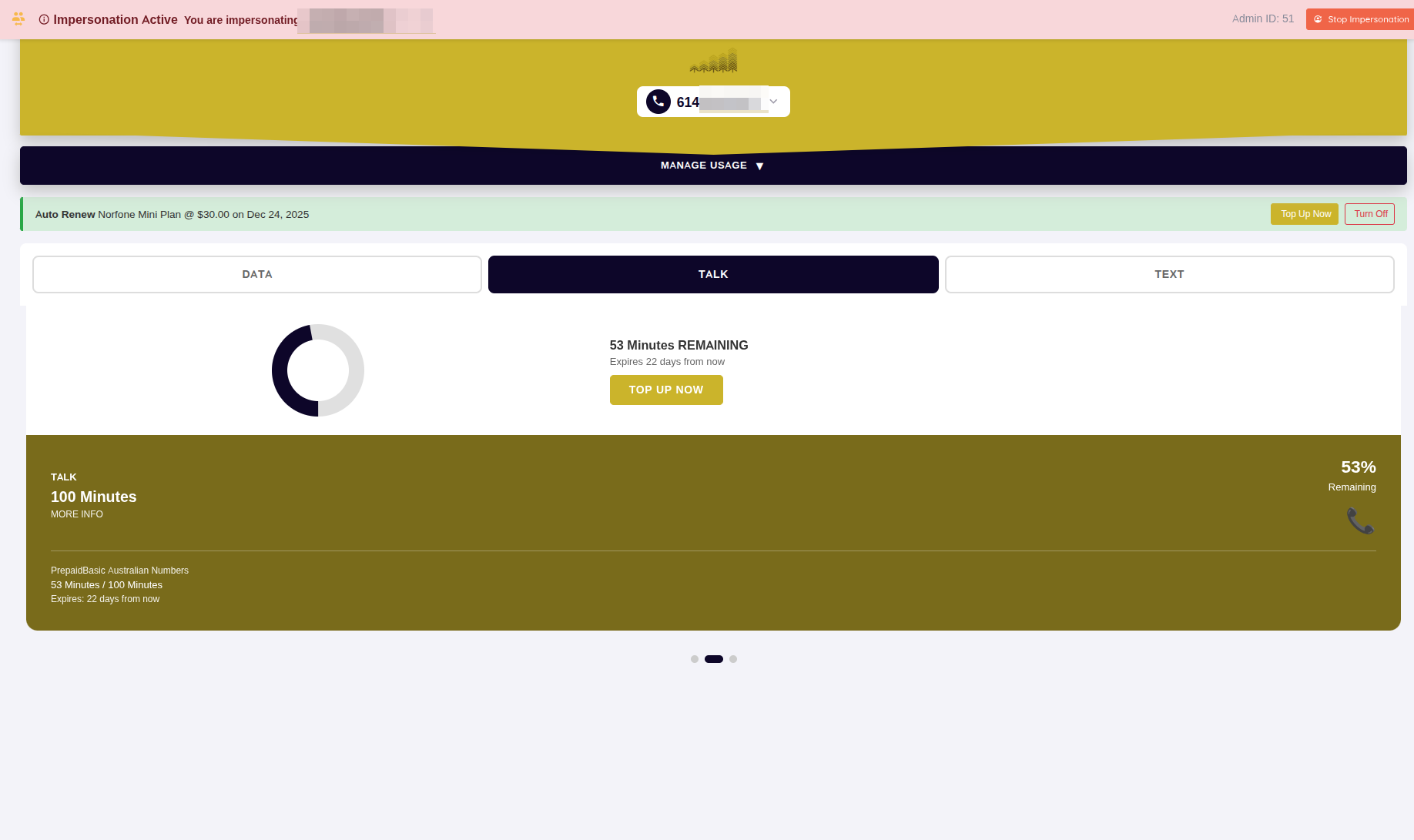
Voice Usage Display:
- Remaining Minutes - Total voice balance
- Used Minutes - Consumption this period
- Call History - Recent calls (if enabled)
- Expiry Dates - When voice buckets expire
- International Minutes - Separate tracking (if applicable)
Usage Breakdown:
- On-Net Calls - Calls within same network
- Off-Net Calls - Calls to other networks
- International Calls - Calls outside country
- Premium Numbers - Special rate numbers
SMS Usage
Monitor SMS message allowances and consumption.
SMS Usage Display:
- Remaining Messages - SMS balance
- Used This Month - Messages sent
- MMS Included - Whether MMS counts toward balance
- International SMS - Separate tracking (if applicable)
Monetary Balance
View prepaid credit balance for pay-as-you-go services.
Monetary Display:
- Current Balance - Available credit
- Last Top-Up - Most recent recharge amount and date
- Expiry Date - When balance expires (if applicable)
- Auto-Recharge - Enabled/Disabled status
Billing Management
Customers can view invoices, transactions, and manage payment methods.
Invoices
View and pay outstanding invoices directly from the portal.
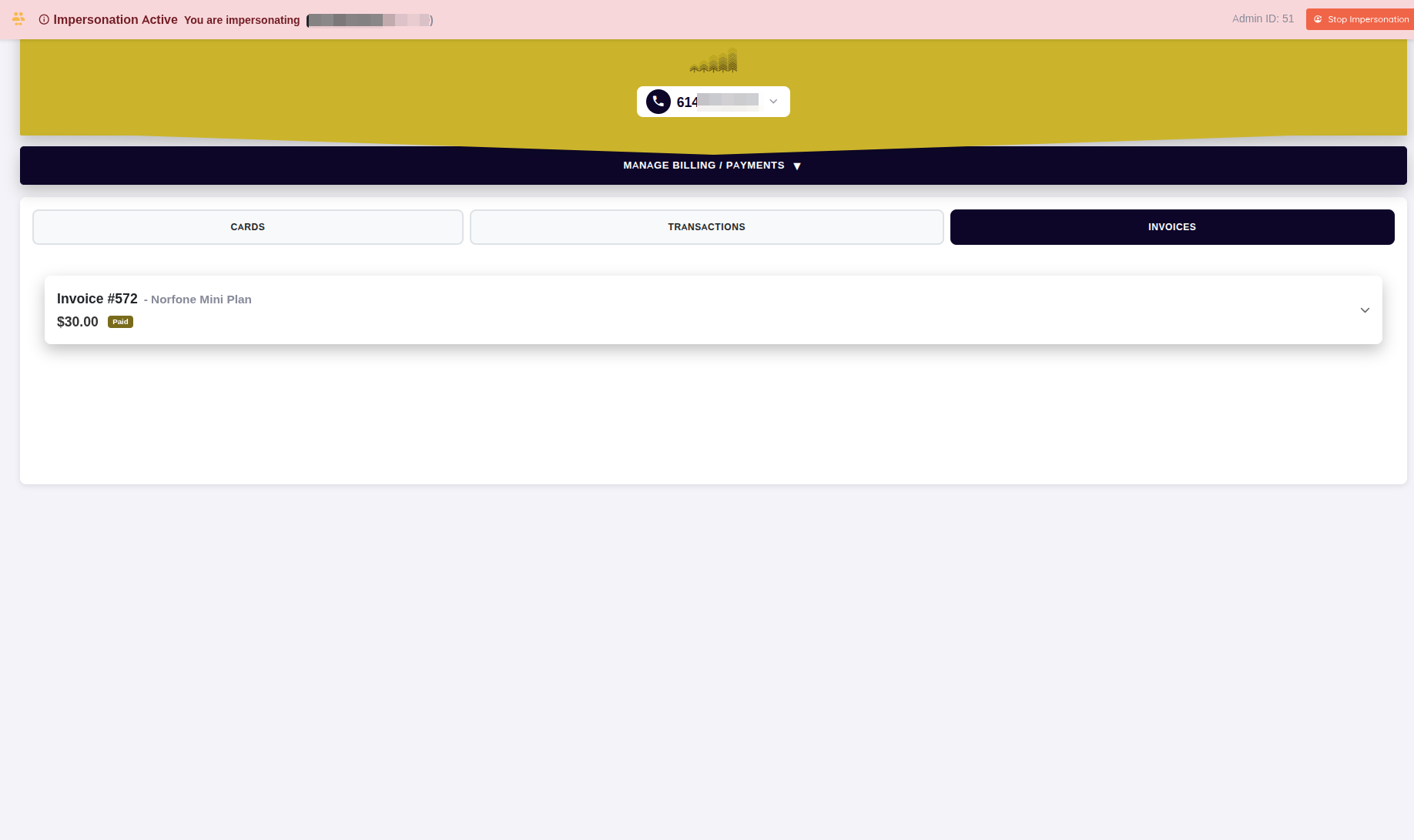
Invoice List Display:
- Invoice Number - Unique identifier
- Date - Invoice creation date
- Due Date - Payment deadline
- Amount - Total invoice amount
- Status - Paid, Unpaid, Overdue
- Actions - Download PDF, Pay Online
Paying an Invoice:
- Navigate to Billing → Invoices
- Find unpaid invoice in list
- Click "Pay Now" button
- Select payment method (saved card or new card)
- Confirm payment
- Receive confirmation email
Downloading Invoices:
- Click "Download" icon next to invoice
- PDF downloads with full invoice details
- Saved for tax records and documentation
Transactions
View complete transaction history including charges, credits, and payments.
Transaction Display:
- Date - Transaction creation date
- Description - What the charge/credit is for
- Amount - Charge (positive) or credit (negative)
- Invoice - Which invoice includes this transaction
- Status - Invoiced or Uninvoiced
Payment Methods
Manage saved credit cards for automatic billing and online payments.
Payment Method Management:
- Add Card - Securely add new credit/debit card via Stripe
- Set Default - Choose primary payment method
- Remove Card - Delete expired or unused cards
- Card Details - View last 4 digits, expiry, card brand
See Payment Methods for detailed payment management documentation.
Top-Up / Recharge
Purchase additional data, voice, SMS, or monetary credit instantly.
Top-Up Process:
- Navigate to Services → Select service → "Top-Up"
- Choose top-up product from catalog
- Select amount (preset options or custom)
- Review cost and expiry information
- Select payment method
- Confirm purchase
- Balance updated immediately
Available Top-Ups:
- Data Top-Ups - 1GB, 5GB, 10GB, 20GB, 50GB options
- Voice Top-Ups - Additional call minutes
- SMS Bundles - Message packs
- Monetary Credit - Prepaid balance (£5, £10, £20, £50, £100)
See Top-Up & Recharge for detailed top-up workflows.
Service Add-Ons
Purchase additional features and enhancements for existing services.
Available Add-Ons:
- International Roaming - Enable service abroad
- Static IP Address - Fixed IP for home internet
- Premium Content - IPTV channels, streaming services
- Hardware Upgrades - Modem rental, set-top boxes
- Speed Boosts - Temporary bandwidth increases
Purchasing Add-Ons:
- Navigate to Services → Select service → "Add-Ons"
- Browse available add-ons for this service type
- Click "Add to Service" on desired add-on
- Review cost (one-time + recurring)
- Confirm purchase
- Add-on provisioned automatically
See Modifying Services - Add-ons for add-on management details.
Notifications & Alerts
Customers receive automated notifications for important events:
Email Notifications:
- Invoice generated and ready for payment
- Payment received confirmation
- Service expiry warnings (7 days, 3 days, 1 day)
- Low balance alerts (data, voice, monetary)
- Service activation/deactivation
- Password reset requests
- Security alerts (login from new device)
In-Portal Alerts:
- Unpaid invoices
- Expiring services
- Low data warnings (10% remaining)
- Payment method expiring
- Required actions (verify email, update payment method)
Notification Preferences:
Customers can configure:
- Email notification frequency
- SMS alerts (if enabled)
- Alert thresholds (e.g., notify when <20% data remaining)
- Notification categories (billing, usage, service)
Self-Service Limitations
Some operations require staff assistance:
Requires Customer Service:
- Changing customer type (Individual ↔ Business)
- Transferring services between customers
- Cancelling services (may be self-service if enabled)
- Disputing invoices
- Requesting refunds
- Changing primary contact
- Complex provisioning issues
Security Restrictions:
- Cannot view or modify other users' accounts
- Limited to own customer data (tenant isolation)
- Cannot access administrative functions
- Cannot void invoices or transactions
- Cannot modify service configuration (only add-ons/top-ups)
Staff Impersonation Access
Support staff can access the Self-Care Portal as a customer for troubleshooting.
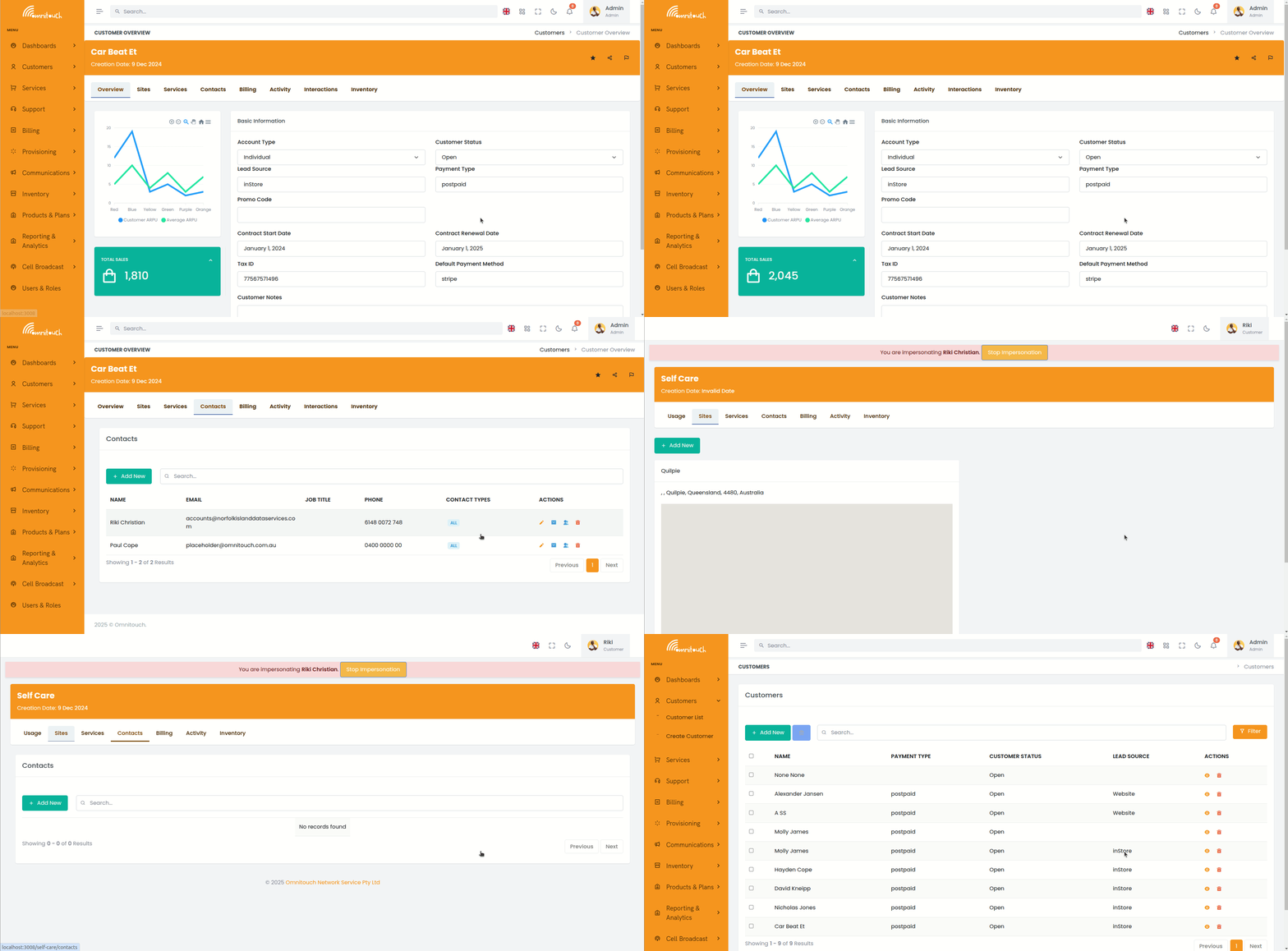
Impersonation Process:
- Navigate to Customers → Select customer
- Go to Contacts tab
- Find the contact linked to user account
- Click "Login as User" button
- New tab opens with customer's Self-Care Portal view
- All actions are logged and attributed to impersonated user
- Staff sees exactly what customer sees
Use Cases:
- Troubleshooting - Reproduce customer-reported issues
- Verification - Confirm service configurations appear correctly
- Training - Demonstrate portal features
- Support - Guide customer through portal while viewing their screen
Security & Auditing:
- Requires
can_impersonateoradminpermission - All actions logged to audit trail
- Customer sees impersonation in activity log
- Session timeout after inactivity
- Cannot change customer password while impersonating
See Customer Care - User Impersonation for complete impersonation documentation.
Mobile Responsiveness
The Self-Care Portal is fully responsive and optimized for mobile devices.
Mobile Features:
- Touch-optimized navigation
- Simplified layouts for small screens
- Swipe gestures for carousel navigation
- Mobile-friendly forms and inputs
- QR code scanning for eSIM provisioning
- One-tap phone calling
- GPS integration for address autocomplete
Progressive Web App (PWA):
- Install as app on home screen
- Offline viewing of recent data
- Push notifications (if enabled)
- Fast loading with service workers
Password Reset & Account Recovery
Customers can reset forgotten passwords without calling support.
Self-Service Password Reset:
- Click "Forgot Password" on login page
- Enter email address
- Receive password reset email (valid 1 hour)
- Click link in email
- Enter new password (must meet complexity requirements)
- Submit and login with new password
Password Requirements:
- Minimum 8 characters
- At least one uppercase letter
- At least one lowercase letter
- At least one number
- At least one special character (!@#$%^&*)
Account Lockout:
After 5 failed login attempts:
- Account locked for 30 minutes
- Password reset email sent automatically
- Security notification sent to registered email
Best Practices for Customers
Security Recommendations:
- Enable 2FA for enhanced security
- Use unique, strong password
- Keep email address current for notifications
- Set up default payment method for auto-renewals
- Monitor usage regularly to avoid overage charges
- Save backup codes in secure location (if 2FA enabled)
- Logout after using shared/public computers
Usage Management:
- Enable low balance alerts (10-20% remaining)
- Top-up before balances expire to avoid service interruption
- Review monthly invoices for unexpected charges
- Update payment methods before cards expire
- Monitor data usage throughout month to avoid throttling
Support Escalation:
If self-service doesn't resolve the issue:
- Check knowledge base / help articles (if available)
- Review activity log for recent changes
- Contact customer service via phone, email, or chat
- Provide customer ID and service details for faster resolution
API Access
Customers with technical requirements can use the API directly.
API Key Generation:
Available for business customers or upon request:
- Navigate to Account → API Access
- Click "Generate API Key"
- Set permissions (read-only or read-write)
- Set expiry date
- Save API key securely (shown only once)
API Use Cases:
- Automated usage monitoring
- Integration with internal billing systems
- Programmatic top-ups
- Service provisioning via scripts
- Data exports for analytics
See API Documentation for endpoint details and examples.
Frequently Asked Questions
Q: Why can't I see all my services?
A: Ensure you're logged in with the correct account. If you have multiple customer accounts, each has separate services. Contact support to merge accounts if needed.
Q: My payment failed but I was charged. What do I do?
A: Check your bank statement for pending charges. If charge appears but invoice still shows unpaid, contact support with transaction reference number.
Q: How do I cancel a service?
A: Navigate to service details and click "Cancel Service" (if self-service enabled). Otherwise, contact customer service to process cancellation.
Q: Can I transfer a service to another person?
A: No, service transfers require customer service assistance for security and compliance reasons.
Q: Why is my data balance decreasing faster than expected?
A: Check background app updates, video streaming quality, and automatic cloud backups. Review usage breakdown in portal for detailed consumption.
Q: I lost my 2FA device. How do I regain access?
A: Use backup codes to login, then disable and re-enable 2FA. If no backup codes, contact support for 2FA reset (requires identity verification).
Q: Can I pay an invoice without logging in?
A: Guest invoice payment may be available via direct invoice link. Otherwise, login required for security.
Q: How do I download all my invoices at once?
A: Currently requires downloading each invoice individually. For bulk downloads, contact support or use API if available.
Related Documentation
- Customer Care - User Impersonation - Staff troubleshooting access
- Payment Methods - Managing cards and payment
- Top-Up & Recharge - Purchasing additional credit
- Service Usage - Understanding balance tracking
- Billing Overview - Billing concepts and invoices
- Authentication Flows - Login and security
- 2FA - Two-factor authentication setup
- Service Modifications - Adding features and add-ons