Billing Tab Overview
The Billing tab provides a unified view of all financial information for a customer, combining payment methods, transactions, and invoices into a single interface for efficient billing management.
Related documentation: Payment Methods , Transactions , Invoices , Payment Processing .
Accessing the Billing Tab
Per-Customer View:
- Navigate to Customers → [Select Customer]
- Click Billing tab
- View all three sections: Payment Methods, Transactions, and Invoices
System-Wide Views:
System-wide billing data can be accessed separately:
- Billing → Transactions - All transactions across all customers
- Billing → Invoices - All invoices across all customers
Self-Care Portal:
Customers accessing the Self-Care Portal see the same Billing tab structure:
- View and manage their payment methods
- View transaction history
- View and pay invoices online
Billing Tab Structure
The Billing tab is organized into three main sections, displayed as cards:
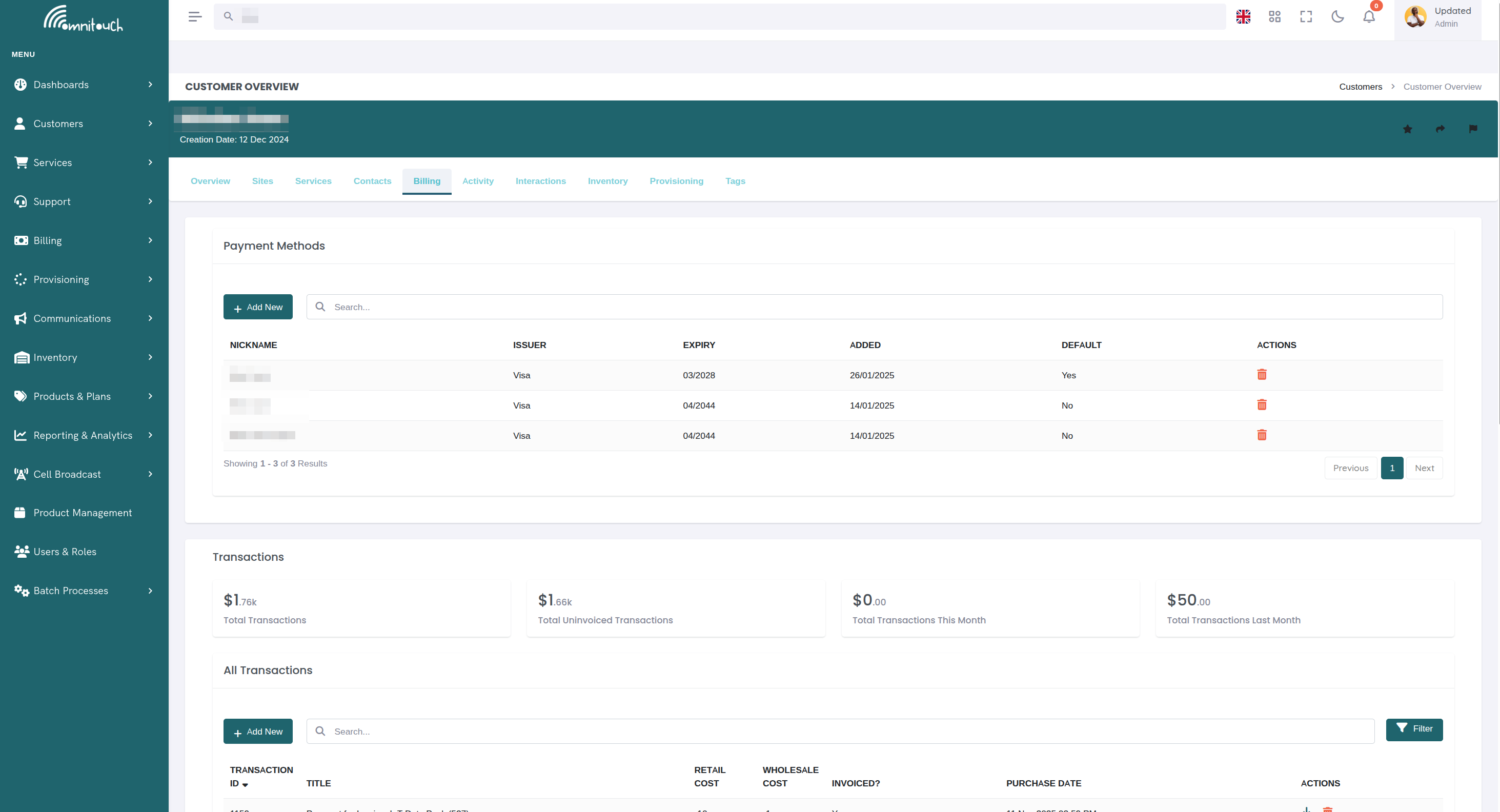
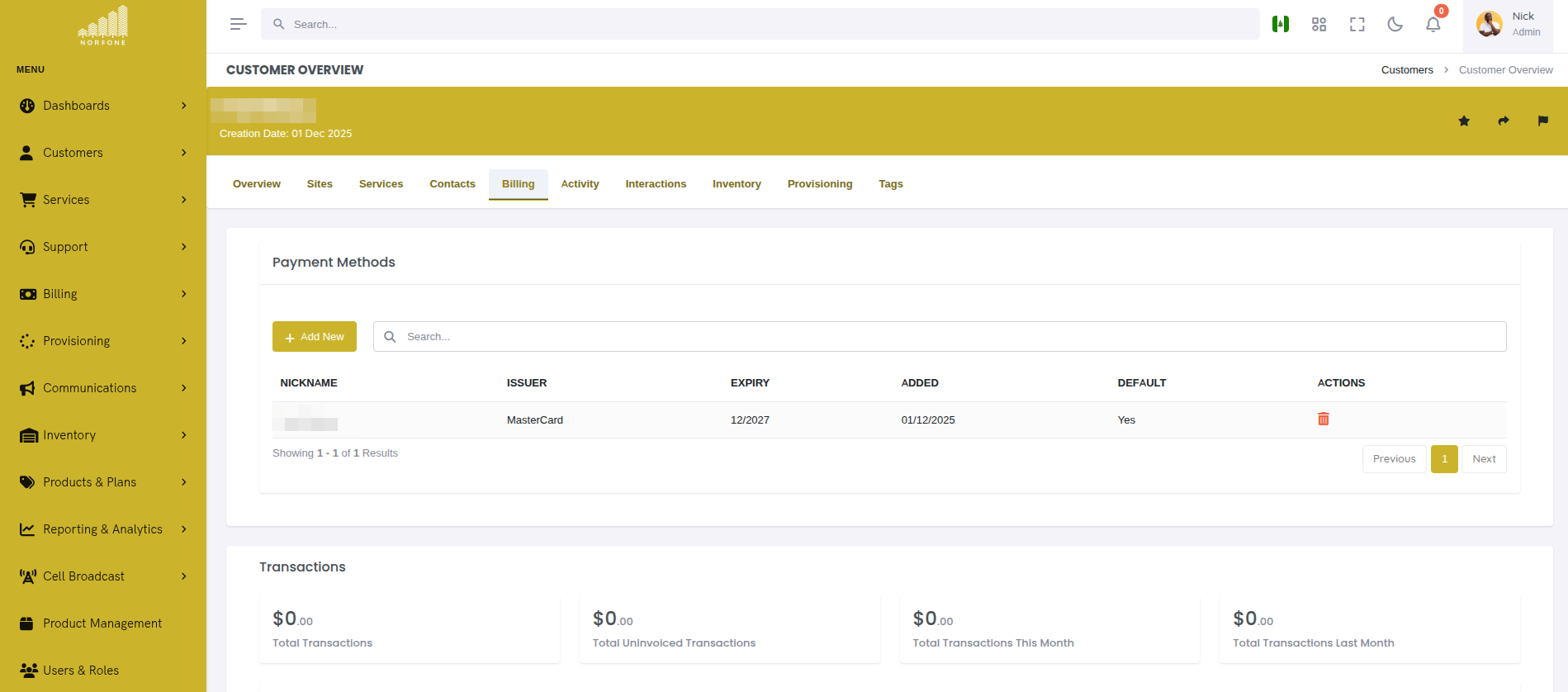
Section 1: Payment Methods
Purpose: Manage how customer pays for services
Key Features:
- View all saved credit cards
- Set default payment method
- Add new payment methods (via Stripe)
- Remove expired or unused cards
 {.align-center
width="800px"}
{.align-center
width="800px"}
Documentation: basics_payment
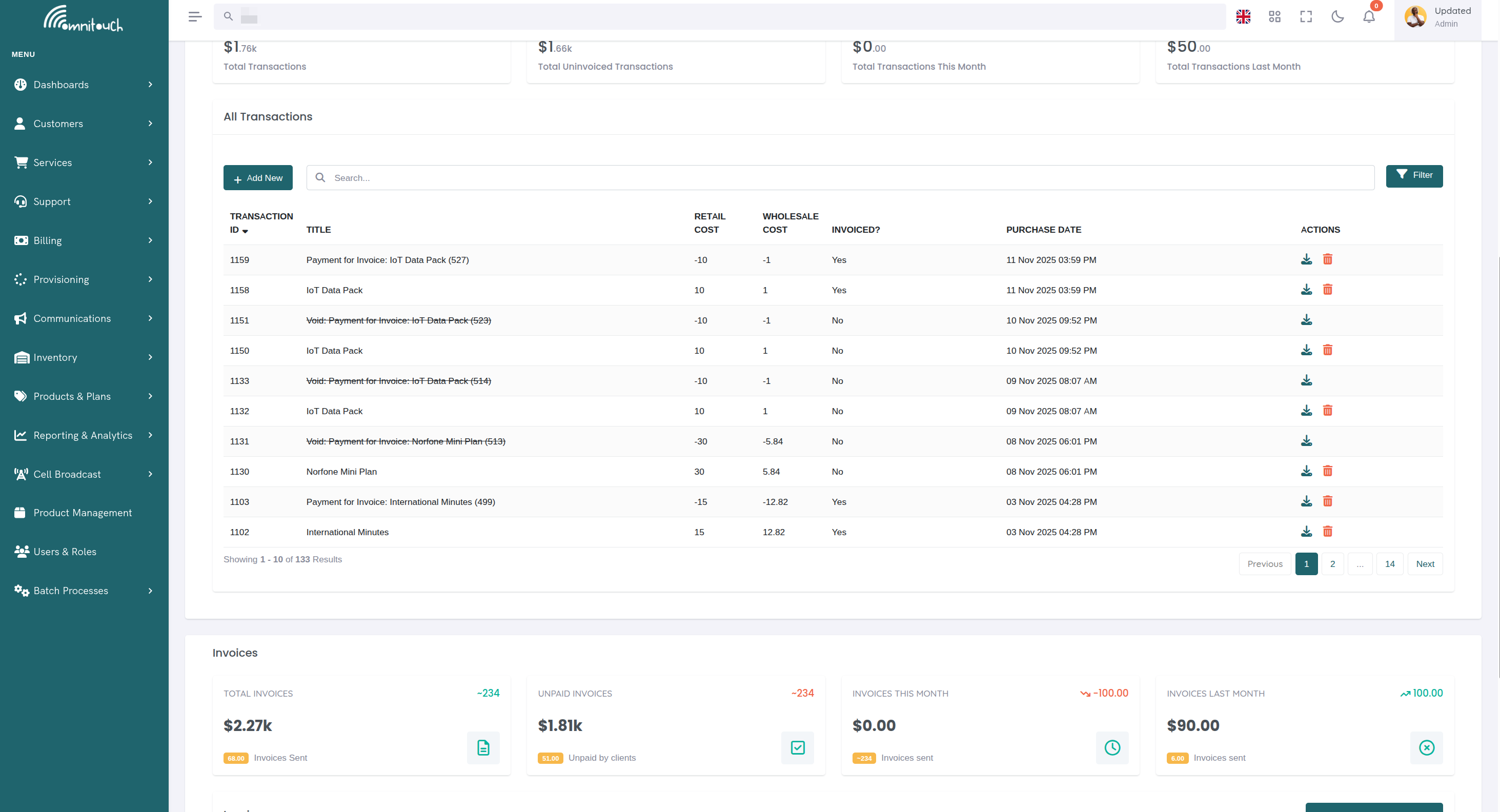
Section 2: Transactions
Purpose: Track all charges and credits for customer
Key Features:
- View transaction statistics (Total, Uninvoiced, This Month, Last Month)
- List all transactions with filtering by void/invoice status
- Add manual transactions (charges or credits)
- Void incorrect transactions
- See which transactions are invoiced vs uninvoiced
Documentation: payments_transaction
Section 3: Invoices
Purpose: Group transactions into bills for customer to pay
Key Features:
- View invoice statistics (Total, Unpaid, This Month, Last Month)
- List all invoices with filtering by paid/void status
- Generate new invoices from uninvoiced transactions
- Download invoice PDFs
- Email invoices to customers
- Pay invoices online (Stripe or manual payment methods)
- Void or refund invoices
Documentation: payments_invoices
Data Flow Between Sections
Understanding how data flows between the three sections is crucial for effective billing management.
Flow Diagram
Transaction → Invoice Relationship
1. Transaction Creation:
When a service is provisioned or a manual charge is added:
- Transaction created in Transactions section
- Transaction status: Uninvoiced
- Transaction's
invoice_idfield isnull
Example:
2. Invoice Generation:
When staff generates an invoice:
- Invoice created in Invoices section
- All uninvoiced transactions within date range grouped into invoice
- Transaction's
invoice_idfield populated - Transaction status changes to: Invoiced
Example:
3. Transaction Statistics Update:
- Uninvoiced Transactions total decreases
- Total Invoices statistic increases
- Unpaid Invoices total increases
Invoice → Payment Relationship
1. Invoice Payment:
When customer pays invoice:
- Payment processed using saved Payment Method (Stripe card)
- Or manual payment method selected (cash, POS, bank transfer)
- Invoice status changes to: Paid
2. Payment Transaction Created:
For manual payments (non-Stripe):
- Negative transaction created automatically
- Transaction title: "Payment for Invoice #1234"
- Transaction amount: -$45.00 (negative, credits customer)
- Transaction's
invoice_idfield: Links to paid invoice
Example:
3. Statistics Update:
- Unpaid Invoices total decreases
- Total Invoices This Month unchanged (invoice already existed)
Payment Method → Invoice Relationship
Stripe Payment Flow:
- Customer adds credit card in Payment Methods
- Card tokenized via Stripe, stored securely
- When paying invoice, customer selects saved card
- Stripe charges card
- Invoice marked as paid
payment_referencefield populated with Stripe payment intent ID
Manual Payment Flow:
- Customer pays via cash/POS/bank transfer (no payment method needed)
- Staff selects payment method in Pay Invoice modal
- Staff enters reference number (optional)
- Negative transaction created for payment amount
- Invoice marked as paid
Complete Billing Workflows
These workflows demonstrate how the three sections work together to accomplish common tasks.
Workflow 1: New Customer Setup and First Invoice
Goal: Set up billing for new customer and collect first payment
- Add Payment Method:
- Navigate to customer → Billing tab
- Payment Methods section → Click "Add Payment Method"
- Customer adds credit card via Stripe
- Card saved as default payment method
- Verify Transactions:
- Transactions section shows uninvoiced transactions:
- Service setup fee: $50.00
- First month service: $45.00
- Total Uninvoiced: $95.00
- Transactions section shows uninvoiced transactions:
- Generate Invoice:
- Invoices section → Click "Generate Proforma Invoice"
- Set date range to include setup and first month
- Click "Generate Invoice"
- Invoice #INV-2025-001234 created for $95.00
- Transactions Update:
- Both transactions now show: Invoice #INV-2025-001234
- Uninvoiced Transactions total now $0.00
- Email Invoice:
- Click email icon next to invoice
- Customer receives invoice email with PDF and pay link
- Customer Pays Online:
- Customer clicks pay link in email
- Redirected to Self-Care portal
- Click "Pay Invoice" button
- Select default payment method
- Click "Pay Invoice"
- Stripe charges card
- Invoice Update:
- Invoice status changes to "Paid"
- Unpaid Invoices total decreases by $95.00
Result: Customer fully set up with payment method, first invoice paid.
Workflow 2: Monthly Recurring Billing
Goal: Bill all customers for monthly service at end of month
- Services Auto-Charge:
- End of month arrives (January 31)
- Billing system automatically creates transactions for all recurring services
- Transactions section shows new uninvoiced transactions
- Review Uninvoiced Transactions:
- Navigate to Transactions section
- Filter: Invoice Status: Not Invoiced
- Review list of all transactions ready for billing
- Verify amounts and descriptions correct
- Generate Invoices:
- Navigate to Billing → Invoices (system-wide)
- For each customer (or use batch process):
- Click "Generate Proforma Invoice"
- Select customer
- Start Date: 2025-01-01
- End Date: 2025-01-31
- Due Date: 2025-02-15
- Click "Generate Invoice"
- Transactions Update:
- All transactions now linked to invoices
- Uninvoiced Transactions totals reset to $0.00
- Email All Invoices:
- For each invoice, click email icon
- All customers receive monthly invoices
- Customers Pay:
- Customers with saved payment methods pay online via Self-Care
- Staff processes cash/POS payments for customers who pay in person
- Unpaid Invoices total decreases as payments received
Result: All customers billed for January, invoices sent, payments processed.
Workflow 3: Handling Service Issue Credit
Goal: Credit customer for service outage, apply to unpaid invoice
- Customer Reports Issue:
- Service was down for 2 days
- Customer deserves $10 credit
- Add Credit Transaction:
- Navigate to customer → Billing tab → Transactions section
- Click "+ Add Transaction"
- Transaction Type: Credit
- Credit Type: Cash Payment (or appropriate type)
- Title: "Service Outage Credit"
- Description: "Compensation for 2-day outage 8-9 Jan"
- Retail Cost: 10.00
- Click "Add Transaction"
- Transaction Created:
- Transaction appears in list with amount: -$10.00
- Transaction status: Uninvoiced
- Uninvoiced Transactions total now includes -$10.00
- Apply to Invoice:
- If customer already has unpaid invoice:
- Invoice remains unpaid with original amount
- Credit will be applied to next invoice generation
- If generating new invoice:
- Invoices section → Click "Generate Proforma Invoice"
- Include date range with credit transaction
- Invoice generated with credit applied:
- If customer already has unpaid invoice:
- Customer Pays:
- Customer pays reduced amount: $35.00
- Invoice marked as paid
Result: Customer credited for outage, credit applied to next invoice, lower payment collected.
Workflow 4: Payment Method Expired - Update and Retry
Goal: Customer's card expired, causing payment failure - update card and retry payment
- Payment Failure Notification:
- Customer attempts to pay invoice
- Stripe returns error: "Card expired"
- Payment fails, invoice remains unpaid
- Update Payment Method:
- Customer navigates to Billing tab
- Payment Methods section → Click "Add Payment Method"
- Enter new card details (updated expiry date)
- New card saved
- Set as Default:
- Customer clicks "Set as Default" on new card
- Old card removed automatically (if desired)
- Retry Payment:
- Navigate to Invoices section
- Locate unpaid invoice
- Click "Pay" icon
- Payment modal opens with new default card pre-selected
- Click "Pay Invoice"
- Stripe charges new card successfully
- Invoice Update:
- Invoice status changes to "Paid"
payment_referencefield populated with new Stripe payment intent ID
Result: Customer updated payment method, invoice successfully paid with new card.
Workflow 5: Voiding Incorrect Invoice and Re-Billing
Goal: Staff generated invoice with wrong transactions - void and regenerate correctly
- Error Discovered:
- Invoice #INV-2025-001234 generated with wrong date range
- Included transactions from wrong month
- Invoice is unpaid
- Void Invoice:
- Navigate to Billing tab → Invoices section
- Locate incorrect invoice
- Click delete icon (🗑️)
- Confirm void
- Invoice voided
- Transactions Released:
- Navigate to Transactions section
- All transactions from voided invoice now show: Uninvoiced
- Uninvoiced Transactions total increases
- Transactions available for new invoice
- Generate Correct Invoice:
- Invoices section → Click "Generate Proforma Invoice"
- Set correct date range
- Apply filter if needed (e.g., "Mobile" for mobile-only invoice)
- Click "Generate Invoice"
- New invoice created with correct transactions
- Verify and Email:
- Review new invoice details
- Verify correct transactions included
- Click email icon to send to customer
Result: Incorrect invoice voided, transactions re-invoiced correctly, customer receives corrected invoice.
Workflow 6: Processing Cash Payment for Multiple Invoices
Goal: Customer pays multiple unpaid invoices with single cash payment
- Customer Arrives with Cash:
- Customer brings $300 cash to pay outstanding invoices
- Navigate to customer → Billing tab
- Review Unpaid Invoices:
- Invoices section → Filter: Paid: Not yet Paid
- View unpaid invoices:
- Pay First Invoice:
- Click pay icon on invoice #1234
- Payment modal opens
- Select "Cash" payment method
- Enter reference: "Cash paid 2025-02-10 - Receipt #001"
- Click "Pay Invoice"
- Invoice #1234 marked as "Paid"
- Pay Remaining Invoices:
- Repeat process for invoice #1235:
- Reference: "Cash paid 2025-02-10 - Receipt #001"
- Repeat for invoice #1236:
- Reference: "Cash paid 2025-02-10 - Receipt #001"
- Repeat process for invoice #1235:
- Verify Transactions:
- Navigate to Transactions section
- Three new payment transactions created:
- All linked to respective invoices
- Update Statistics:
- Invoices section → Unpaid Invoices total decreased by $300.00
- All invoices now show "Paid" status
Result: Customer paid all outstanding invoices with cash, payment transactions recorded with receipt reference.
Best Practices
For Staff Users
Transaction Management:
- Add manual transactions immediately (don't delay)
- Use descriptive titles and descriptions for clarity
- Link transactions to services and sites when applicable
- Void incorrect transactions before they're invoiced
Invoice Generation:
- Generate invoices at consistent intervals (e.g., monthly on 1st of month)
- Use date ranges carefully to avoid overlap or gaps
- Use filters to create service-specific invoices when needed
- Email invoices immediately after generation
- Review invoice PDFs before sending to customers
Payment Processing:
- Verify payment method valid before attempting charge
- Always enter reference numbers for manual payments (cash, POS, bank transfer)
- Mark invoices as paid immediately after receiving payment
- Refund via Stripe only (create manual credit for other payment methods)
Data Hygiene:
- Regularly review uninvoiced transactions
- Investigate void transactions to understand billing errors
- Monitor unpaid invoices and follow up with customers
- Keep payment methods current (remove expired cards)
For Customers (Self-Care Portal)
Payment Methods:
- Keep at least one valid payment method on file
- Update payment methods before cards expire
- Set your preferred card as default
Invoice Payments:
- Pay invoices before due date to avoid late fees
- Review invoice details and transactions before paying
- Download invoice PDFs for your records
- Contact support immediately if invoice appears incorrect
Transaction Review:
- Regularly review transaction history
- Report any unexpected charges immediately
- Understand which transactions are invoiced vs uninvoiced
For Administrators
System Configuration:
- Configure Mailjet email templates for professional invoice delivery
- Customize invoice PDF templates to match branding
- Set up Stripe integration for secure payment processing
- Configure payment terms and due dates
Monitoring and Reporting:
- Use statistics widgets to monitor billing health
- Track Uninvoiced Transactions total - should decrease after billing cycle
- Monitor Unpaid Invoices total - follow up on overdue payments
- Review This Month vs Last Month statistics for trends
Automation:
- Automate recurring service charges via product configuration
- Set up automatic invoice generation for recurring billing (if available)
- Configure email reminders for overdue invoices
Common Issues and Solutions
Issue: Customer Cannot Pay Invoice
Symptoms:
- Customer clicks pay button but nothing happens
- Error message: "No payment methods found"
Diagnosis:
- Navigate to customer → Billing tab → Payment Methods section
- Check if customer has any saved payment methods
- Check if saved cards are expired
Solution:
- Customer must add valid payment method before paying invoices
- Guide customer to Payment Methods page to add credit card
- Verify card accepted (Visa, Mastercard, Amex, etc.)
- Retry payment after card added
Issue: Invoice Generated with Wrong Transactions
Symptoms:
- Invoice includes transactions from wrong period
- Invoice missing expected transactions
- Invoice total incorrect
Diagnosis:
- Open invoice in Invoices section
- Review transactions included in invoice
- Check transaction dates vs invoice date range
- Check if filter was applied during generation
Solution:
- If invoice unpaid: Void invoice, verify transactions uninvoiced, regenerate with correct date range
- If invoice paid: Cannot void - create credit transaction for incorrect amount, generate corrected invoice
- Prevention: Always review Transactions section before generating invoice to verify correct transactions will be included
Issue: Uninvoiced Transactions Total Not Decreasing
Symptoms:
- Uninvoiced Transactions widget shows high amount
- Transactions list shows many uninvoiced transactions
- Monthly invoices already generated
Diagnosis:
- Filter transactions by Invoice Status: Not Invoiced
- Review list of uninvoiced transactions
- Check transaction dates - may be recent charges after last invoice generation
- Check if some transactions are voided (should not count toward uninvoiced total)
Solution:
- Expected behavior: Transactions created after last invoice generation remain uninvoiced until next billing cycle
- If old transactions uninvoiced: Generate invoice for those transactions with appropriate date range
- If voided transactions counted: System should exclude voided transactions automatically - report bug if not
Issue: Payment Method Keeps Declining
Symptoms:
- Stripe payment fails with "Card declined"
- Customer reports card should work
- Multiple retry attempts fail
Diagnosis:
- Check Stripe dashboard for decline reason
- Common decline reasons:
- Insufficient funds
- Card expired
- Card reported lost/stolen
- Bank fraud prevention
- International card blocked
Solution:
- Ask customer to contact their bank to authorize payment
- Try different payment method (different card)
- For staff: Process as manual payment (cash, POS) and mark invoice paid
- Verify billing address matches card billing address
Keyboard Shortcuts and Tips
Navigation:
- Access billing tab quickly: Customer page → B key (if keyboard shortcuts enabled)
Filtering:
- Transactions: Click "Not Invoiced" filter before generating invoices to see exactly what will be included
- Invoices: Click "Not yet Paid" filter to see all outstanding invoices requiring follow-up
Bulk Operations:
- Select multiple invoices (checkbox) to delete/void multiple at once (staff only)
- Use search bar to quickly find specific transaction or invoice by ID
Quick Actions:
- Click transaction/invoice title to view full details in modal
- Right-click actions menu (⋮) for quick access to download/email/pay options
Related Documentation
basics_payment- Payment methods and Stripe integrationpayments_transaction- Transactions in detailpayments_invoices- Invoices in detailintegrations_mailjet- Email invoice deliverycsa_activity_log- Viewing billing activity history