Inventory Overview in OmniCRM
The Inventory system in OmniCRM is designed to manage and track both physical and virtual items used by network operators and customers.
This means we can track all sorts of items, such as modems, phone numbers, IP address blocks, or even physical hardware like GPON ONTs or Fixed Wireless CPEs.
See also: Customer Attributes for storing custom metadata, and Customer Tags for visual categorization.
To support customers with a fixed network footprint, the inventory system can also track homes passed for a given service, allowing operators to do service qualification remotely, and for those operating a fixed wireless network, we can track the CPEs deployed in the field with their locations.
::: note ::: title Note :::
Inventory items are linked to products during provisioning through the
inventory_items_list field. For a complete walkthrough of how
inventory integrates with product provisioning, including the inventory
picker UI and Ansible playbook integration, see
Complete Product Lifecycle Guide - Inventory Requirements .
:::
Purpose
The OmniCRM Inventory serves several key purposes:
- Provisioning Services: When a customer signs up for a service, items like modems, SIM cards, or phone numbers may need to be allocated. The inventory system tracks these items and associates them with customers.
- Stock Management: For physical stock, such as hardware or other equipment, the inventory helps operators maintain visibility into what is available, where it is stored, and what has been allocated or sold to customers.
- Customer Allocation: The system allows for items to be allocated to customers, whether for use in a service (e.g., assigning a modem to a customer's internet account) or for direct sale.
- Service Qualification / Network Footprint: By storing information about network footprint, such as each home passed for a GPON service, or each Fixed Wireless CPE deployed, allows staff to do service qualification remoteley and see if there is a netowrk footprint in a specific area.
Example Inventory Lifecycle
To illustrate how the Inventory system works, consider the following examples
SIM Card Example
A batch of 1000 SIM cards are ordered from Omnitouch. Firstly an
Inventory Template is created for SIM cards (if it doesn't already
exist) and the ordered SIMs are loaded into the Inventory in the state
In Transit.
Once the SIMs are received, they are marked as In Stock,
and can be allocated out to different retail stores, with the Location
of the inventory item updated to reflect which retail store each SIM
card is at - This is useful for tracking stock levels at each store and
ensuring that each store has enough stock to meet customer demand.
When a customer signs up for a mobile service in-store, a SIM card is
allocated to the customer and the status is changed to
Allocated. The SIM card inventory item is then assigned to
the customer, and the status is updated to In Use.
If the customer cancels the service or the service goes dormant, the SIM
card is marked as Decommissioned.
GPON Homes Passed Example
For a GPON network, the inventory system can track each home passed for a given service.
When a new area is built out, each address passed can be added to the inventory.
This allows operators to see which homes are passed for a given service, and which homes are not yet passed.
When a customer signs up for a service, OmniCRM can automatically run a service qualification against the customer's address, to see if the address is in the homes passed inventory and what services can be offered.
Inventory Templates
The InventoryTemplate feature enables the creation of any number of item types with predefined fields. These templates act as blueprints that define the essential characteristics of different items, such as:
- Modems with a MAC address (
itemtext1) and a serial number (itemtext2). - Homes Passed for a given service, with a location and status (e.g., passed or not passed).
- Phone Numbers with a primary number (
itemtext1) and a geographic location (itemtext2). - Virtual Resources like IP address blocks, with identifiers mapped through the template.
Each inventory template defines up to 20 customizable text fields
(itemtext1 through itemtext20) with corresponding labels
(itemtext1_label through itemtext20_label) that describe what each
field represents. For example, a Modem template might set
itemtext1_label to "MAC Address" and itemtext2_label to "Serial
Number".
Operators can customize the fields for each item type using InventoryTemplates. These templates allow items to be categorized and managed in a structured way, ensuring consistency in how items are tracked.
Linking to Products:
Inventory template names are referenced in product definitions via the
inventory_items_list field. When provisioning a product, the system
displays an inventory picker showing only items matching the required
template types.
Example: A product with
inventory_items_list: "['SIM Card', 'Mobile Number']" requires two
inventory templates named exactly "SIM Card" and "Mobile Number" to
exist. Template names are case-sensitive.
For complete details on how inventory templates connect to product provisioning, see Product Lifecycle - Inventory Requirements .
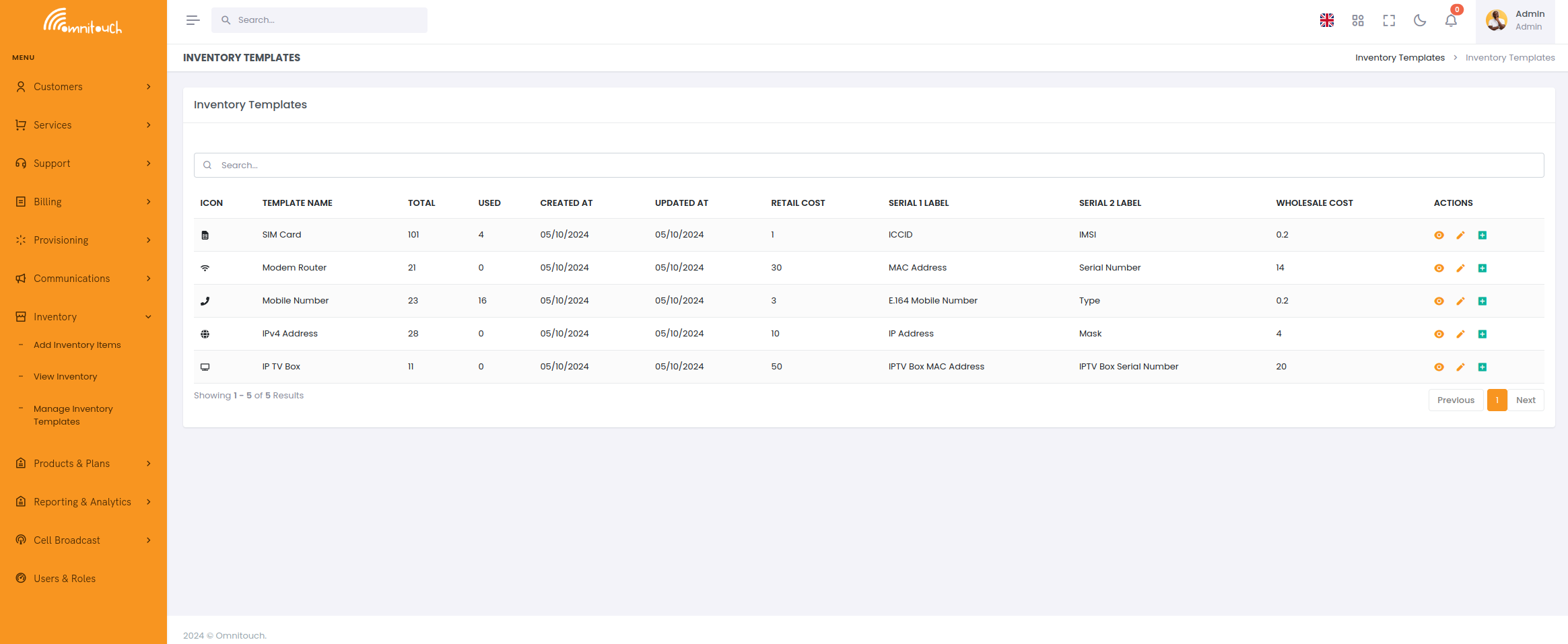
Creating Inventory Templates via the UI
To create a new inventory template:
-
Navigate to Inventory → Templates from the main menu
-
Click the Add Template button
-
Fill in the required fields:
Basic Information:
- Icon (optional): Icon class name for visual identification
(e.g.,
fa-solid fa-sim-card) - Item (required): The template name (must match exactly
what's used in
inventory_items_listfor products)
Cost Information (Required):
- Wholesale Cost (required): Your cost to purchase or provision this item type
- Retail Cost (required): Standard retail price if sold separately to customers
::: note ::: title Note :::
Wholesale and retail costs set here serve as default values when creating new inventory items from this template. Individual inventory items can have different costs if needed. :::
Field Labels:
- Item Text 1 Label (required): Label for the first
customizable field (defaults to "Model Number")
- Common examples: "ICCID" for SIM cards, "MAC Address" for modems, "Phone Number" for numbers
- Item Text 2 Label (required): Label for the second
customizable field (defaults to "Serial Number")
- Common examples: "IMSI" for SIM cards, "Serial Number" for hardware, "Geographic Region" for numbers
- Item Text 3-20 Labels (optional): Additional field labels as
needed
- Click Add Field to add more custom fields
- Only add fields you will actually use for this item type
Visibility Settings:
- Allow Dropdown Staff: Enable staff to select this inventory type in dropdowns
- Allow Dropdown Customer: Enable customers to see/select this inventory type (customer portal)
- Icon (optional): Icon class name for visual identification
(e.g.,
-
Click Save to create the template
Editing Inventory Templates
To edit an existing template:
- Navigate to Inventory → Templates
- Find the template in the list
- Click the Edit button
- Modify fields as needed
- Click Save
::: warning ::: title Warning :::
Changing field labels (e.g., itemtext1_label) only affects new items
created after the change. Existing inventory items keep their data but
will display with the new label names.
:::
::: caution ::: title Caution :::
Template names referenced in product inventory_items_list fields are
case-sensitive. Renaming a template will break the link to products
using the old name.
:::
Common Template Examples
SIM Card Template:
- Item: "SIM Card"
- Wholesale Cost: 2.50
- Retail Cost: 10.00
- Item Text 1 Label: "ICCID"
- Item Text 2 Label: "IMSI"
- Item Text 3 Label: "SIM Type" (Physical/eSIM)
Mobile Number Template:
- Item: "Mobile Number"
- Wholesale Cost: 1.00
- Retail Cost: 0.00
- Item Text 1 Label: "Phone Number"
- Item Text 2 Label: "Geographic Region"
- Item Text 3 Label: "Number Type" (Mobile/Landline)
Fixed Wireless CPE Template:
- Item: "Fixed Wireless CPE"
- Wholesale Cost: 250.00
- Retail Cost: 450.00
- Item Text 1 Label: "MAC Address"
- Item Text 2 Label: "Serial Number"
- Item Text 3 Label: "Firmware Version"
- Item Text 4 Label: "Manufacturer"
- Item Text 5 Label: "Model"
GPON ONT Template:
- Item: "GPON ONT"
- Wholesale Cost: 45.00
- Retail Cost: 0.00 (included with service)
- Item Text 1 Label: "Serial Number"
- Item Text 2 Label: "MAC Address"
- Item Text 3 Label: "PON Location"
- Item Text 4 Label: "Model"
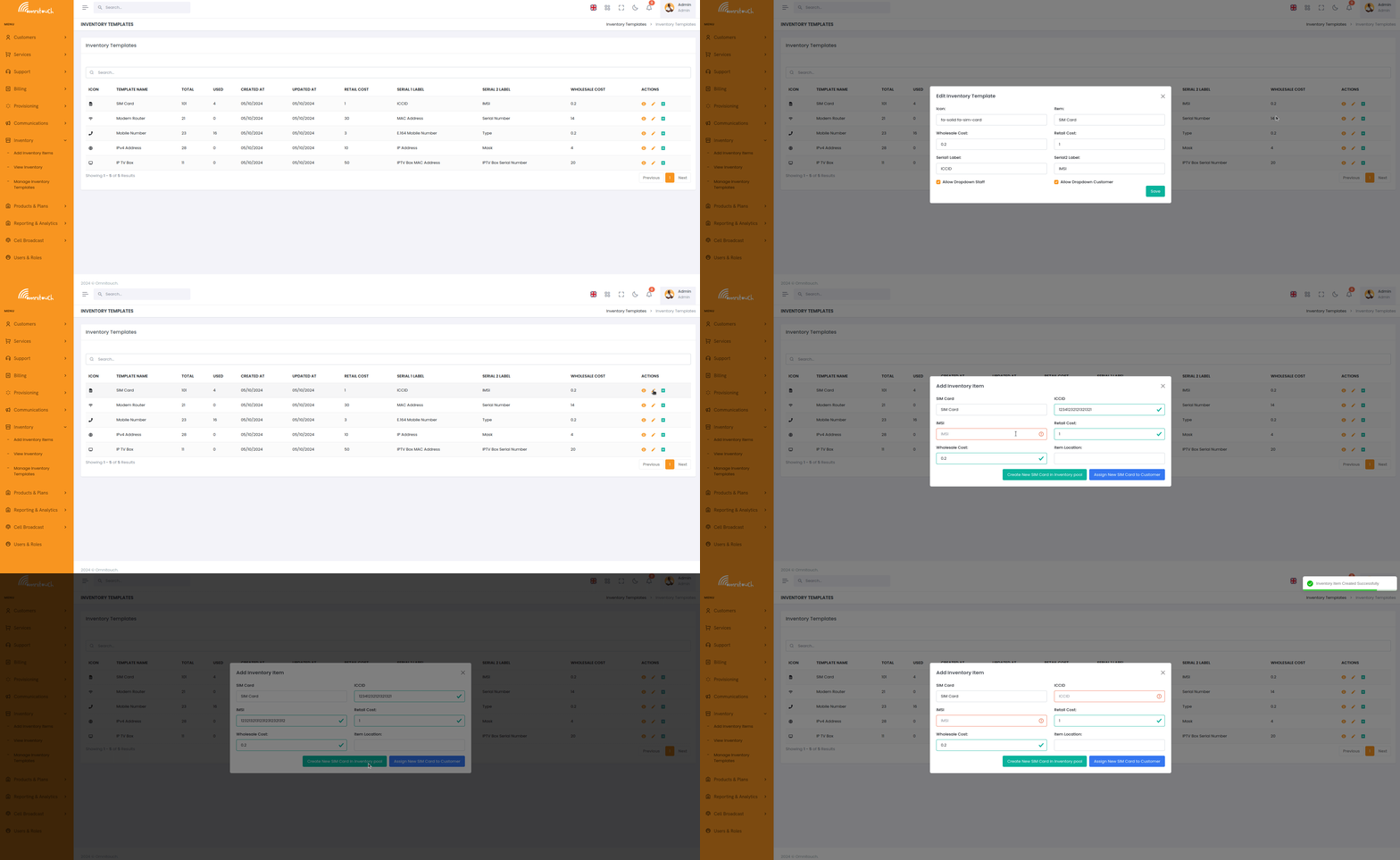
Creating and Managing Inventory Items
Once an InventoryTemplate is defined, individual Inventory items can be created. Each inventory item represents a specific instance of an item type (e.g., a specific modem or phone number) that can be:
- Allocated to Customers: Items are linked to customers for service provisioning (e.g., assigning hardware for an internet connection).
- Tracked for Stock: Operators can monitor available inventory, such as unsold or unassigned items.
- Sold or Decommissioned: Once sold, items are marked with
relevant timestamps (e.g.,
sold_date) and can no longer be considered available stock.
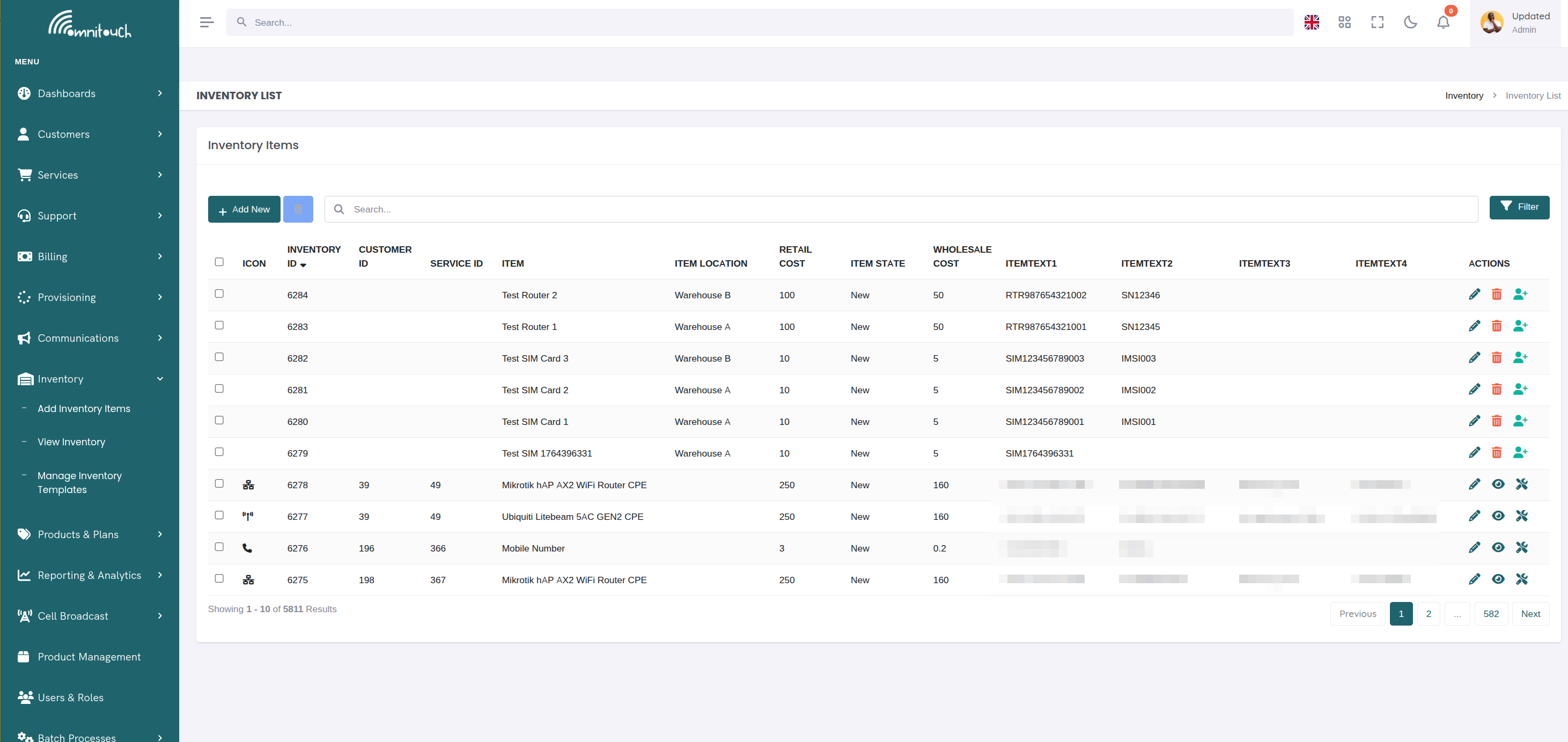
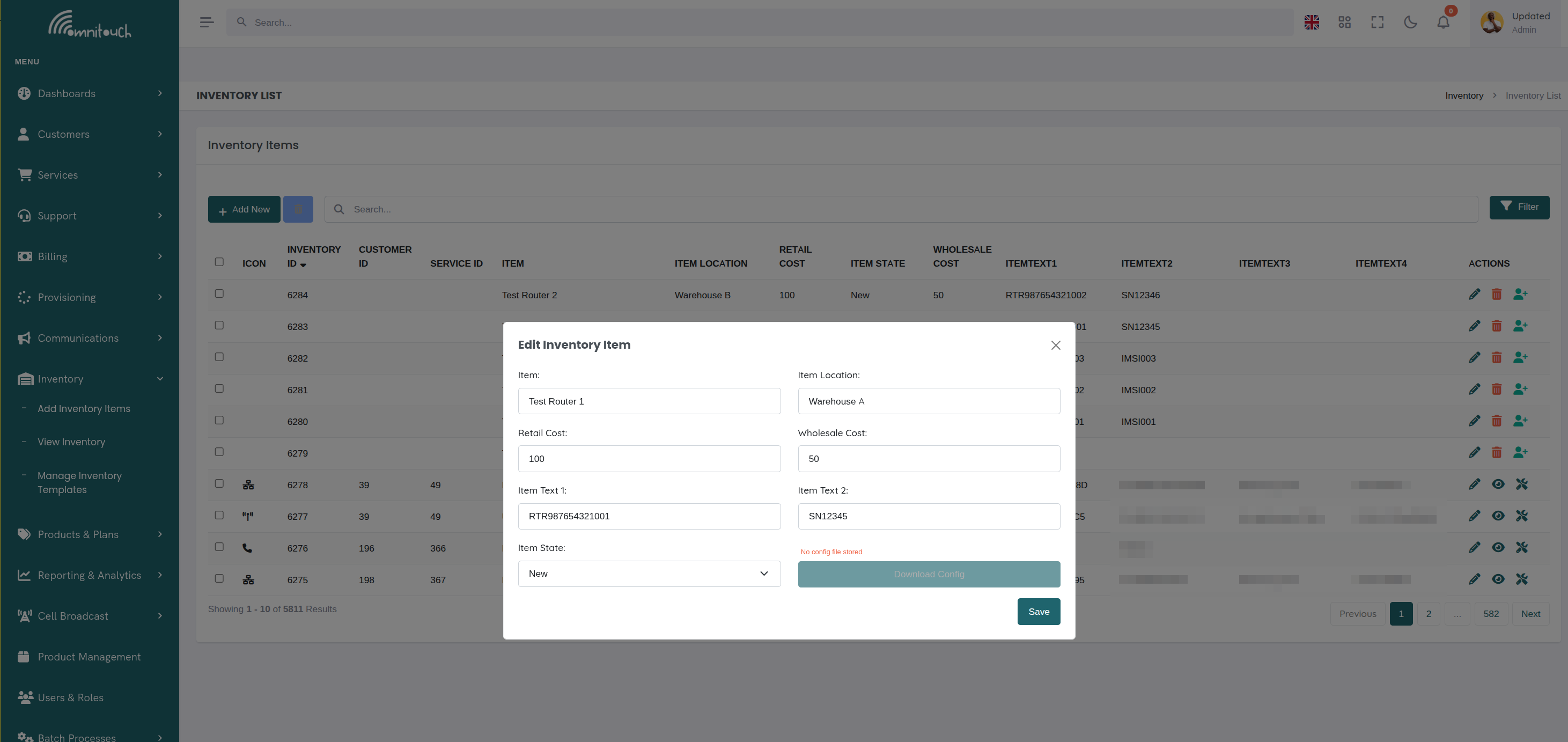
Through this system, OmniCRM facilitates efficient stock management, helps allocate resources to customers, and provides detailed visibility into the status and history of every item.
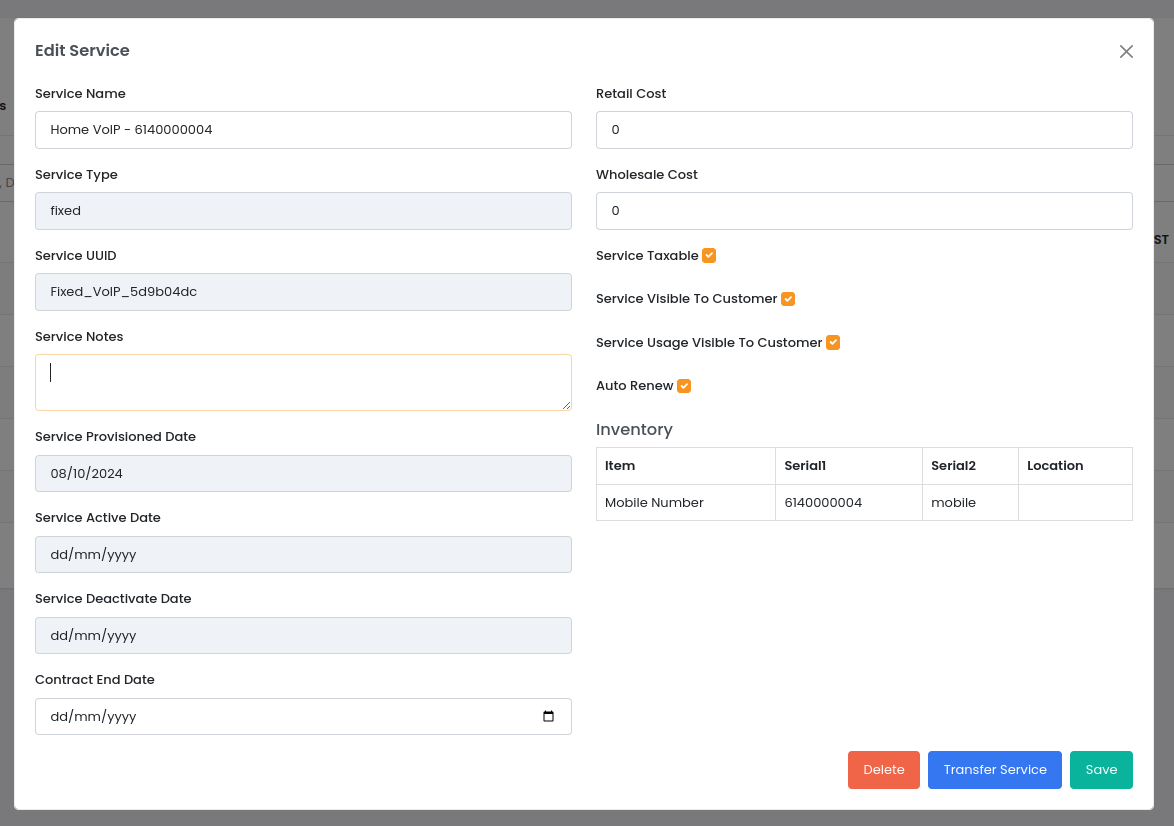
Services can be linked to a given Inventory item, allowing for easy tracking of which items are associated with which customers or services.
Once an inventory item has been assigned to a customer, the Ansible plays can update the item's status and history to reflect the allocation. This ensures that operators have an accurate record of which items are in use and which are available for allocation, as well as knowing which customer is using which item.
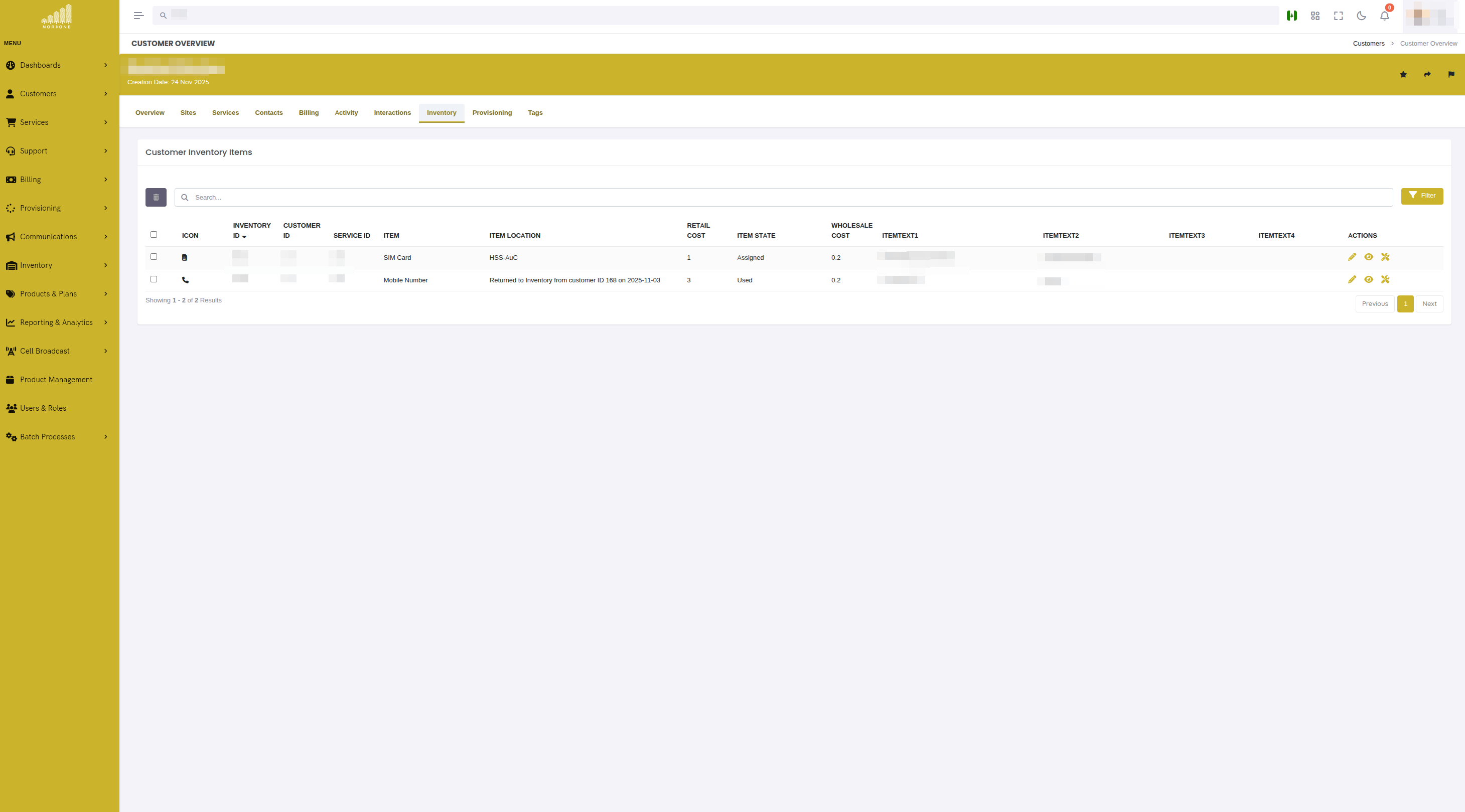
We can view items allocated to a customer from the customer's profile page in the Inventory tab.
For Inventory items linked to a Service, we can see that by editing the service, to see the linked Inventory items.
Inventory Item Fields
Each inventory item contains comprehensive information organized into several categories:
Basic Item Information
- inventory_id - Unique identifier for the inventory item (auto-generated)
- item - Type of item (matches Inventory Template name, e.g., "SIM Card", "Modem", "Phone Number")
- inventory_template_id - Link to the Inventory Template that defines this item type
- customer_id - If assigned to a customer, the customer's ID (nullable)
- service_id - If linked to a specific service, the service ID (nullable)
- item_location - Physical or logical location of the item:
- For physical items: building, warehouse, shelf location, store name, etc.
- For virtual items: geographic location, IP block location, number range region, etc.
- item_state - Current state of the inventory item (enumerated
values):
- New - Brand new, unused item
- Used - Previously used but functional
- Internal Use - Allocated for internal testing or staff use
- Assigned - Currently assigned to a customer or service
- Damaged - Non-functional, requires repair or disposal
- Out Of Service - Temporarily unavailable
- Lost - Item cannot be located
- Stolen - Item was stolen
Customizable Item Fields (from Template)
The inventory system supports up to 20 customizable text fields whose meaning is defined by the Inventory Template:
- itemtext1 - First customizable field (required, label defined by
template's
itemtext1_label)- Example: For modems, might be "MAC Address"
- Example: For SIM cards, might be "ICCID"
- Example: For phone numbers, might be "Phone Number"
- itemtext2 through itemtext20 - Additional customizable
fields (optional, labels defined by template)
- Example: itemtext2 for modems might be "Serial Number"
- Example: itemtext2 for SIM cards might be "IMSI"
- Example: itemtext3 for modems might be "Firmware Version"
Each Inventory Template defines which of these fields are used and what
they represent via the corresponding label fields (itemtext1_label,
itemtext2_label, etc.).
Cost Information
- wholesale_cost - Your cost to purchase/provision this item (float)
- retail_cost - Price charged to customer if sold separately (float)
- sold_date - Timestamp when item was sold or assigned to customer
Physical Address (for Network Equipment and Sites)
Used for tracking physical deployment locations, particularly for fixed network equipment (CPEs, ONTs, modems) or homes passed:
- address_line_1 - Street address, building number, unit number
- address_line_2 - Additional address information (suite, apartment, floor)
- city - City or town
- state - State, province, or region
- zip_code - Postal/ZIP code
- country - Country name
Geographic Location (Auto-populated from Web UI)
When creating inventory items via the Web UI with address autocomplete, these fields are automatically populated:
- google_maps_place_id - Google Maps Place ID for the address
- plus_code - Google Maps Plus Code (Open Location Code) for precise location
- latitude - Geographic latitude (decimal degrees)
- longitude - Geographic longitude (decimal degrees)
These fields enable:
- Mapping inventory locations on a map view
- Proximity calculations for service qualification
- Coverage analysis for network planning
- Route optimization for field technician dispatching
Device Management and Access URLs
The management_url field provides quick access to device interfaces
and provisioning URLs:
-
management_url - Access URL for the inventory item
- Network Equipment: Web interface URL (e.g.,
https://192.168.1.1for routers, switches, ONTs, CPEs) - eSIM Profiles: LPA (Local Profile Assistant) address for
eSIM activation (e.g.,
LPA:1$smdp.example.com$ACTIVATION-CODE-HERE) - Other Use Cases: Any URL that needs to be easily accessible via mobile device
QR Code Generation
When viewing inventory items with a
management_url, the system automatically generates a scannable QR code:- Inventory item detail view: 128x128 QR code displayed alongside the URL
- Service inventory table: 64x64 QR code shown for assigned items
- Format: Both QR code and clickable hyperlink displayed together
Common Use Cases
- Network Technicians: Scan QR code to access device management interface without typing IP addresses
- eSIM Activation: Customers scan QR code from the CRM to install eSIM profile on their device
- Customer Self-Service: Provide easy access to device configuration or customer portals
- Network Equipment: Web interface URL (e.g.,
-
management_username - Admin username for device access
-
management_password - Admin password for device access (encrypted at rest)
Configuration Management
For devices with configuration files:
- config_content - Complete configuration file content (stored as
text)
- Useful for backup, versioning, and disaster recovery
- Can store router configs, switch configs, CPE configs, etc.
- config_file_path - Path to external configuration file if stored
separately
- Alternative to storing full config in database
- Path to network share, version control repository, or config management system
Notes and Metadata
- inventory_notes - Free-form notes about the inventory item
- Installation notes
- Maintenance history
- Quirks or special handling requirements
- Vendor information
- Warranty details
- created - Timestamp when inventory item was created in the system (auto-set)
- last_modified - Timestamp of last update to the inventory item (auto-updated)
Field Usage Examples
Example 1: Mobile SIM Card
{
  "inventory_id": 1001,
  "item": "SIM Card",
  "inventory_template_id": 5,
  "itemtext1": "8961234567890123456",
  "itemtext2": "310120123456789",
  "itemtext3": "Physical",
  "item_location": "Warehouse A, Shelf 3",
  "item_state": "Assigned",
  "customer_id": 456,
  "service_id": 789,
  "wholesale_cost": 2.50,
  "retail_cost": 10.00,
  "sold_date": "2025-01-15T10:30:00Z",
  "inventory_notes": "Activated on 2025-01-15"
}
Example 2: Mobile eSIM Profile
{
  "inventory_id": 1002,
  "item": "eSIM",
  "inventory_template_id": 6,
  "itemtext1": "8961234567890123457",
  "itemtext2": "310120123456790",
  "itemtext3": "eSIM",
  "item_location": "Virtual Inventory",
  "item_state": "Assigned",
  "customer_id": 457,
  "service_id": 790,
  "management_url": "LPA:1$smdp.example.com$ACTIVATION-CODE-ABC123XYZ",
  "wholesale_cost": 0.00,
  "retail_cost": 0.00,
  "sold_date": "2025-01-16T14:20:00Z",
  "inventory_notes": "eSIM profile ready for activation"
}
When viewing this eSIM inventory item, the UI displays a QR code containing the LPA address. Customers scan this QR code with their mobile device to install the eSIM profile.
Example 3: Customer Premises Equipment (CPE) - Fixed Wireless
{
  "inventory_id": 2001,
  "item": "Fixed Wireless CPE",
  "inventory_template_id": 10,
  "itemtext1": "AA:BB:CC:DD:EE:FF",
  "itemtext2": "FW2024-12345",
  "itemtext3": "v2.4.1",
  "itemtext4": "Ubiquiti",
  "itemtext5": "LiteBeam AC Gen2",
  "item_location": "Customer Site",
  "item_state": "Assigned",
  "customer_id": 789,
  "service_id": 1234,
  "address_line_1": "123 Main Street",
  "address_line_2": "Apt 4B",
  "city": "Sydney",
  "state": "NSW",
  "zip_code": "2000",
  "country": "Australia",
  "latitude": "-33.8688",
  "longitude": "151.2093",
  "management_url": "https://192.168.100.1",
  "management_username": "admin",
  "management_password": "encrypted_password_here",
  "config_file_path": "/configs/cpe/fw2024-12345.conf",
  "inventory_notes": "Installed 2025-01-10. Customer reports excellent signal. Pointing: Azimuth 45°, Elevation 15°"
}
Example 3: GPON ONT with Full Address
{
  "inventory_id": 3001,
  "item": "GPON ONT",
  "inventory_template_id": 15,
  "itemtext1": "ALCL12345678",
  "itemtext2": "AA:BB:CC:DD:EE:FF",
  "itemtext3": "OLT-1, PON 3, ONT 42",
  "itemtext4": "Nokia G-010G-A",
  "item_location": "Customer Premises",
  "item_state": "Assigned",
  "customer_id": 321,
  "service_id": 654,
  "address_line_1": "456 Fiber Lane",
  "city": "Melbourne",
  "state": "VIC",
  "zip_code": "3000",
  "country": "Australia",
  "google_maps_place_id": "ChIJ1234567890",
  "plus_code": "4RRH+2C Melbourne VIC",
  "latitude": "-37.8136",
  "longitude": "144.9631",
  "management_url": "https://192.168.1.1",
  "management_username": "admin",
  "config_content": "# ONT Configuration\nwlan-ssid: HomeNetwork\nwlan-password: encrypted...",
  "wholesale_cost": 45.00,
  "retail_cost": 0.00,
  "inventory_notes": "Provisioned 2025-01-20. Optical power: -22dBm"
}
::: note ::: title Note :::
When viewing inventory items with a management_url (like Examples 2,
3, and 4 above), the UI automatically displays:
- A scannable QR code containing the URL or LPA address
- A clickable hyperlink (for web URLs)
Use Cases:
- eSIM Activation (Example 2): Customers scan the QR code to install the eSIM profile on their device
- Network Equipment Access (Examples 3 & 4): Technicians scan to access device management interfaces without manually typing IP addresses :::
Example 5: Phone Number (Virtual Inventory)
{
  "inventory_id": 4001,
  "item": "Phone Number",
  "inventory_template_id": 20,
  "itemtext1": "+61412345678",
  "itemtext2": "Melbourne",
  "itemtext3": "Mobile",
  "item_location": "Australia - VIC",
  "item_state": "Assigned",
  "customer_id": 555,
  "service_id": 888,
  "wholesale_cost": 1.00,
  "retail_cost": 0.00,
  "inventory_notes": "Ported from Telstra on 2025-01-05"
}
Inventory Item States Explained
The item_state field tracks the lifecycle of inventory items:
- New → Assigned - Normal flow when provisioning to a customer
- Assigned → Used - After service deactivation, item can be reused
- New → Internal Use - Allocated for testing, demos, or staff use
- Assigned → Damaged - Item failed, requires RMA or disposal
- Any State → Lost - Item cannot be located (triggers audit)
- Any State → Stolen - Item was stolen (triggers security report)
- Damaged/Used → New - After refurbishment or repair
Filtering and searching inventory by state allows operators to:
- Track available stock (New items)
- Identify items assigned to customers (Assigned)
- Find items available for reuse (Used)
- Monitor equipment issues (Damaged, Out Of Service)
- Audit missing items (Lost, Stolen)