Payment Methods Management
OmniCRM's Payment Methods system allows customers and staff to securely manage payment cards using Stripe integration. Payment methods enable automatic billing for services, one-time payments, and recurring charges without storing sensitive card data in OmniCRM.
See also: Stripe Integration , Billing Overview , Payment Processing , Invoices .
Overview
The payment methods system provides:
- Secure Card Storage - Cards tokenized by Stripe, never stored in OmniCRM
- Multiple Cards - Customers can store multiple payment methods
- Default Selection - Designate preferred payment method for automatic charges
- Expiry Tracking - Monitor and update expiring cards
- Self-Service - Customers can manage their own cards via Self-Care Portal
- Staff Management - Support staff can add/remove cards on behalf of customers
Supported Payment Methods:
- Credit Cards (Visa, Mastercard, American Express, Discover)
- Debit Cards
- Prepaid Cards (if supported by card network)
Not Stored in OmniCRM:
Card details are tokenized by Stripe and stored securely. OmniCRM only stores:
- Card brand (Visa, Mastercard, etc.)
- Last 4 digits
- Expiry month/year
- Cardholder name/nickname
- Stripe token reference
Accessing Payment Methods
From Customer Page:
- Navigate to Customers → [Select Customer]
- Click Billing tab
- Scroll to Payment Methods section
Or directly:
From Expiring Cards Dashboard:
View all customers with expiring cards:
This shows a system-wide list of cards expiring within the next 60 days.
Payment Methods List
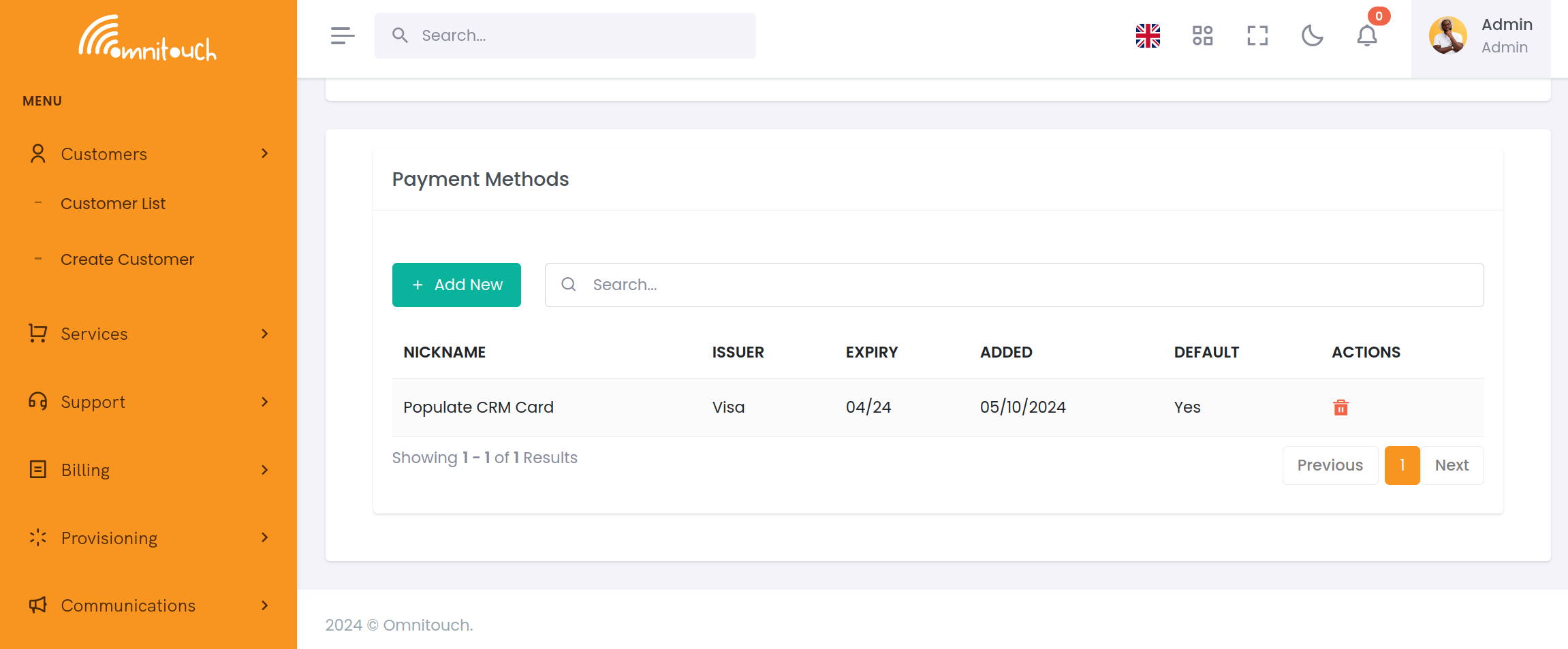
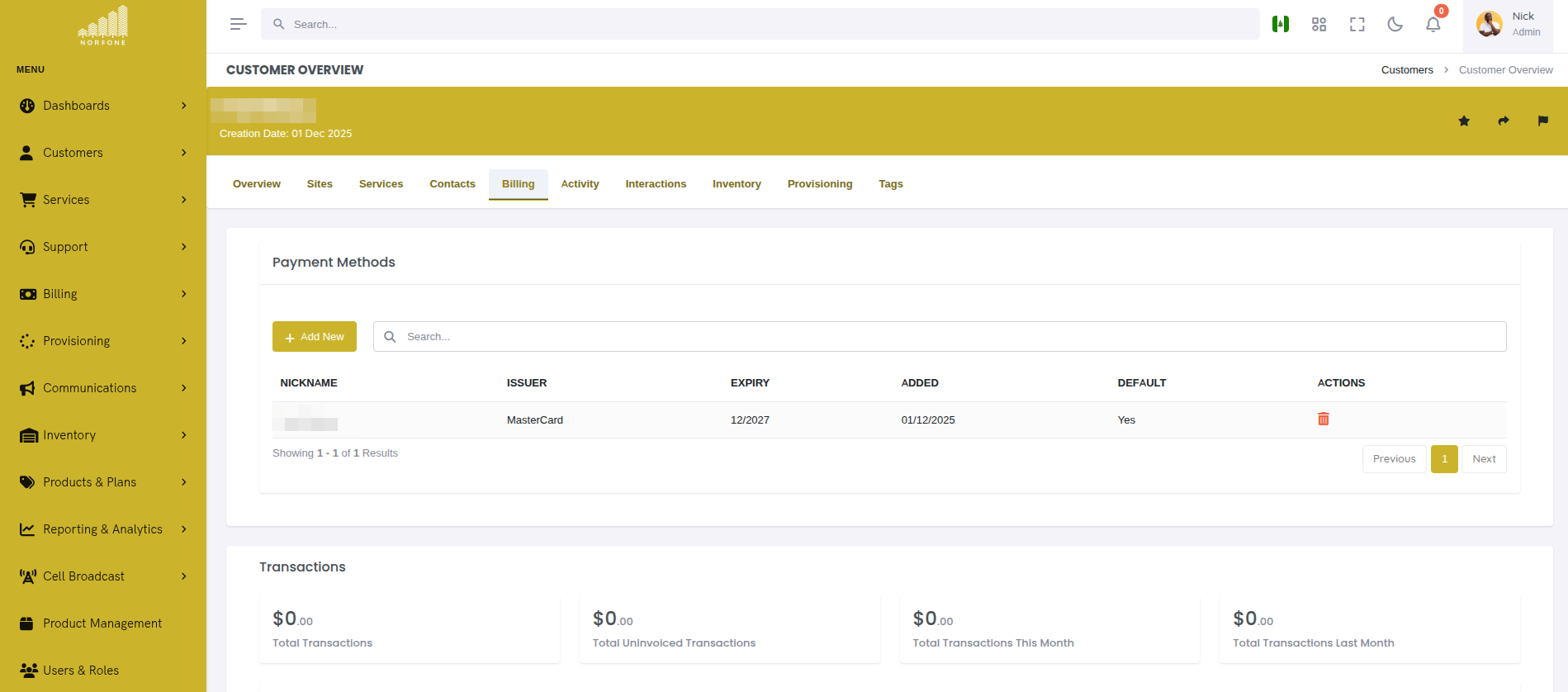
The payment methods table displays all stored cards for a customer:
 {.align-center
width="800px"}
{.align-center
width="800px"}
Column Descriptions:
- Nickname - Friendly name for the card (e.g., "Personal Card", "Work Visa")
- Issuer - Card brand and last 4 digits
- Expiry - Expiration month/year (MM/YYYY format)
- Added - Date card was added to account
- Default - Checkmark indicates default payment method for automatic charges
Actions Per Card:
Each row has an actions menu (⋮) with options:
- Set as Default - Make this the default payment method
- Delete - Remove card from account
Adding a Payment Method
Click "Add Payment Method" to open the Stripe payment modal.
Step 1: Enter Card Details
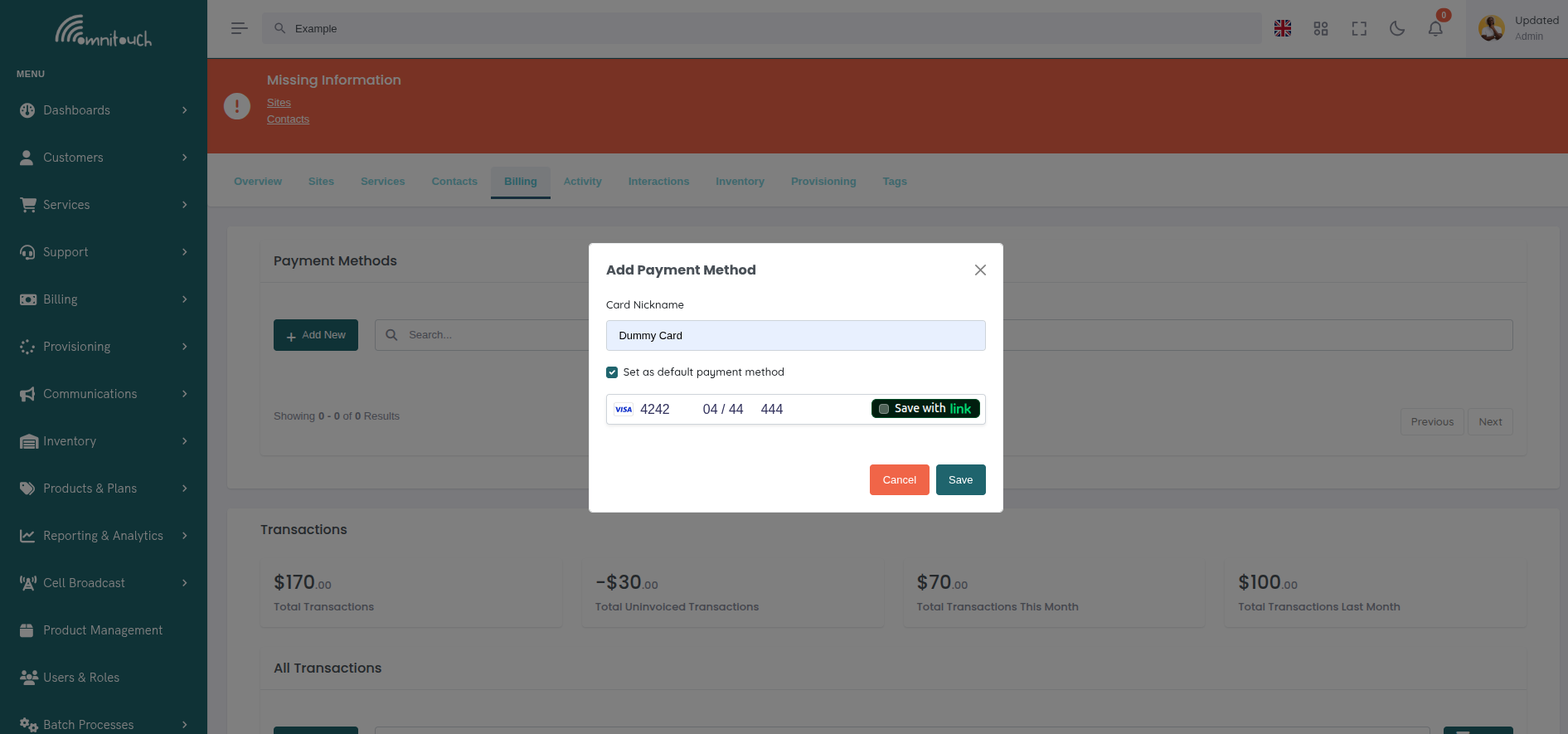
The Stripe Elements modal appears:
 {.align-center
width="800px"}
{.align-center
width="800px"}
Required Fields:
- Card Information - Card number, expiry, CVC (validated by Stripe)
- Cardholder Name - Name on the card
- Country/Region - Billing country
Optional Fields:
- Card Nickname - Friendly label to distinguish between cards
Stripe Elements Security:
- Card details entered directly into Stripe's secure iframe
- OmniCRM never sees or stores full card numbers
- PCI DSS compliance handled by Stripe
- Real-time validation prevents invalid card numbers
Step 2: Submit and Tokenize
When you click "Add Payment Method":
- Client-Side Validation:
- Stripe validates card number format
- Checks expiry date is in the future
- Verifies CVC format
- Tokenization:
- Card details sent directly to Stripe (not OmniCRM)
- Stripe creates a secure token (e.g.,
pm_1A2B3C4D) - Token returned to OmniCRM
- Server Processing:
- OmniCRM saves token to customer record
- Stores last 4 digits, brand, expiry for display
- No full card number ever touches OmniCRM servers
Step 3: Confirmation
Success message appears:
Your Visa ending in 1234 has been added to your account.
The new card appears in the payment methods table.
Automatic Default Selection:
- If this is the customer's first card, it's automatically set as default
- If customer already has cards, new card is added as non-default
- Customer can change default after adding
Setting Default Payment Method
The default payment method is used for:
- Automatic recurring service charges
- Invoice payments
- Top-ups and recharges
- One-time transactions (unless specified otherwise)
To Change Default:
-
Locate the card you want to set as default in the payment methods table
-
Click the actions menu (⋮) next to the card
-
Select "Set as Default"
-
Confirmation appears
Visa ending in 5678 is now your default payment method.
The checkmark moves to the newly selected card.
Visual Indicator:
Default cards show:
in the Default column, typically with a green checkmark badge.
Deleting a Payment Method
Remove cards that are expired, lost, or no longer needed.
Step 1: Initiate Deletion
- Find the card to delete in the payment methods table
- Click the actions menu (⋮)
- Select "Delete"
Step 2: Confirm Deletion
A confirmation modal appears:
Are you sure you want to delete this payment method?
Card: Visa ending in 1234 Expiry: 12/2026
⚠️ Warning: If this is your only payment method, you will need to add a new one to continue using services that require automatic billing.
[Cancel] [Delete Payment Method]
Click "Delete Payment Method" to confirm.
Step 3: Deletion Complete
Success message:
The card is removed from the table and deleted from Stripe.
Important Restrictions:
- Cannot delete default if other cards exist - Set a different card as default first
- Warning if deleting last card - Services requiring payment may be suspended
- No undo - Deletion is permanent; customer must re-add card if needed
Managing Expiring Cards
OmniCRM tracks card expiry dates and provides tools to proactively update expiring cards.
Expiring Cards Dashboard
Navigate to Billing → Expiring Cards to see a system-wide list:
Customer Card Expiry Days Until Action John Smith Visa **1234 02/2025 12 days Update Acme Corp MC5678 03/2025 45 days Update Jane Doe Amex**9012 01/2025 EXPIRED Update
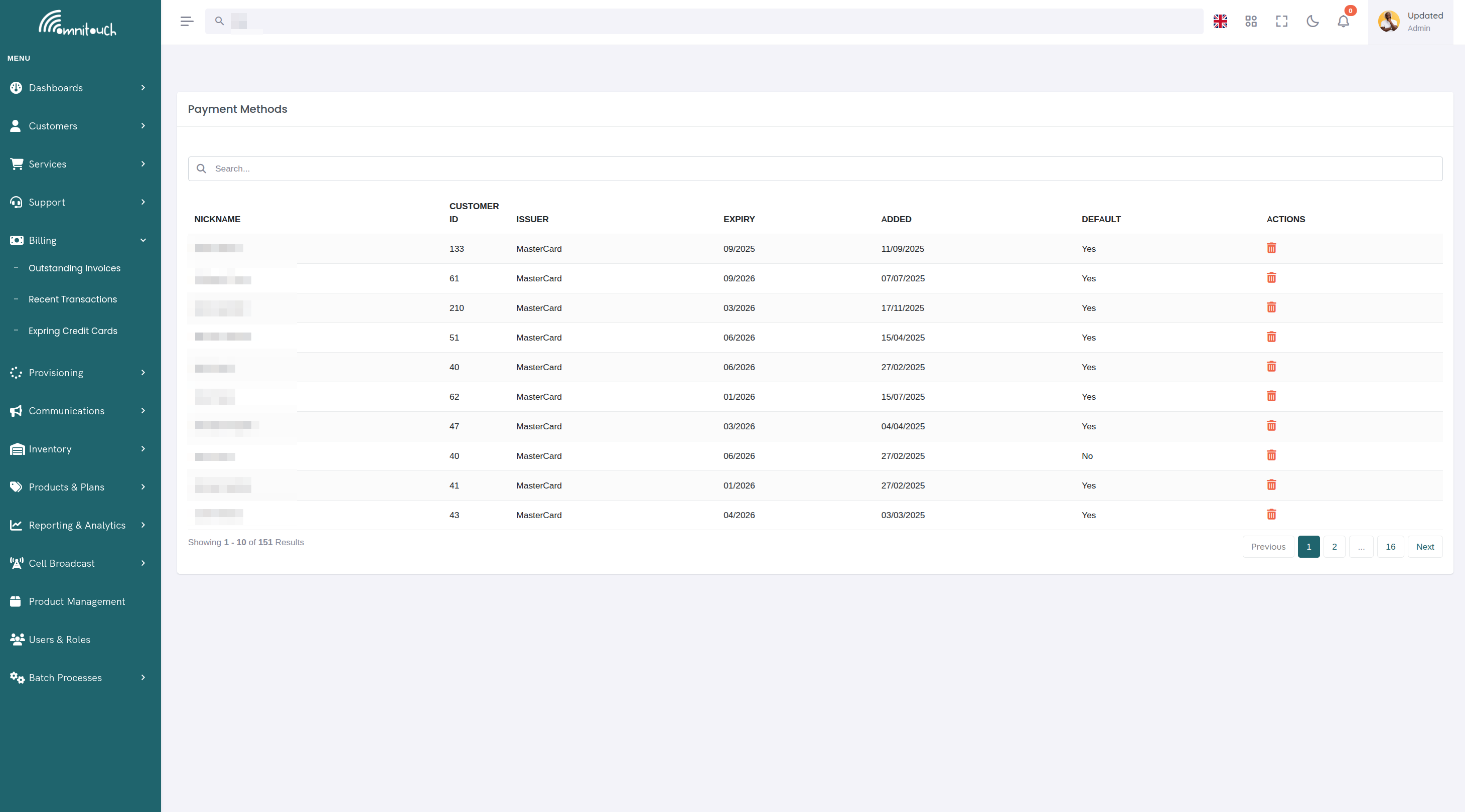
Filters:
- Expiry Range - Next 30/60/90 days or already expired
- Customer Type - Individual vs Business
- Service Type - Filter by service requiring payment method
Actions:
- Update - Opens customer's payment methods page to add new card
- Notify - Send email reminder to customer (if Mailjet configured)
Expiry Notifications
If Mailjet is configured, automatic emails are sent:
- 60 days before expiry - First reminder
- 30 days before expiry - Second reminder
- 7 days before expiry - Final warning
- At expiry - Card has expired notice
Customers can click a link in the email to update their payment method via the Self-Care portal.
Email Template Variables:
Mailjet templates receive:
- Customer name
- Card brand and last 4 digits
- Expiry date
- Link to Self-Care payment methods page
See integrations_mailjet for email
template configuration.
Updating an Expiring Card
Recommended Workflow:
- Customer receives expiry notification email
- Customer logs into Self-Care portal
- Navigates to Billing → Payment Methods
- Clicks "Add Payment Method"
- Enters new card details (same card with updated expiry, or replacement card)
- Sets new card as default
- Deletes old/expired card
Staff Workflow:
If customer calls support:
- Staff opens customer account
- Navigates to Billing → Payment Methods
- Adds new card on customer's behalf (customer provides details over phone)
- Sets new card as default
- Deletes expired card
- Confirms with customer
::: warning ::: title Warning :::
Never ask customers to email or text card details. Always use:
- Secure Self-Care portal for self-service
- Phone with staff entering details directly into system
- In-person at retail location :::
What Happens When Cards Expire
When a payment card reaches its expiry date and is not updated:
Immediate Effects:
- Automatic Payments Fail
- Stripe rejects transactions with expired cards
- Monthly service renewals fail to process
- Auto-top-ups fail
- Invoice auto-payments fail
- Customer Notifications
- System attempts to charge card
- Payment failure notification sent
- "Update Payment Method" email sent with link to Self-Care portal
- Service Status Changes
- Postpaid Services - May continue temporarily with outstanding balance
- Prepaid Services - Service suspension when balance depletes
- Auto-Renew Services - Renewal fails, service may expire
Subsequent Actions:
Day 1-3 (Grace Period):
- Service continues normally
- Customer receives first payment failure notice
- System attempts retry (depending on configuration)
Day 4-7:
- Second payment attempt (if configured)
- Warning email sent
- Customer service may contact customer
Day 8-14:
- Service may be suspended for non-payment
- Suspended status prevents usage but preserves account
- Customer can restore by updating payment method and paying outstanding balance
Day 15+:
- Service may be terminated for non-payment
- Inventory (SIM cards, equipment) marked for return
- Final notice sent
- Account referred to collections (if applicable)
Preventing Service Interruption:
To avoid service disruption:
- Update cards 30 days before expiry
- Add multiple payment methods for redundancy
- Enable payment failure alerts
- Monitor Expiring Cards dashboard weekly
Restoring Service After Expiry:
If service suspended due to expired card:
- Add new valid payment method
- Set as default
- Pay outstanding balance (if any)
- Contact support to reactivate service
- Service restored within minutes to hours
Payment Method Security
Tokenization
OmniCRM uses Stripe's tokenization to ensure security:
- Customer enters card → Sent directly to Stripe servers
- Stripe validates and tokenizes → Creates unique token
- Token stored in OmniCRM → Full card number never stored
- Payment processing → Token sent to Stripe, Stripe charges card
What OmniCRM Stores:
{
  "customer_stripe_id": "pm_1A2B3C4D5E6F",
  "brand": "visa",
  "last4": "1234",
  "exp_month": 12,
  "exp_year": 2026,
  "name": "John Smith",
  "nickname": "Personal Card",
  "is_default": true
}
What OmniCRM Does NOT Store:
- Full card number
- CVV/CVC code
- Magnetic stripe data
- PIN numbers
PCI Compliance
By using Stripe Elements:
- Reduced PCI scope - Card data never touches OmniCRM servers
- Stripe-hosted fields - Card entry happens in Stripe's iframe
- No card storage - Tokens used instead of raw card data
- Secure transmission - All communication over HTTPS/TLS
See integrations_stripe for Stripe
security details.
Common Workflows
Workflow 1: Customer Adds First Payment Method
Scenario: New customer signing up for service
- Customer creates account
- Selects service plan
- Prompted to add payment method during checkout
- Enters card details in Stripe modal
- Card tokenized and saved
- Automatically set as default
- Service provisioned
- First charge processed
Workflow 2: Customer Updates Expiring Card
Scenario: Credit card about to expire
- Customer receives email notification (60 days before expiry)
- Logs into Self-Care portal
- Navigates to Billing → Payment Methods
- Reviews current card expiring 12/2025
- Clicks "Add Payment Method"
- Enters replacement card with expiry 12/2028
- Sets new card as default
- Deletes old card
- Confirmation email sent
Workflow 3: Staff Helps Customer Over Phone
Scenario: Customer calls: "My card was declined"
- Customer calls support
- Staff verifies identity (security questions)
- Staff checks payment methods: Card expired 01/2025
- Staff: "Your card has expired. Do you have a new card?"
- Customer provides new card details over phone
- Staff navigates to Customers → [Customer] → Billing
- Clicks "Add Payment Method"
- Enters card details as customer reads them
- Sets new card as default
- Deletes expired card
- Retries failed payment
- Confirms with customer: "Payment successful, service restored"
Workflow 4: Business Customer with Multiple Cards
Scenario: Company wants different cards for different purposes
- Business customer adds primary card (Visa ending 1111)
- Sets as default for monthly service charges
- Adds backup card (Mastercard ending 2222) for top-ups
- Adds purchasing card (Amex ending 3333) for equipment purchases
- When making top-up, selects Mastercard manually at checkout
- Default Visa still used for automatic monthly billing
Workflow 5: Managing Expiring Cards (Admin)
Scenario: Proactive expiry management
- Admin navigates to Billing → Expiring Cards
- Filters: "Next 30 days"
- Sees 15 customers with expiring cards
- Selects all → "Send Reminder Emails"
- Mailjet sends personalized emails to each customer
- Customers update cards via Self-Care
- Admin reviews list 1 week later
- Calls remaining customers who haven't updated
- Assists with card updates over phone
Troubleshooting
"Card declined" when adding payment method
- Cause: Stripe rejected card (insufficient funds, fraud prevention, issuer decline)
- Fix:
- Try a different card
- Contact card issuer to authorize transaction
- Ensure card supports online purchases
- Check billing address matches card on file
"Error adding payment method" (generic error)
- Cause: Stripe API error or network issue
- Fix:
- Refresh page and try again
- Check internet connection
- Verify Stripe publishable key is correct in
.env - Check browser console for specific error message
- Try different browser (disable ad blockers)
Cannot delete payment method (button disabled)
- Cause: Trying to delete the default card, or it's the only card
- Fix:
- Set a different card as default first
- If it's the only card, add a new card before deleting
Card shows as expired but not in "Expiring Cards" list
- Cause: Card expired recently, cache not refreshed
- Fix:
- Refresh the page
- Check filters on Expiring Cards dashboard
- Expired cards may move to different view
New card not appearing immediately
- Cause: Page hasn't refreshed after adding card
- Fix:
- Payment methods table should auto-refresh
- If not, manually refresh browser
- Check if error occurred during add process
Stripe modal won't load
- Cause: Stripe.js library not loading, API key issue, or browser extension blocking
- Fix:
- Check browser console for errors
- Disable ad blockers and tracking protection
- Verify
REACT_APP_STRIPE_PUBLISHABLE_KEYin.env - Ensure Stripe.js script loads (check Network tab)
- Try incognito/private browsing mode
Customer doesn't receive expiry notifications
- Cause: Mailjet not configured or email template missing
- Fix:
- Verify Mailjet credentials in
crm_config.yaml - Check email template exists for card expiry
- Confirm customer email address is valid
- Check Mailjet logs for delivery failures
- Verify Mailjet credentials in
Best Practices
For Customers:
- Add payment method before service activation to avoid delays
- Keep at least 2 cards on file for redundancy
- Update expiring cards 30+ days before expiry
- Delete old/expired cards to avoid confusion
- Use descriptive nicknames ("Personal Visa", "Work Amex")
- Verify default payment method is correct for automatic billing
For Support Staff:
- Verify customer identity before accessing payment methods
- Never ask customers to send card details via email/SMS/chat
- Process card additions immediately during calls (don't defer)
- Confirm new card is set as default after adding
- Delete old cards only after confirming new card works
- Test payment after updating expired card (process £0.01 authorization)
For Administrators:
- Monitor Expiring Cards dashboard weekly
- Send reminder emails 60/30/7 days before expiry
- Keep Stripe test/live keys separate for dev vs production
- Ensure Mailjet templates are configured for expiry notifications
- Review failed payment reports to identify expired cards
- Train staff on secure card handling procedures
Security Best Practices:
- Only use Stripe publishable keys (never secret keys in frontend)
- Ensure all payment pages load over HTTPS
- Regularly review Stripe dashboard for suspicious activity
- Enable Stripe fraud prevention rules
- Require CVC for all card-not-present transactions
- Log payment method changes in activity log
Related Documentation
integrations_stripe- Stripe integration setup and configurationpayments_process- Processing payments with stored payment methodspayments_invoices- Automatic invoice payment using default cardfeatures_topup_recharge- Top-up system using payment methodsbasics_payment- General payment and billing conceptscustomer_care- Self-Care portal for customers to manage their own cards