Modifying a Service
Services can be modified by the end customer via the Self-Care Portal , or by an administrator via the admin portal.
Once a service is provisioned, you can modify its parameters, add enhancements, or change settings.
Editing Service Parameters
Basic service parameters can be modified by clicking the Edit button on the service details page.
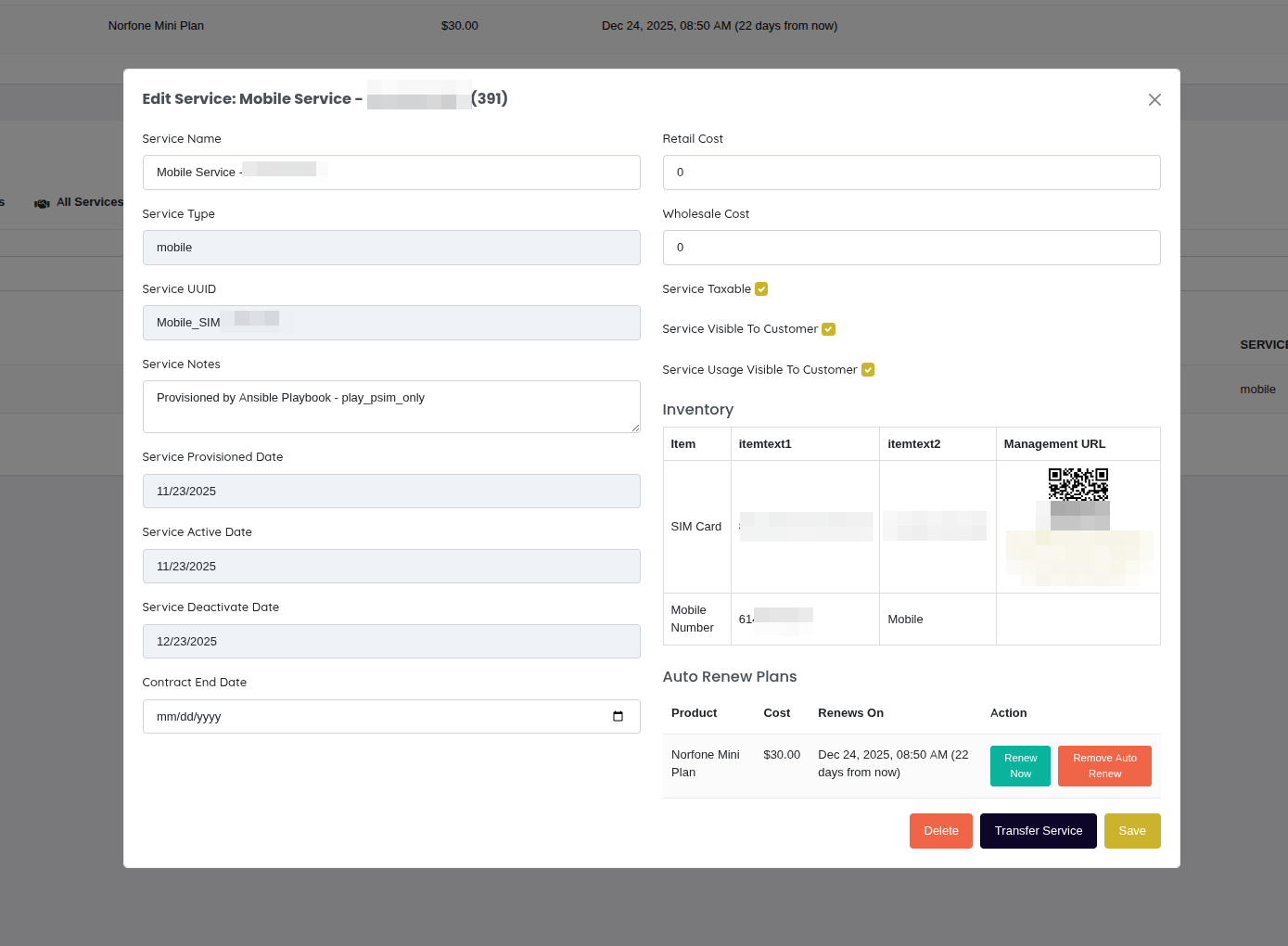
Editable Fields:
- Service Name
- Service Status (Active, Inactive, Suspended)
- Service Notes
- Auto-Renewal settings
- Linked inventory items
- Custom fields
Changes are saved immediately and reflected in the customer's self-care portal.
Adding Service Add-ons
Add-ons enhance existing services with additional features, data allowances, or hardware. Common add-on types include:
- Data top-ups - Additional data allowance (e.g., "5GB Data Boost")
- Feature upgrades - Extra capabilities (e.g., "International Calling")
- Hardware rentals - Equipment additions (e.g., "WiFi 6 Modem")
- Premium services - Enhanced features (e.g., "Static IP Address")
Accessing the Add-on Catalog
From a service details page:
- Navigate to the service you want to enhance
- Click the "Add Add-on" or "Browse Add-ons" button
- The add-on catalog opens, filtered to show only compatible add-ons
Automatic Filtering:
The system automatically filters add-ons based on:
- Service Type - Only shows add-ons matching the service type (mobile, internet, voip, etc.)
- Customer Type - Filters by residential vs. business customer
- Service Compatibility - Checks if service meets add-on requirements
- Availability - Only shows enabled products
For example, if viewing a residential mobile service, you'll only see mobile add-ons marked for residential customers.
Add-on Display
Add-ons are displayed in an interactive carousel showing:
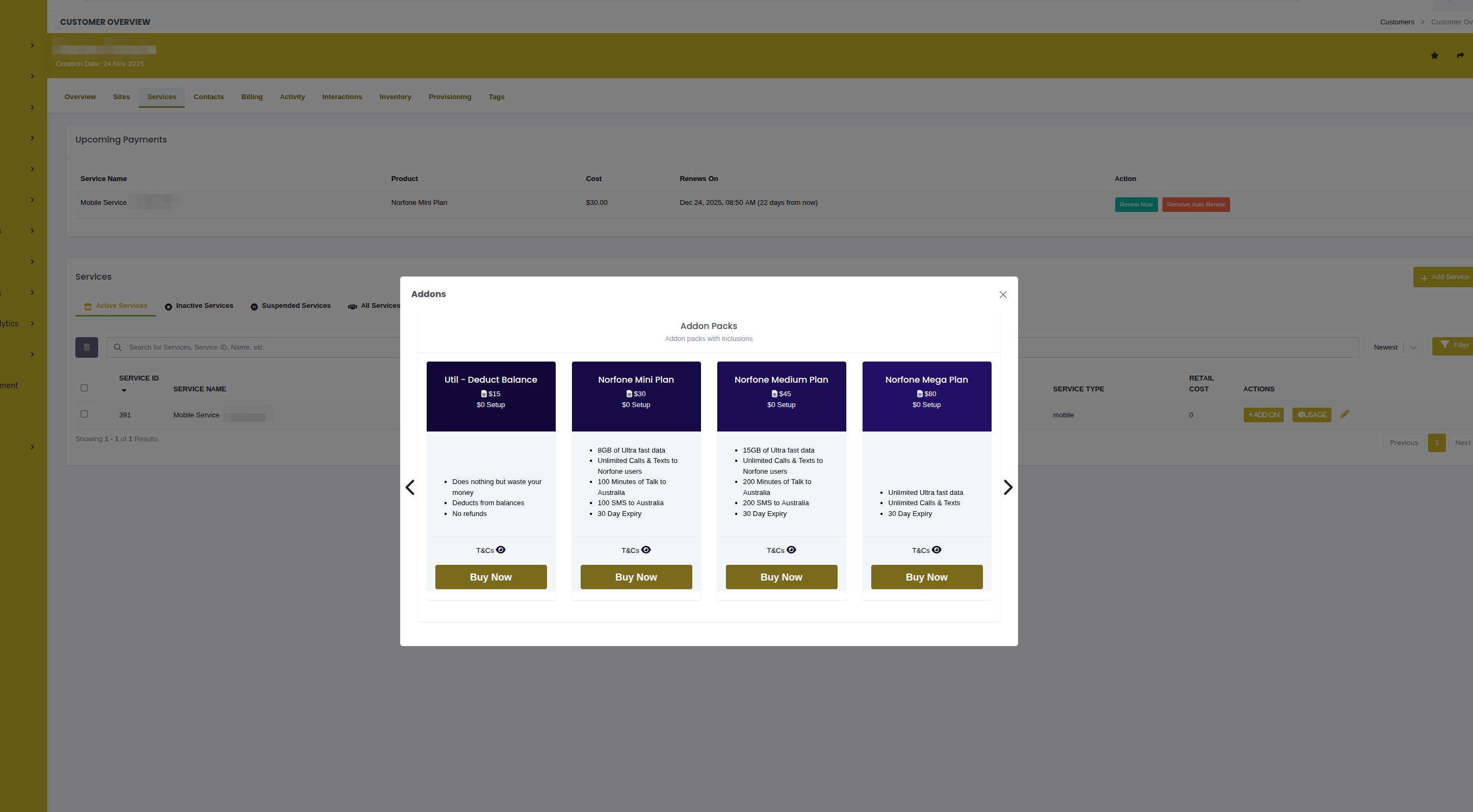
Product Card Display:
Information Displayed:
- Product icon
- Product name
- Feature list (bullet points)
- Setup cost
- Monthly/recurring cost
- Terms and conditions link
- "Add to Service" button
Provisioning an Add-on
Step 1: Select Add-on
Click on the desired add-on card, then click "Add to Service"
Step 2: Select Inventory (if required)
If the add-on requires physical inventory (e.g., hardware rental), an inventory picker appears:
Available Modems: • Modem-12345 - TP-Link AX1800 (New) • Modem-12346 - TP-Link AX1800 (New) • Modem-12347 - Netgear RAX40 (New)
Select the specific inventory item to assign to this service.
Step 3: Configure Auto-Renewal (optional)
For recurring add-ons, you may be prompted:
Would you like to enable auto-renewal for this add-on?
[ No ] [ Yes ]
- Yes - Add-on renews automatically each billing period
- No - One-time purchase, customer must manually renew
Step 4: Confirm and Provision
Review the add-on details and click "Confirm"
The provisioning modal appears showing real-time progress:
✓ Validating payment ✓ Assigning inventory ⟳ Configuring service (in progress...) ⏺ Creating transaction ⏺ Sending confirmation email
Once complete, the add-on appears in the service's add-on list.
Provisioning Behind the Scenes:
When you add an add-on, the system:
- Validates customer can purchase add-on
- Runs add-on's Ansible playbook (
provisioning_play) - Assigns any required inventory items to the service
- Creates transaction record for billing
- Updates service configuration (OCS, network systems, etc.)
- Sends confirmation notification to customer
For technical details on add-on provisioning, see Complete Product Lifecycle Guide - Adding Addons .
Viewing Active Add-ons
Active add-ons appear on the service details page in the "Add-ons" section:
Example Display:
📶 5GB Data Boost
: Added: 10 Jan 2025 Expires: 17 Jan 2025 Status: Active Cost: £5.00
📡 WiFi 6 Modem Rental
: Added: 01 Dec 2024 Inventory: Modem-12345 Auto-Renew: Yes Monthly: £10.00
Removing Add-ons
To remove an add-on from a service:
- Navigate to the service details page
- Locate the add-on in the "Active Add-ons" section
- Click the "Remove" or trashcan icon next to the add-on
- Confirm the removal
What Happens:
- Hardware add-ons - Deprovision playbook runs, inventory marked for return
- Virtual add-ons - Benefits removed immediately
- Auto-renewing add-ons - Cancels future renewals
- Transaction created - Credits any pro-rated amount if applicable
::: warning ::: title Warning :::
Removing hardware add-ons (modems, CPE, etc.) typically requires equipment to be returned. The system will mark inventory for return and may send return instructions to the customer. :::
Common Add-on Scenarios
Scenario 1: Customer Running Out of Data
- Customer contacts support: "I've used my monthly allowance"
- Staff navigates to customer's mobile service
- Clicks "Add Add-on"
- Selects "5GB Data Boost"
- Provisions immediately
- Customer receives instant data top-up
Scenario 2: Business Needs Static IP
- Business customer requests static IP for VPN
- Staff opens customer's internet service
- Browses add-ons, selects "Static IP Address"
- System provisions IP from available pool (inventory)
- Configures routing in network equipment
- Business receives IP configuration details
Scenario 3: Equipment Rental for Fiber Service
- Customer signs up for fiber internet
- During provisioning, customer opts for modem rental
- Staff adds "WiFi 6 Modem" add-on
- Selects available modem from inventory
- Modem shipped to customer
- Recurring £10/month charge added to account
Troubleshooting
"No compatible add-ons available"
- Cause: No add-ons match the service type or customer type
- Fix: Check product catalog has add-ons with matching
service_typeandresidential/businesssettings
Add-on provisioning fails
- Cause: Provisioning playbook error or inventory unavailable
- Fix:
- Check provisioning logs for specific error
- Verify inventory items are in stock (if required)
- Review playbook logs in provisioning system
Inventory picker shows no items
- Cause: No available inventory items of required type
- Fix:
- Add inventory items to the system
- Check existing items aren't all assigned or damaged
- Verify inventory template name matches
inventory_items_listexactly
Auto-renewal not working
- Cause: Auto-renewal flag not set or payment method expired
- Fix:
- Verify service has
auto_renew: true - Check customer has valid payment method on file
- Review scheduled jobs in billing system
- Verify service has
Related Documentation
guide_product_lifecycle- Complete add-on provisioning flowcsa_add_service- Creating new servicesconcepts_products_and_services- Product and service conceptsadministration_inventory- Inventory management for hardware add-ons