Customer Transactions
Anything that costs money in the system is recorded as a transaction under the customer.
Every transaction has a monetary amount for wholesale cost and retail cost, and a description of what the transaction is for.
Transactions can be automatically generated by the system, for example, when a service is provisioned, a transaction is created for the setup cost, and when a service is billed, a transaction is created for the retail cost.
Transactions can also be manually created, for example, if a customer is given a credit, a transaction is created for the credit amount, or an installation fee is charged, a transaction is created for the installation fee.
Transactions are grouped together to form Invoices , which is sent to the customer for payment.
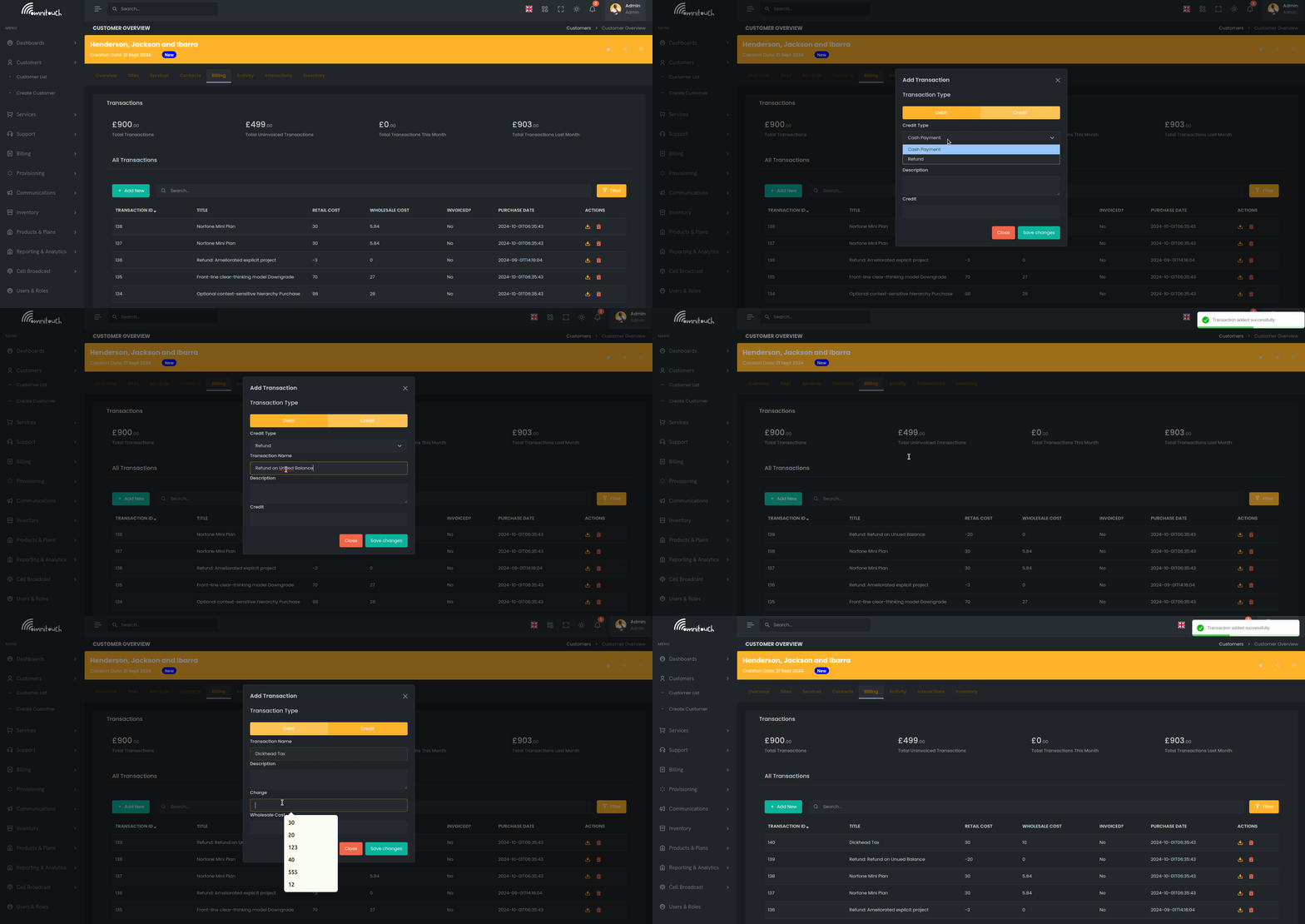
Accessing Transactions
Transactions can be viewed at the system level or per-customer:
Per-Customer View:
- Navigate to Customers → [Select Customer]
- Click Billing tab
- View transactions list in the first card
System-Wide View:
- Navigate to Billing → Transactions (from main menu)
- View all transactions across all customers
Transaction Statistics Widgets
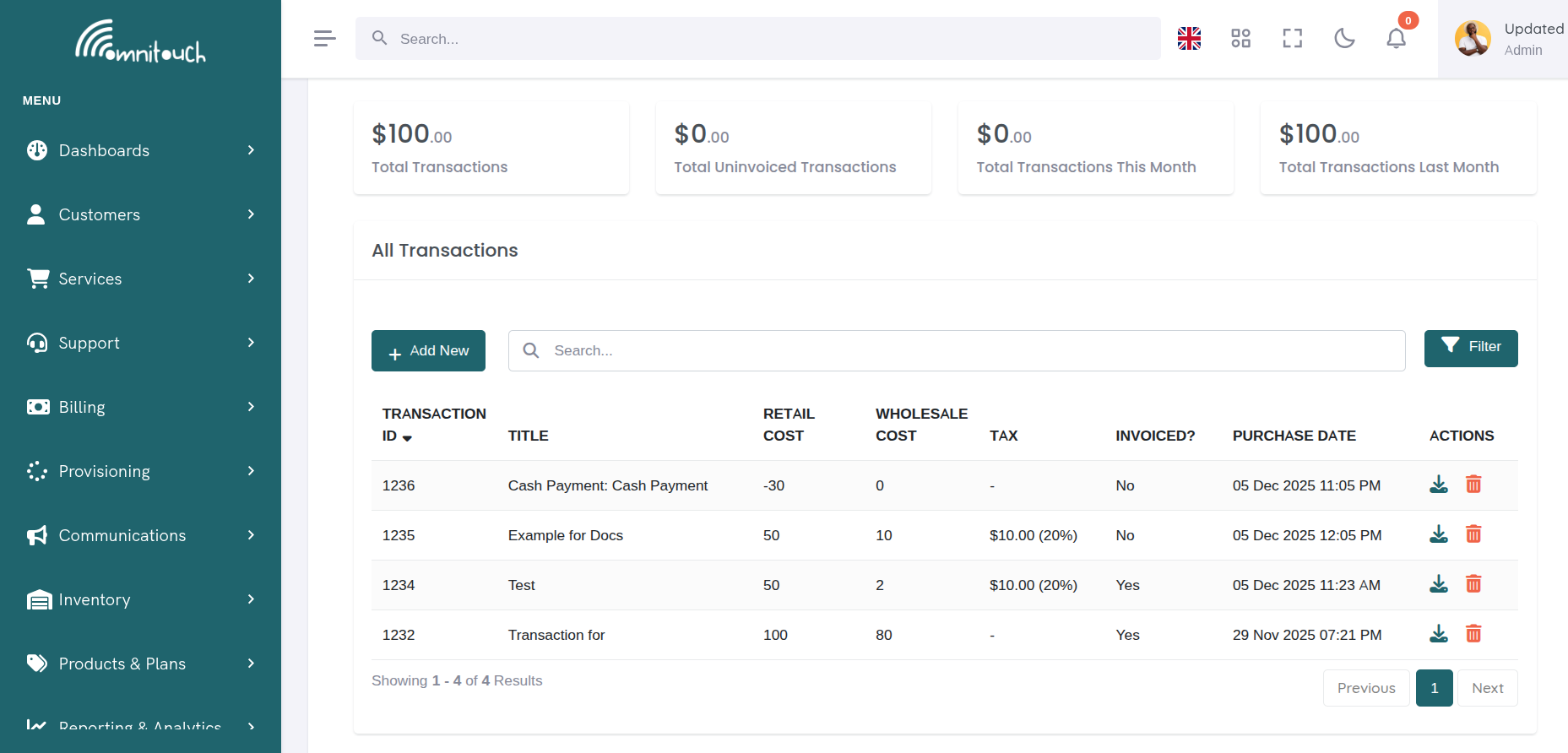
At the top of the transactions page, four statistics cards display financial summaries:
 {.align-center
width="800px"}
{.align-center
width="800px"}
Widget Descriptions:
- Total Transactions - Sum of all transaction retail costs (all time)
- Total Uninvoiced Transactions - Sum of transactions not yet included in an invoice
- Total Transactions This Month - Sum of transactions created this calendar month
- Total Transactions Last Month - Sum of transactions created last calendar month
Value Formatting:
- Values over 1,000: Display as "k" suffix (e.g., $1.5k)
- Values over 1,000,000: Display as "M" suffix (e.g., $2.3M)
- Values over 1,000,000,000: Display as "B" suffix (e.g., $1.1B)
Transactions List
The transactions table displays all transactions with the following columns:
Column Descriptions:
- ID - Unique transaction ID
- Date - Transaction creation date
- Title - Short transaction name
- Description - Detailed description of what the transaction is for
- Amount - Retail cost (positive for charges, negative for credits)
- Invoice - Invoice ID if transaction has been invoiced (clickable link)
- Status - Checkmark if invoiced, dash if not yet invoiced
Actions Per Row:
Each row has an actions menu (⋮) with options:
- View Details - Opens transaction detail modal
- Download Invoice PDF - Download PDF (only if invoiced)
- Void Transaction - Mark transaction as void (only if not invoiced)
Transaction Types
Transactions fall into two main categories:
Debit Transactions (Charges)
Positive amounts that increase customer balance owed:
- Service Setup Fees - One-time charges when service provisioned
- Monthly Service Fees - Recurring charges for services
- Installation Fees - Charges for field technician visits
- Equipment Charges - Charges for modems, routers, SIM cards
- Late Payment Fees - Penalties for overdue invoices
- Manual Charges - Custom charges added by staff
Credit Transactions (Payments/Refunds)
Negative amounts that decrease customer balance owed:
- Cash Payments - Customer paid by cash
- Card Payments - Customer paid by credit/debit card
- Bank Transfer Payments - Customer paid via bank transfer
- Account Credits - Goodwill credits, compensation
- Refunds - Money returned to customer
- Discounts - Promotional or loyalty discounts
Adding a Transaction Manually
Click "+ Add Transaction" to open the add transaction modal.
Debit Transaction (Charge):
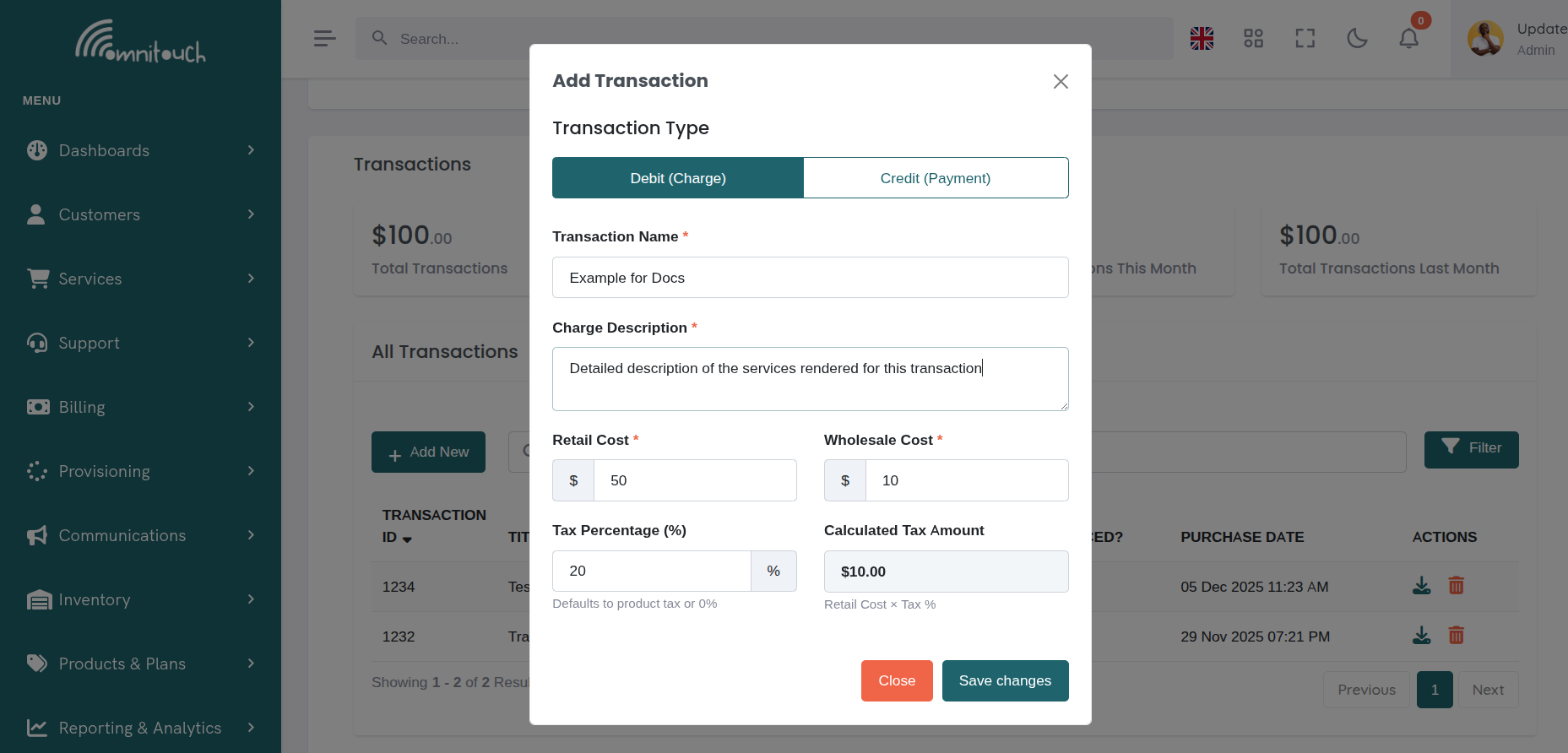 {.align-center
width="800px"}
{.align-center
width="800px"}
Credit Transaction (Payment/Refund):
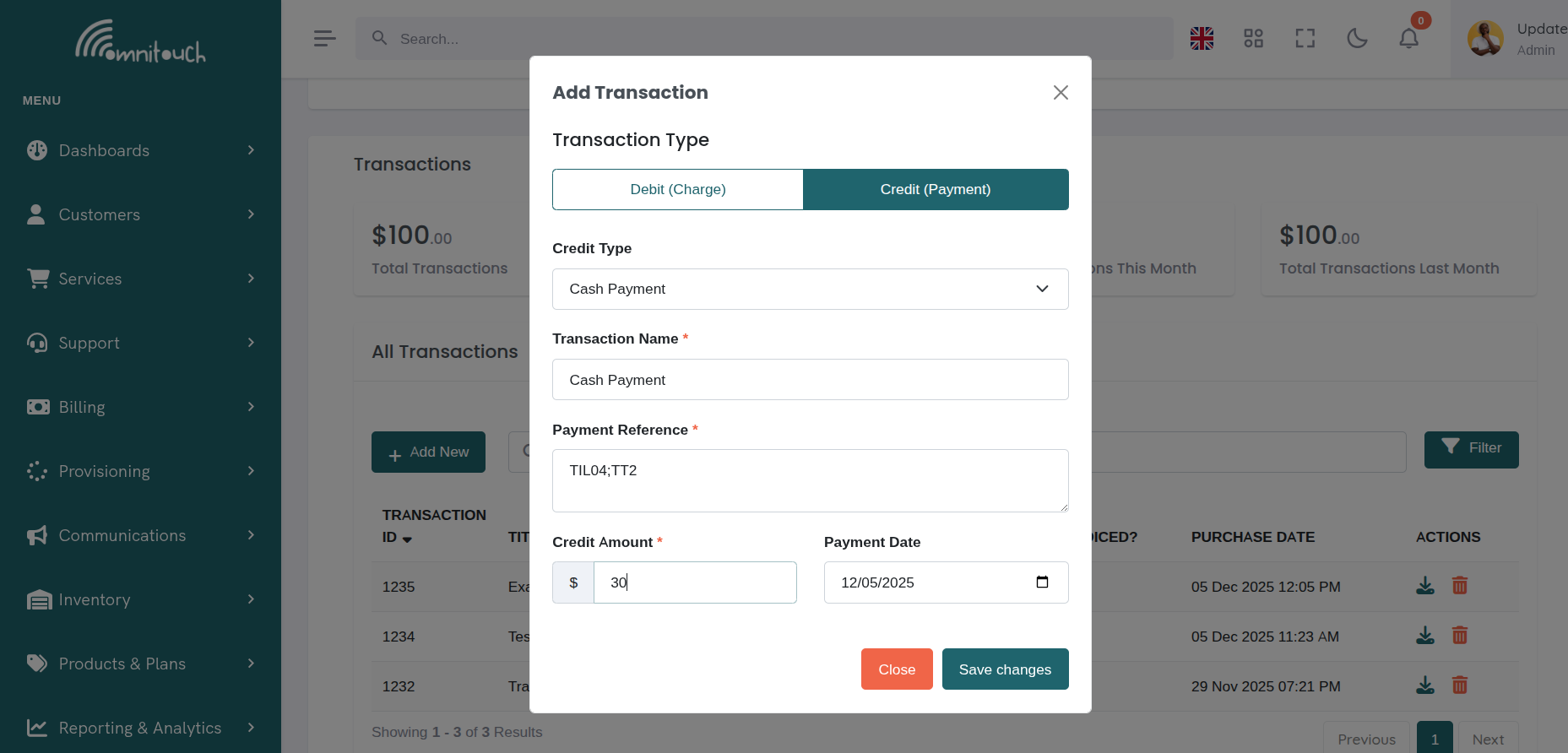 {.align-center
width="800px"}
{.align-center
width="800px"}
Field Descriptions:
- Transaction Type - Select Debit (charge) or Credit (payment/refund)
- Credit Type - If Credit selected, choose payment method (Cash, Card, Bank Transfer)
- Title - Short name for transaction (required)
- Description - Detailed explanation (optional)
- Retail Cost - Amount customer pays (required, positive number)
- Wholesale Cost - Your cost (optional, for margin tracking)
- Tax Percentage - Tax rate applied to this transaction (optional, defaults to product tax or 0%)
- Service - Link transaction to specific service (optional)
- Site - Link transaction to specific site (optional)
- Transaction Date - Date of transaction (defaults to today)
Validation:
- Title and retail cost are required
- Retail cost must be a positive number
- If Credit type selected, a credit type must be chosen
What Happens:
- Transaction created in database
- Appears in customer's transactions list
- Included in "Uninvoiced Transactions" count
- Available for inclusion in next invoice generation
- Activity log entry created
Searching and Filtering Transactions
Search
Use the search bar to find transactions. Searches across:
- Transaction ID
- Title
- Description
- Invoice ID
Filters
Apply filters to narrow transaction list:
Available Filters:
- Void Status - All, Void, Not Void
- Invoice Status - All, Invoiced, Not Invoiced
Filter Actions:
- Apply Filters - Apply selected filters to list
- Reset Filters - Clear all filters and show all transactions
Sorting
Click any column header to sort:
- ID - Sort by transaction ID (newest/oldest)
- Date - Sort by transaction date
- Title - Sort alphabetically
- Amount - Sort by retail cost (highest/lowest)
- Invoice - Sort by invoice ID
Click again to reverse sort direction (ascending ↔ descending).
Voiding Transactions
Transactions added in error can be voided (marked as deleted).
Requirements:
- Transaction must NOT be invoiced
- Once invoiced, transactions cannot be voided (must be refunded instead)
How to Void:
- Locate transaction in list
- Click actions menu (⋮)
- Select "Void Transaction"
- Confirm in modal
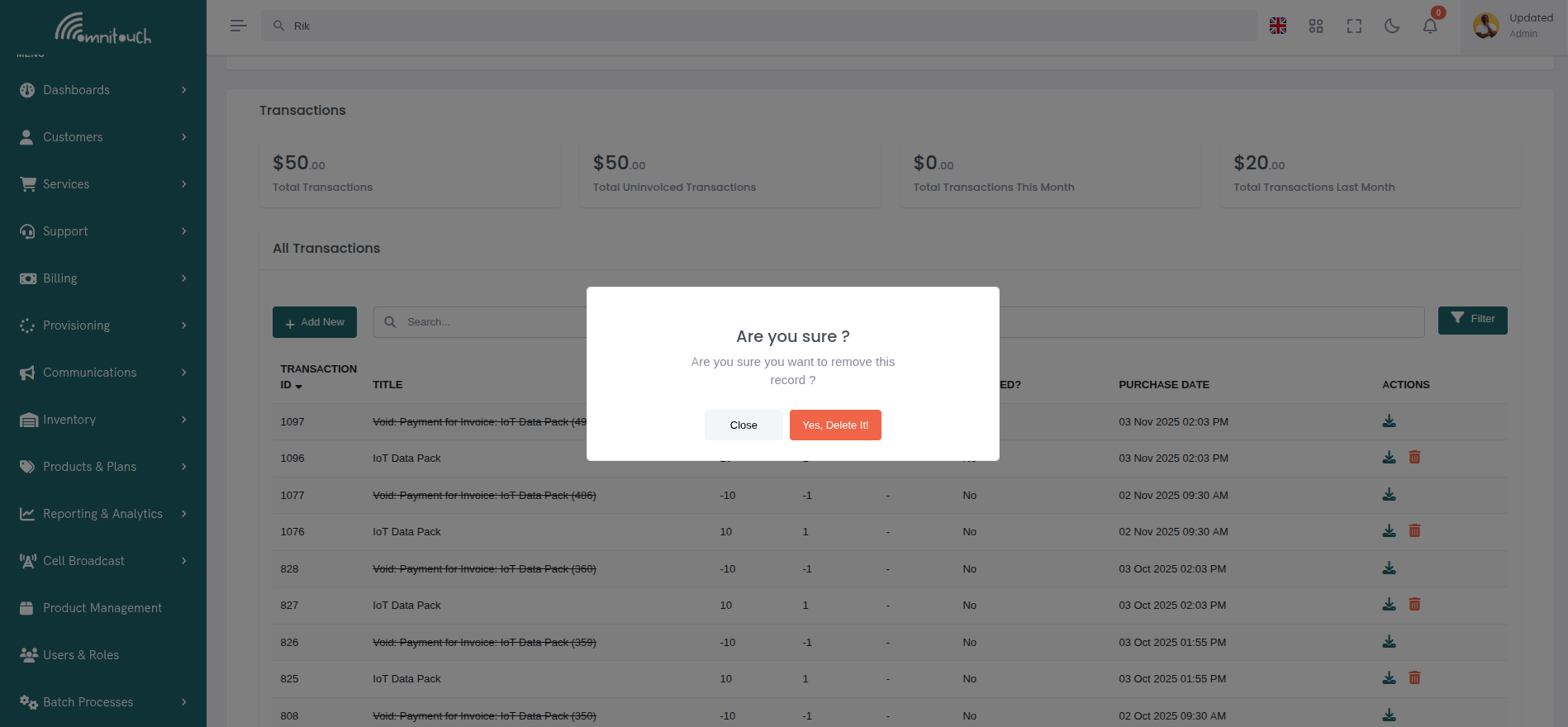 {.align-center
width="600px"}
{.align-center
width="600px"}
What Happens:
- Transaction marked as
void = true - No longer appears in default transaction list
- Excluded from invoice generation
- Can be viewed by filtering for "Void" transactions
- Deducted from "Uninvoiced Transactions" total
Note: Voiding is NOT the same as refunding. Void means "this transaction should never have existed." Refund means "reverse a valid transaction."
Tax on Transactions
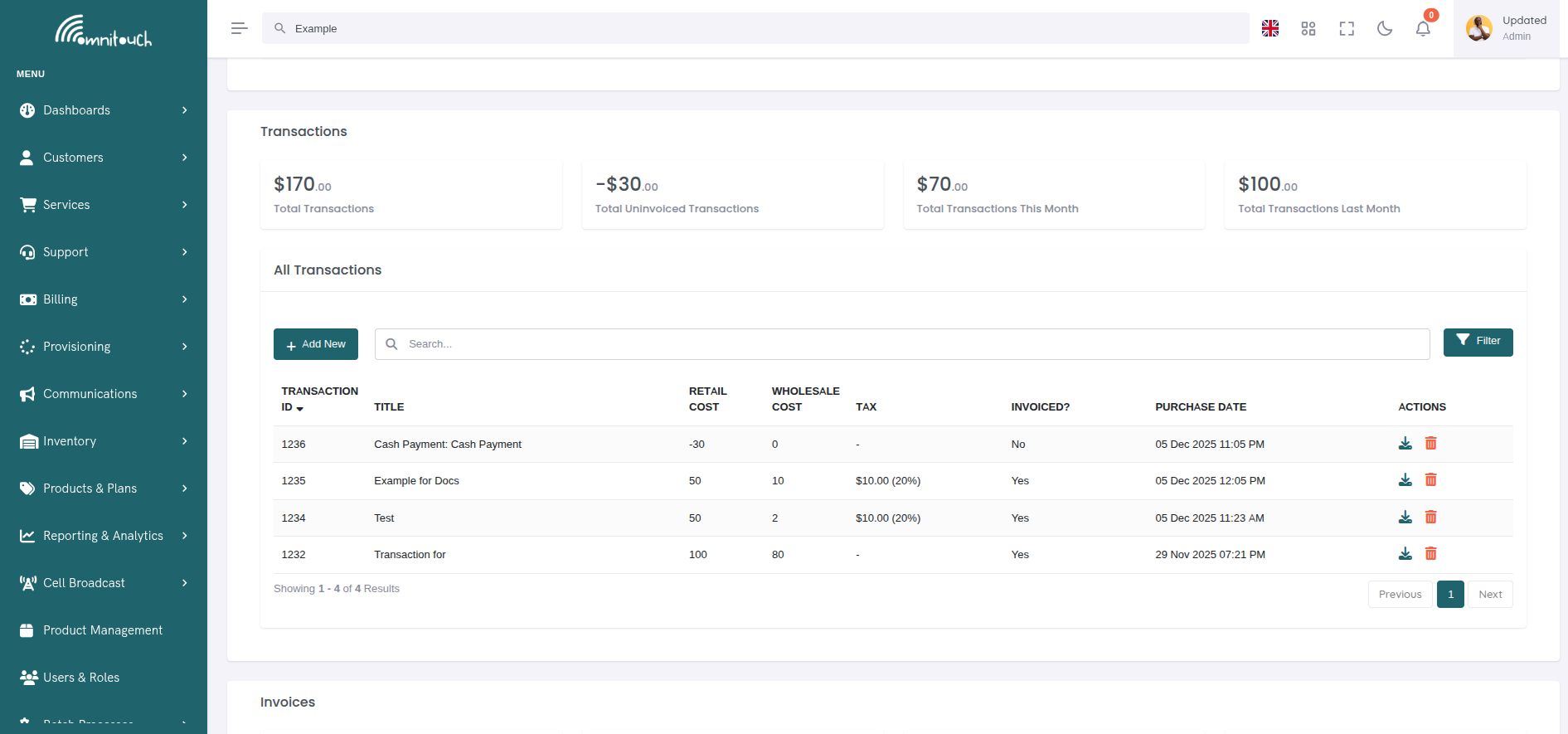
Transactions can include tax, which is automatically calculated based on the product's tax configuration or manually specified per transaction.
 {.align-center
width="800px"}
{.align-center
width="800px"}
Tax Behavior:
- Debit Transactions (Charges) - Tax is applied to charges based
on:
- Product Tax Percentage - If the transaction is linked to a product, the product's tax percentage is automatically applied
- Manual Override - Staff can override the tax percentage when creating a transaction
- Tax Amount - Calculated as:
retail_cost × (tax_percentage / 100) - Display Format - Shown as:
$10.00 (10%)in transaction lists
- Credit Transactions (Payments/Refunds) - No tax is applied to
credits
- Tax percentage field is hidden for credit transactions
- Tax is automatically set to 0% for all payments and refunds
- Credits reduce the customer's outstanding balance without tax implications
Tax Calculation Example:
- Product: Mobile Plan with 10% tax, $50.00 retail cost
- Automatic Tax Calculation: $50.00 × 0.10 = $5.00
- Display: $5.00 (10%)
Zero Tax (NIL/Exempt):
- Products can be tax-exempt by setting tax percentage to 0
- Tax defaults to 0% if not specified
- Tax-exempt transactions show "-" in the Tax column
 {.align-center
width="800px"}
{.align-center
width="800px"}
Transaction Details View
Click a transaction to view full details:
Invoiced vs Uninvoiced Transactions
Uninvoiced Transactions:
- Not yet included in any invoice
- Available for next invoice generation
- Can be voided
- Count toward "Uninvoiced Transactions" total
- Status shows dash (-)
Invoiced Transactions:
- Included in an invoice
- Cannot be voided (must refund if needed)
- Invoice ID clickable (links to invoice details)
- Status shows checkmark (✓)
- Cannot be modified
Invoice Generation:
When you generate an invoice for a customer:
- System finds all uninvoiced transactions for that customer
- Optionally filter by date range
- Transactions included in new invoice
- Transaction
invoice_idfield populated - Transaction now marked as "invoiced"
See payments_invoices for invoice
generation details.
Common Workflows
Workflow 1: Manual Credit for Service Outage
- Customer calls: "Service was down for 2 days"
- Staff decides to credit £10
- Navigate to customer Billing tab
- Click "+ Add Transaction"
- Select Credit transaction type
- Select Cash Payment credit type
- Enter title: "Service Outage Credit"
- Enter description: "Compensation for 2-day outage 8-9 Jan"
- Enter retail cost: 10.00
- Select affected service from dropdown
- Click "Add Transaction"
- Transaction appears with -£10.00 amount
- Will be included in next invoice as credit
Workflow 2: Manual Installation Fee
- Field tech installs service
- Staff needs to charge £75 installation fee
- Navigate to customer Billing tab
- Click "+ Add Transaction"
- Select Debit transaction type
- Enter title: "Installation Fee"
- Enter description: "Field technician visit for fiber installation"
- Enter retail cost: 75.00
- Enter wholesale cost: 45.00 (optional, for margin tracking)
- Select service installed
- Select site where installed
- Click "Add Transaction"
- Transaction appears in uninvoiced list
- Will be included in next invoice
Workflow 3: Voiding Duplicate Transaction
- Staff notices duplicate transaction
- Verify transaction NOT yet invoiced
- Click actions menu (⋮) on duplicate transaction
- Select "Void Transaction"
- Confirm in modal
- Transaction removed from list
- Uninvoiced total decreases accordingly
Workflow 4: Finding Transactions for Invoice
- Need to generate monthly invoice
- Click Invoice filter: "Not Invoiced"
- Click Apply Filters
- View all uninvoiced transactions
- Note total amount from widgets
- Navigate to generate invoice
- Select date range (e.g., 1-31 Jan)
- Transactions in range included in invoice
Troubleshooting
Cannot void transaction
- Cause: Transaction already invoiced
- Fix: Transaction is part of invoice history. If refund needed, create a Credit transaction instead.
Duplicate transactions appearing
- Cause: Service charged multiple times or provisioning error
- Fix: Void the duplicate transaction(s) if not invoiced. If invoiced, issue credit.
Transaction not appearing in list
- Cause: Filters applied or transaction voided
- Fix: Click "Reset Filters" to show all transactions. To see voided transactions, filter by "Void: Void".
Uninvoiced total doesn't match expected
- Cause: Some transactions already invoiced, or voided transactions excluded
- Fix: Apply filter "Invoice: Not Invoiced" to see only uninvoiced. Check voided transactions separately.
Cannot add transaction (customer field disabled)
- Cause: Viewing customer-specific transactions page
- Fix: Customer is pre-selected. If you need to add transaction for different customer, go to system-wide Transactions page.
Related Documentation
payments_invoices- Invoice generation and managementpayments_process- Processing payments against invoicesbasics_payment- Payment methods overviewcsa_activity_log- Viewing transaction history in activity log